Appearance
Choose the light Studio theme, the dark Graphite theme or follow your system, per browser and device.
Settings › Appearance controls how SmarterSEO looks for you: light, dark, or whatever your system is set to. The page header reads "How SmarterSEO looks for you. Shared reports and client pages use the branding settings instead."
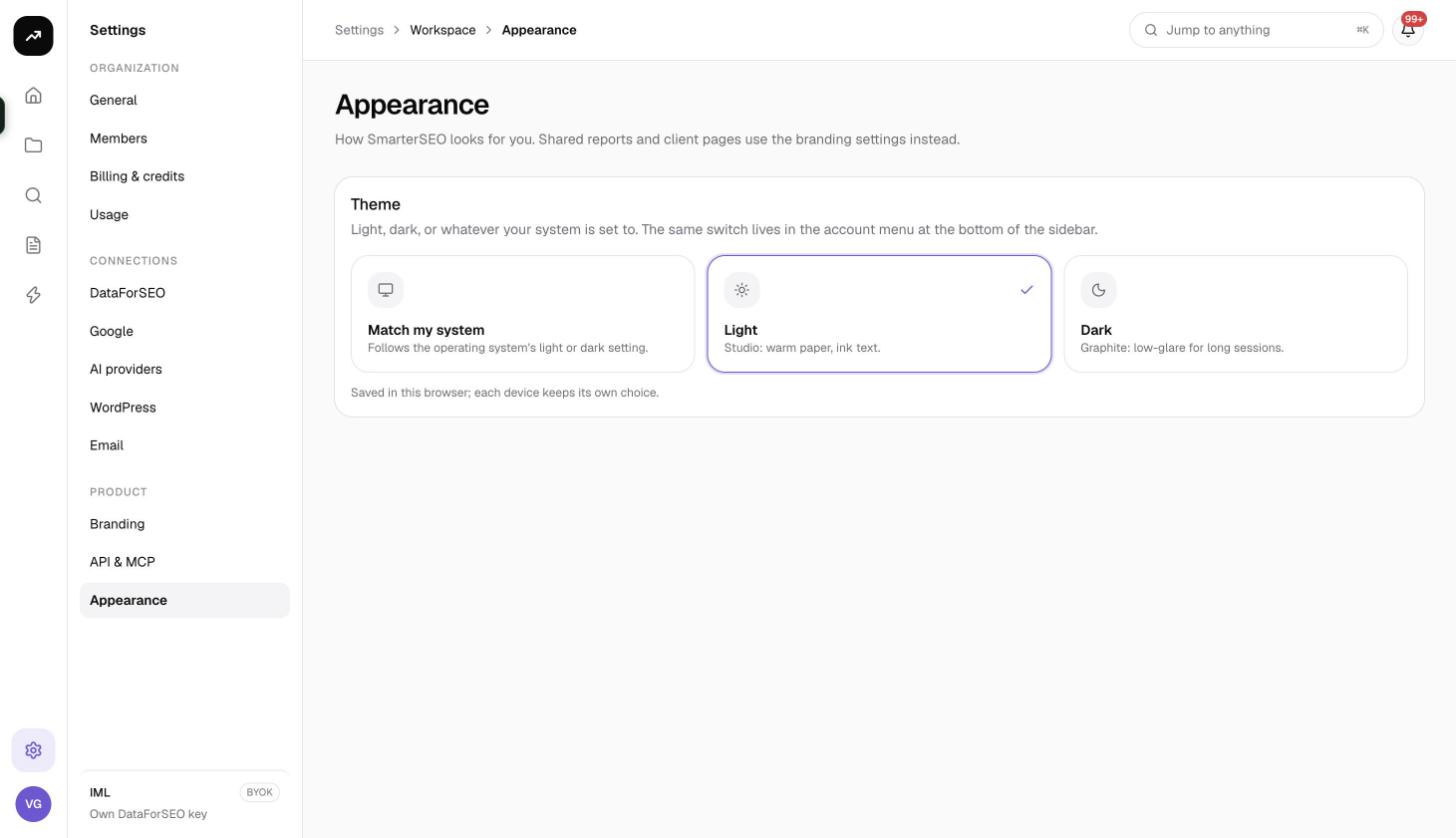
The three options
The Theme card ("Light, dark, or whatever your system is set to. The same switch lives in the account menu at the bottom of the sidebar.") offers:
| Option | Hint | What you get |
|---|---|---|
| Match my system | Follows the operating system's light or dark setting. | The app switches when your OS does, for example at sunset on macOS or Windows auto-dark schedules. The page shows "Your system is currently light" (or dark) so you know which theme is active. |
| Light | Studio: warm paper, ink text. | The default light theme, designed for daytime work and screenshots that print well. |
| Dark | Graphite: low-glare for long sessions. | A dark theme with muted contrast for evening work. |
Click an option to apply it immediately; there is no save button.
Per browser and device
The choice is stored in the browser you are using, not in your account. The page notes "Saved in this browser; each device keeps its own choice." That means:
- Your laptop and your phone can use different themes.
- Clearing site data or using a private window resets the choice to Match my system.
- Teammates are not affected. Theme is personal, whereas branding (below) is shared by the organization.
The switch in the account menu
You do not need the settings page to change theme. Open the account menu (your avatar at the bottom of the sidebar) and use the Appearance section with Light, Dark and System. It is the same setting.
Theme versus branding
Appearance only changes the app for you. Shared report pages that clients open always use the organization's branding: your brand name, logo, accent colour and footer line, set under Settings › Branding. Changing your theme never changes what a client sees. See White-label branding.
Tip: When taking screenshots for a client deck, switch to Light first. The Studio theme is designed to reproduce well on white slides and paper.