Navigating the app
The icon rail, the section sidebar, Jump to anything (⌘K), the notifications bell, the account menu and breadcrumbs.
SmarterSEO has a fixed layout: a narrow icon rail on the left with six areas, a sidebar that changes with the area you are in, and a top bar with breadcrumbs, search and notifications. Once you know these three pieces you can reach any page in two clicks or one keyboard shortcut.
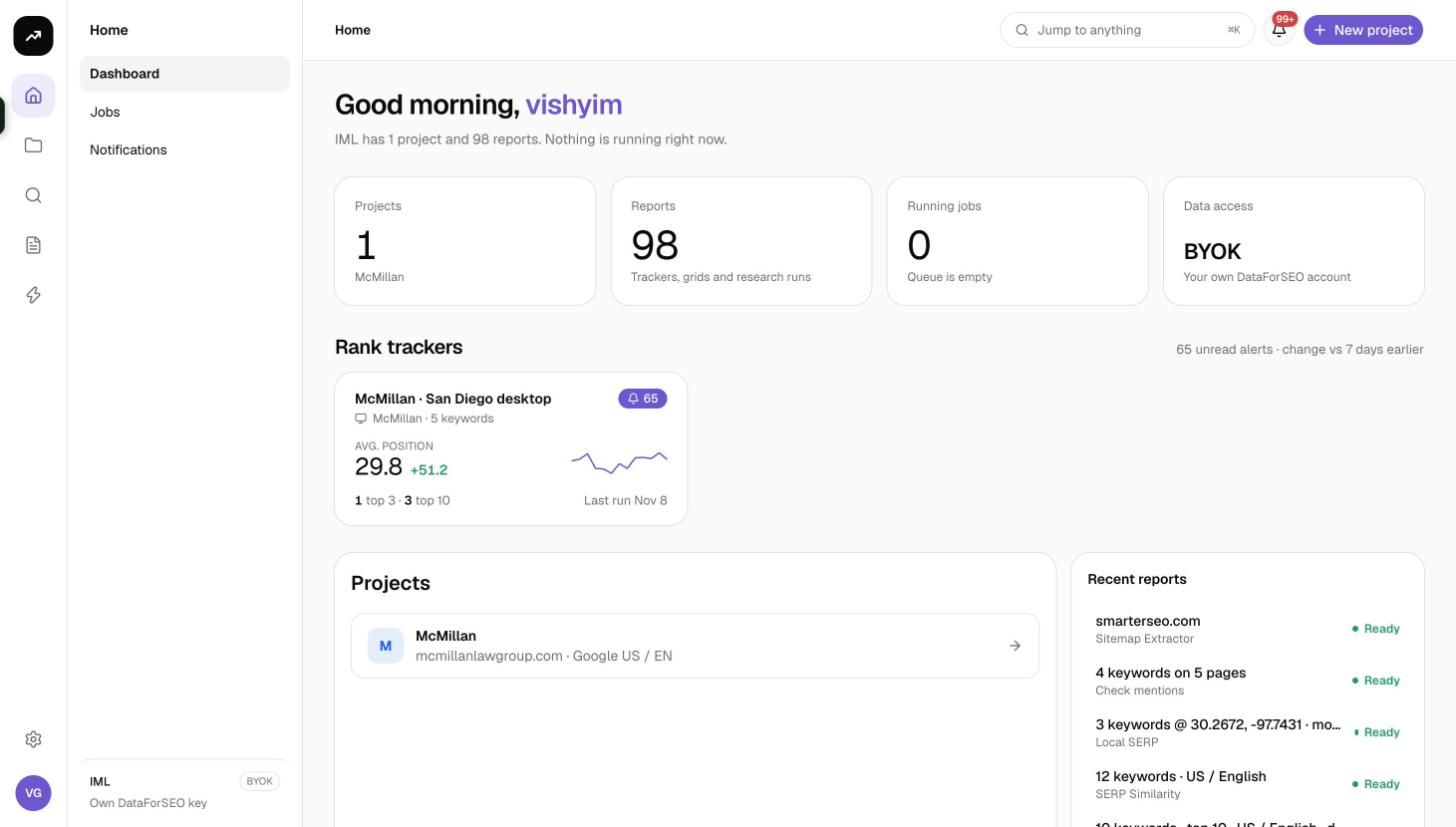
The icon rail
The rail is the thin column at the far left. The logo at the top returns to Home. Below it are six icons, one per area:
| Icon | Area | What you find there |
|---|---|---|
| House | Home | Dashboard, Jobs, Notifications |
| Folder | Projects | All projects, and the project menu once you open one |
| Magnifier | Research | Every research tool, grouped by Keywords, Competitors, Backlinks, SERP, Technical and AI search |
| Document | Reports | Every tool run and tracker, filtered by kind |
| Bolt | Automations | Automations and Run history |
| Cog | Settings | Organization, Connections and Product settings |
The highlighted icon tells you which area you are in. Jobs and Notifications belong to Home, so opening either highlights the house icon.
At the bottom of the sidebar you will find the account menu (your avatar) and a small card showing the organization's data mode: a Credits badge with the credit balance, or a BYOK badge with "Own DataForSEO key" on the lifetime license.
The section sidebar
Next to the rail, the sidebar lists the pages of the current area.
- Home: Dashboard, Jobs, Notifications.
- Projects: All projects. Inside a project the sidebar becomes the project menu, with a Switch project control at the top and groups for Overview, Rank tracking (Organic, Search Console rankings, Local grids, AI search), Search Console (Performance, Indexing, Cannibalization, SEO tests, Internal links), Analytics (Landing pages), Local (Reviews, Citations), Content (Outlines, Metadata) and Project (Connections, Client sharing, Automations, Settings).
- Research: Keywords (Keyword Explorer, Bulk metrics, Autocomplete, People also ask, Clustering, Saved lists), Competitors (Traffic analytics, Content gap, Bulk analysis), Backlinks (Profile, Backlink gap), SERP (Extractor, Similarity, Local SERP (UULE), Ads vision), Technical (Sitemap extractor, Log files, IndexNow, Check mentions) and AI search (AI visibility).
- Reports: All reports, Rank trackers, Keywords, Competitors, Backlinks, SERP, Technical, AI search, Archived.
- Automations: Automations, Run history.
- Settings: Organization (General, Members, Billing & credits, Usage), Connections (Google, AI providers, WordPress, Email, plus DataForSEO on the lifetime license), Product (Branding, API & MCP, Appearance).
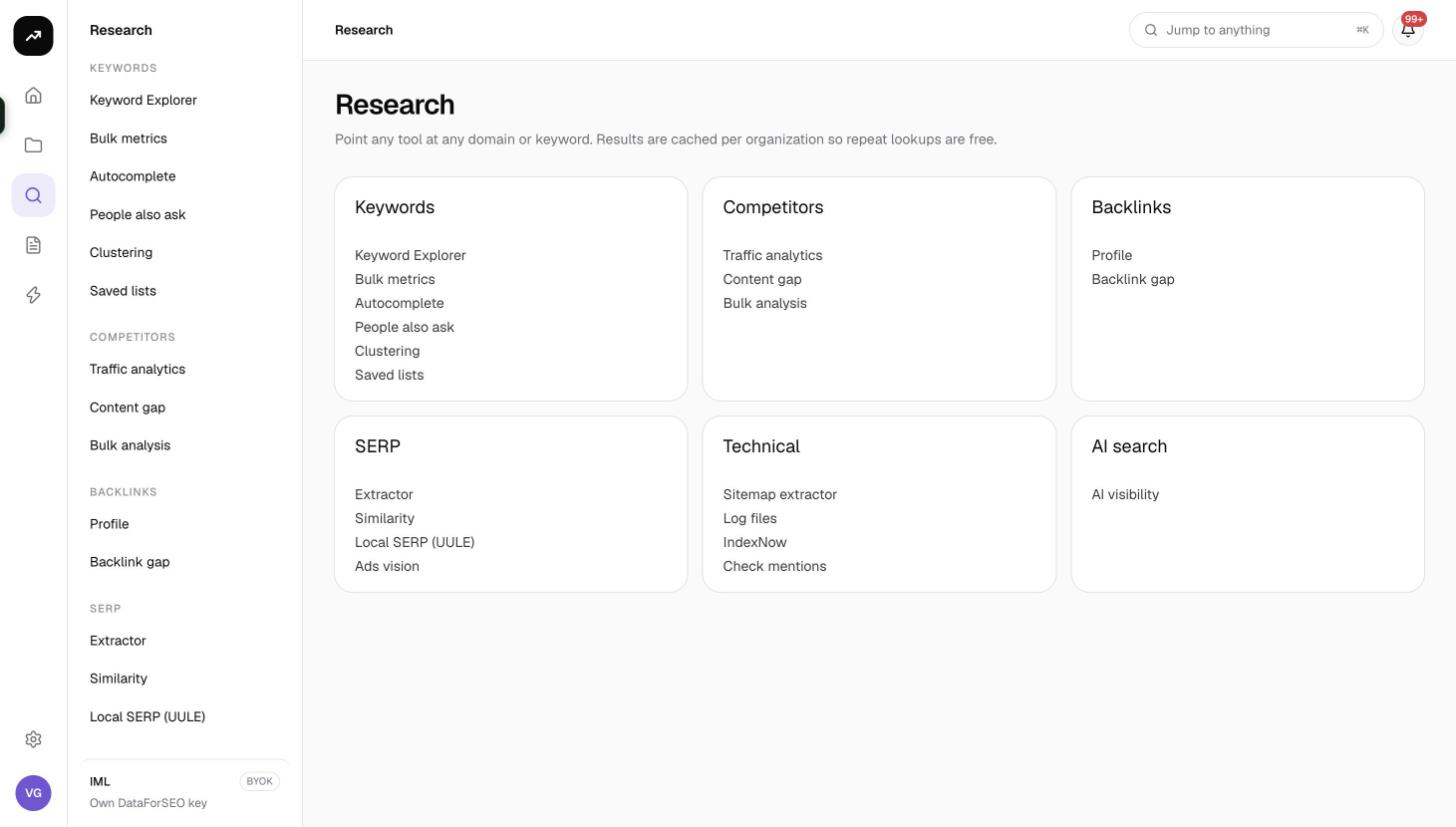
The top bar
Breadcrumbs
The left side of the top bar shows where you are, for example Research › Keywords › Keyword Explorer or Settings › Workspace › Appearance. Each earlier crumb is a link, so you can step back up without using the sidebar. Page actions such as New project sit at the right edge of the same bar.
Jump to anything (⌘K)
The search field in the top bar reads Jump to anything with the shortcut ⌘K (Ctrl+K on Windows and Linux). Press it from any page or click the field to open the command palette. Its placeholder reads "Jump to a project, tool, report or setting…" and results are grouped as:
- Go to: the six areas.
- Projects: every project's overview. When you have exactly one project, its whole menu is listed too, so "Cannibalization" or "Client sharing" is one keystroke away.
- Research tools: every tool with its group.
- Settings: every settings page.
Type part of a name, use the arrow keys and press Enter. "No results." means nothing matched. Press ⌘K again or Escape to close.
Notifications bell
The bell opens the Notifications page. A red counter shows how many notifications are unread (it caps at 99+) and updates live while you work, so you see a finished run without refreshing. See Jobs, reports and notifications.
The account menu
Click your avatar at the bottom of the sidebar. The menu shows your name and email, then:
- Organization: every organization you belong to; click one to switch. New organization creates another. See Workspaces and organizations.
- Shortcuts to Settings, Members and Billing & credits.
- Appearance: Light, Dark or System. The same choice is on the Appearance settings page; see Appearance.
- Sign out.
Home, Reports and Projects at a glance
Home greets you by name and summarises the organization: "{Org} has N projects and N reports. Nothing is running right now." Four tiles follow: Projects, Reports ("Trackers, grids and research runs"), Running jobs ("Queue is empty" or "See Jobs for progress") and Credit balance ("Top up under Billing & credits"), or Data access on the lifetime license. If you have rank trackers, a Rank trackers section shows each one with its average position and 7-day change. Below are your first five projects and six Recent reports, with links to All reports and Jobs.
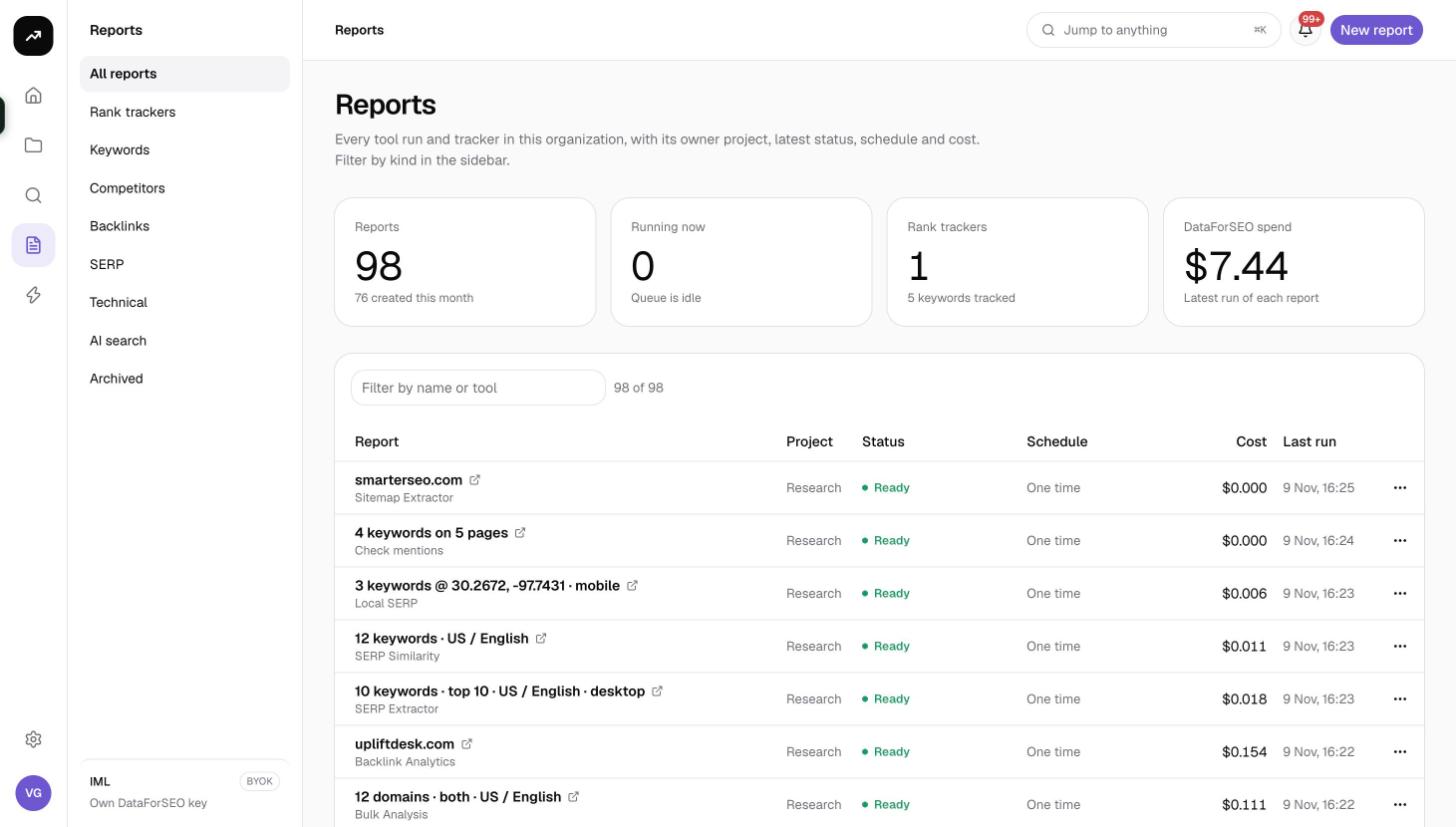
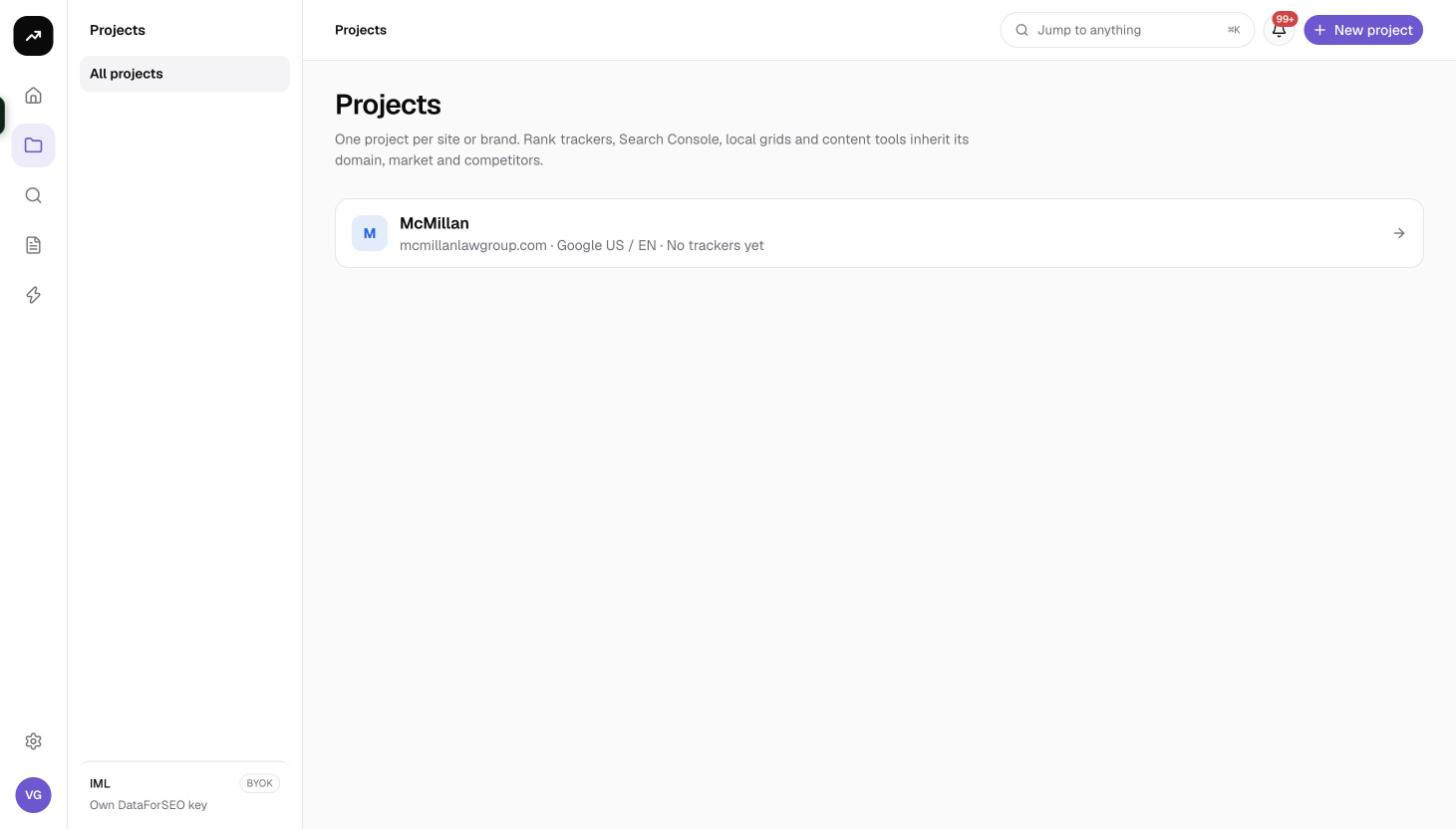
Reports is the cross-project list of everything that has produced results, with a sidebar filter by kind. Projects lists every project as a card, with archived projects in their own section.
On a phone
On narrow screens the rail and sidebar fold into a menu button at the left of the top bar, and the search field becomes a magnifier icon. Everything else works the same.