WordPress drafts
Connect a WordPress site with an application password and send content outlines to it as draft posts. SmarterSEO never publishes.
Connect the WordPress sites you publish on and content outlines can be sent to them as draft posts in one click, with the meta title as the post title, the meta description as the excerpt and the heading structure as the body. SmarterSEO only ever creates drafts; nothing is published without you.
What it does
The connection uses the WordPress REST API with an application password, stored encrypted. Because it works at the API level, it needs no plugin on the site. The only thing SmarterSEO does with the connection is create posts with the status "draft"; it does not read, edit or publish anything else.
Cost: Free. Connecting a site and creating drafts uses no credits.
Before you start
- You need the Owner or Admin role to connect or remove a site.
- The WordPress user whose application password you use needs Editor or Administrator rights so it can create posts.
- The site must have the REST API enabled (it is on by default) and not blocked by a security plugin.
- Application passwords are available in WordPress 5.6 and later and require the site to be served over HTTPS.
Creating an application password in WordPress
- Sign in to WordPress and open Users › Profile (or edit the user you want SmarterSEO to post as).
- Scroll to Application Passwords, enter a name such as "SmarterSEO" and click Add New Application Password.
- Copy the generated password now. WordPress shows it only once; spaces inside it do not matter.
Connecting the site
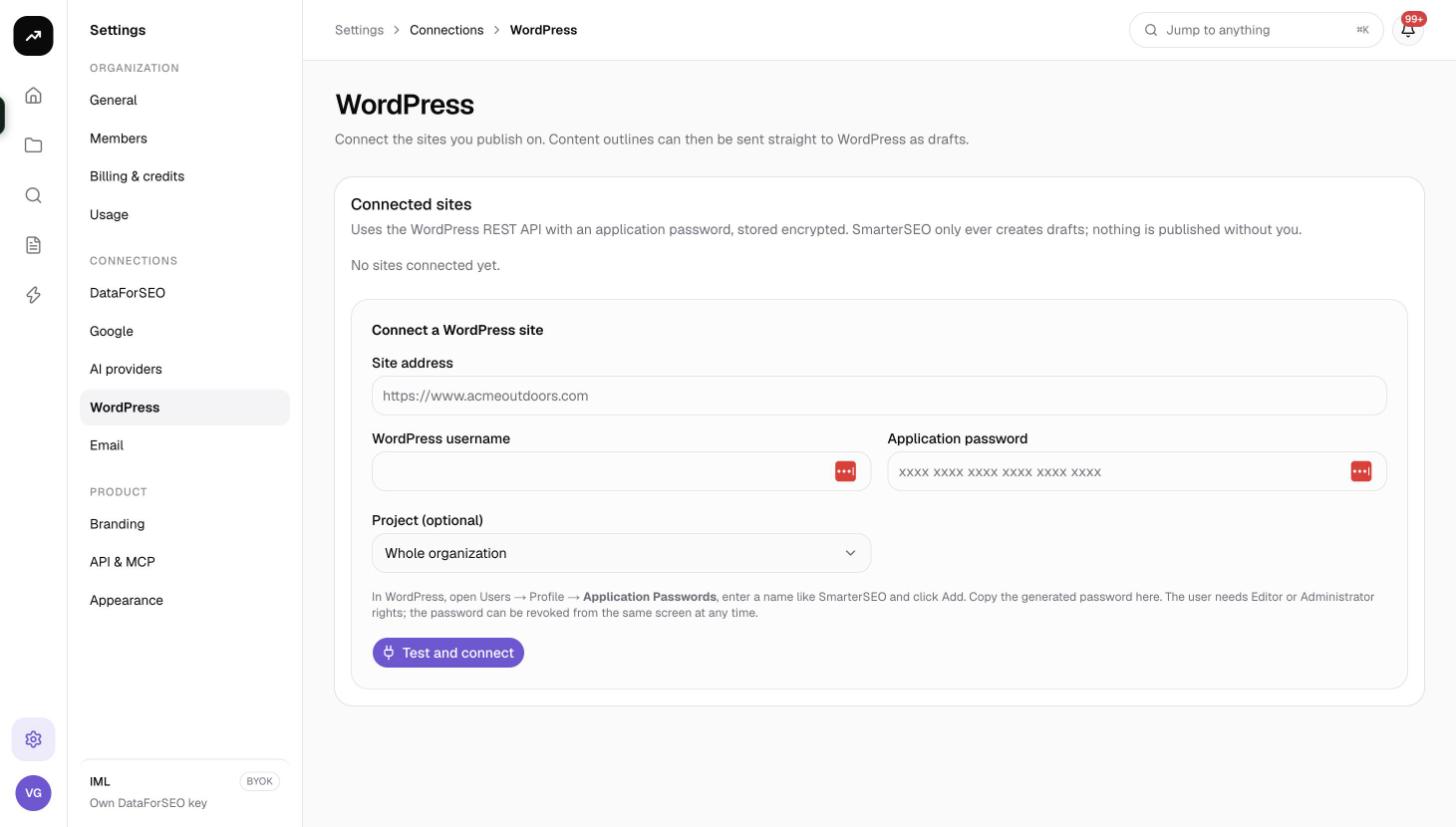
- In SmarterSEO open Settings › Connections › WordPress. The page reads "Connect the sites you publish on. Content outlines can then be sent straight to WordPress as drafts."
- Fill in the form:
| Field | What to enter |
|---|---|
| Site address | The site's URL, for example https://www.example.com. |
| WordPress username | The user the application password belongs to. |
| Application password | The password generated above. |
| Project (optional) | Limit the site to one project, or leave Whole organization so every project's outlines can use it. |
- Click Test and connect. The button reads Checking… while SmarterSEO calls the site's REST API with the credentials and confirms the user can create posts.
Errors you may see
| Message | What to do |
|---|---|
| "That user cannot create posts. Use an Editor or Administrator account." | The user is a Subscriber, Contributor or Author. Use a different account or raise the role. |
| "Not accepted: … Check the username and the application password." (401) | Wrong username or password. Generate a new application password and paste it carefully. |
| "Forbidden: … The user needs edit rights, or a security plugin blocks the REST API." (403) | The request reached WordPress but was blocked. Check the role, then look at security plugins (Wordfence, iThemes and similar) for REST API restrictions and allow application-password authentication. |
| "… Is the REST API enabled?" | The site answered with something other than JSON, usually a login page, a maintenance page or an HTML error. Check https://your-site/wp-json/ loads in a browser. |
| "That site is already connected." | The same address is already in the list. Use Test on the existing row or remove it first. |
Managing connected sites
Under Connected sites each row shows the site, its status (Connected, Failing or Unverified), "as {user} · checked {time}" and two buttons:
- Test re-checks the credentials and refreshes the status. Use it after changing the user's role or a security plugin.
- Remove disconnects the site. The confirmation reads "Disconnect …? Nothing on the site is changed." The application password stays valid in WordPress until you delete it there.
Sending an outline as a draft
- Open a content outline in the project and finish My outline: headings, notes, Meta title and Meta description. See Content outlines.
- Click Save outline. The WordPress draft button stays disabled with the hint "Save the outline first" while there are unsaved changes.
- If more than one site is available to the project, pick it in the WordPress site selector.
- Click WordPress draft. The button reads Sending…, then the confirmation "Draft created on {site}." appears with a link to the post's edit screen in WordPress.
What lands in WordPress:
- Post title: the outline's meta title.
- Excerpt: the meta description.
- Content: the outline as HTML, headings at their H2 to H4 levels with any notes beneath them.
- Status: Draft.
Which sites appear in the selector depends on the Project setting of each connection: sites scoped to Whole organization appear in every project; a site scoped to one project appears only there.
Tips and gotchas
Tip: Create a dedicated WordPress user named after SmarterSEO with the Editor role. Drafts then show who created them, and revoking access is a single application-password deletion.
Note: WordPress is used only from content outlines. Automations have no WordPress action, and metadata audit suggestions are not pushed to WordPress; use the audit's CSV export for those.
- If a site shows Failing, the usual causes are a deleted application password, a changed user role or a newly installed security plugin. Click Test for the exact message.
- Draft only: the connection cannot publish, schedule or edit existing posts, by design.