Usage and history
Read the Credit history ledger on the billing page and the per-call Usage page, including cache hit rate, cost per call and the by-action breakdown.
Two pages show where your credits go. Credit history on the Billing & credits page is the ledger: every grant, purchase, refund and run, with the running balance. Usage is the detail: every single data call this month, what it cost, and whether the cache answered it. Use the first to reconcile your balance and the second to see which tools and trackers are spending.
Credit history
Open Settings → Billing & credits and scroll to the Credit history card. Its description reads "Grants, purchases and usage. Per-call detail is under Usage."
| Column | What it shows |
|---|---|
| When | Date and time of the entry. |
| Type | One of the types below. |
| Description | What the entry was for, such as "Growth plan · monthly credits", "Free plan · monthly credits", a pack name, or the tool and run summary. |
| Credits | Positive for additions, negative for debits. Debits are recorded to four decimal places because they are measured, not rounded to the estimate. |
| Balance | The balance after this entry. |
Entry types
| Type | Meaning |
|---|---|
| Plan credits | Credits granted by your plan: the monthly allowance at renewal, the Free top-up, or the difference added when you upgrade. |
| Usage | A run that fetched data. One entry per run, debited when the run completes. |
| Purchase | A credit pack bought in the checkout, or a credit code redeemed. |
| Refund | Credits reversed after a refund was approved in the payment provider. |
| Expired | Credits removed because they expired. Plan and pack credits currently do not expire, so you should not normally see this. |
| Adjustment | A manual correction made by the platform team, for example a goodwill grant. |
Tip: If the balance in the tile does not match what you expected, read the Balance column from the bottom up. Each row shows the balance after it, so the first row where it diverges from your expectation is the one to look at.
The Usage page
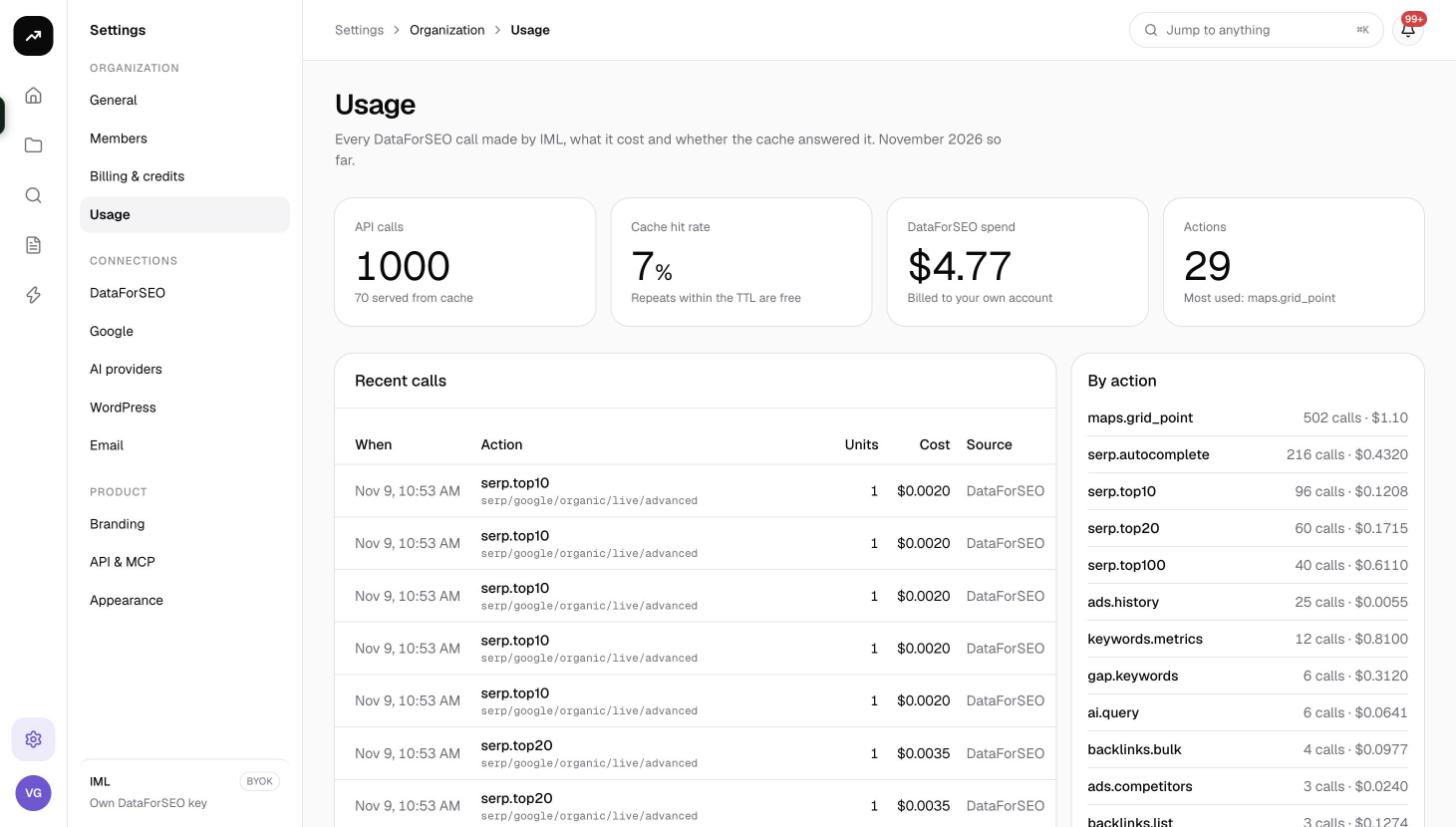
Open Settings → Usage. The header reads "Every data call made by {Org}, the credits it used and whether the cache answered it. {Month} so far." The page covers the current calendar month.
Tiles
| Tile | What it shows |
|---|---|
| API calls | How many data calls were made this month, with "N served from cache" underneath. |
| Cache hit rate | The share of calls answered from the cache, with the hint "Repeats within the TTL are free". A high rate means you are repeating lookups inside their cache window and paying for few of them. |
| Credits used | Credits debited this month, with "N remaining" showing the current balance. |
| Actions | How many different action types you used, with "Most used: {action}". |
Recent calls
The Recent calls table lists individual calls, newest first:
| Column | What it shows |
|---|---|
| When | Date and time. |
| Action | The data action, such as the organic SERP depth, keyword metrics, backlinks summary or an AI answer. These are the same actions priced in Credit costs by tool. |
| Units | How many units the call covered: keywords, requests, grid points, reviews. |
| Credits | The measured charge for the call. 0 when it came from the cache. |
| Source | Cache or Live. |
Reading cost per call: divide Credits by Units to get the effective price per unit and compare it with the price list. A live top-10 SERP for 20 keywords should show about 12 credits; a cached one shows 0. If a live call shows a different per-unit price than the list, that is the measured cost differing from the estimate, which is normal within a small margin.
By action
The By action card sums the month per action type: "{N} calls · {credits} cr". It is the quickest way to see whether your spend is going to rank tracking SERPs, keyword metrics requests, AI answers or something else, and therefore which schedule or tool to adjust if you want to cut it.
If nothing has run this month the page shows "No usage yet" with "Run a research tool or a tracker and every call will show up here with its cost."
Where else costs appear
- Jobs shows each job's credits (or "~N" while it is still an estimate) and the job log notes lines such as "Served N keywords from cache". See Jobs, reports and notifications.
- Reports lists every tool run and tracker with its credits and a Credits used tile.
- Every results page shows N credits for this run under the form.
- Rank tracker, grid and AI tracker pages show the cost of each snapshot; these are hidden on client share pages.
Differences on the lifetime license
In bring-your-own-key mode the data calls are billed to your own account with the data provider, so the pages change accordingly:
- The Usage header names the provider and reads "Every … call made by {Org}, what it cost and whether the cache answered it."
- The Credits used tile is replaced by a provider spend tile ("Billed to your own account").
- The Credits column becomes Cost in dollars, and Source reads Cache or the provider's name instead of Live.
- By action sums in dollars.
- Credit history still exists, but only AI features paid with pack credits appear there as Usage, alongside Purchase rows for the packs.
See Bring your own key.