Jobs, reports and notifications
How the Reports page, the Jobs page and the Notifications page fit together, with every tile, column, status and row action.
Every tool run and every scheduled check in SmarterSEO goes through the same three pages. Reports is the catalogue of everything that has produced results. Jobs is the live queue, with progress and logs. Notifications tells you when something finished, failed or needs attention. All three cover the whole organization, not just your own work.
How a run works
- You submit a tool form or a schedule comes due. The app checks your role (viewers see "Viewers can't run tools."), then checks credits: "This run needs X credits; the organization has Y." blocks the run if the balance is too low.
- A report row is created, named after the run (for example "12 keywords · US / English"), and a job is queued. The browser moves to the permanent results link for that job.
- The job collects data. The results page shows "Collecting…" with a percentage and updates automatically; you can leave and come back.
- When the job finishes you get an in-app notification, and the results page shows "N credits for this run".
Reports
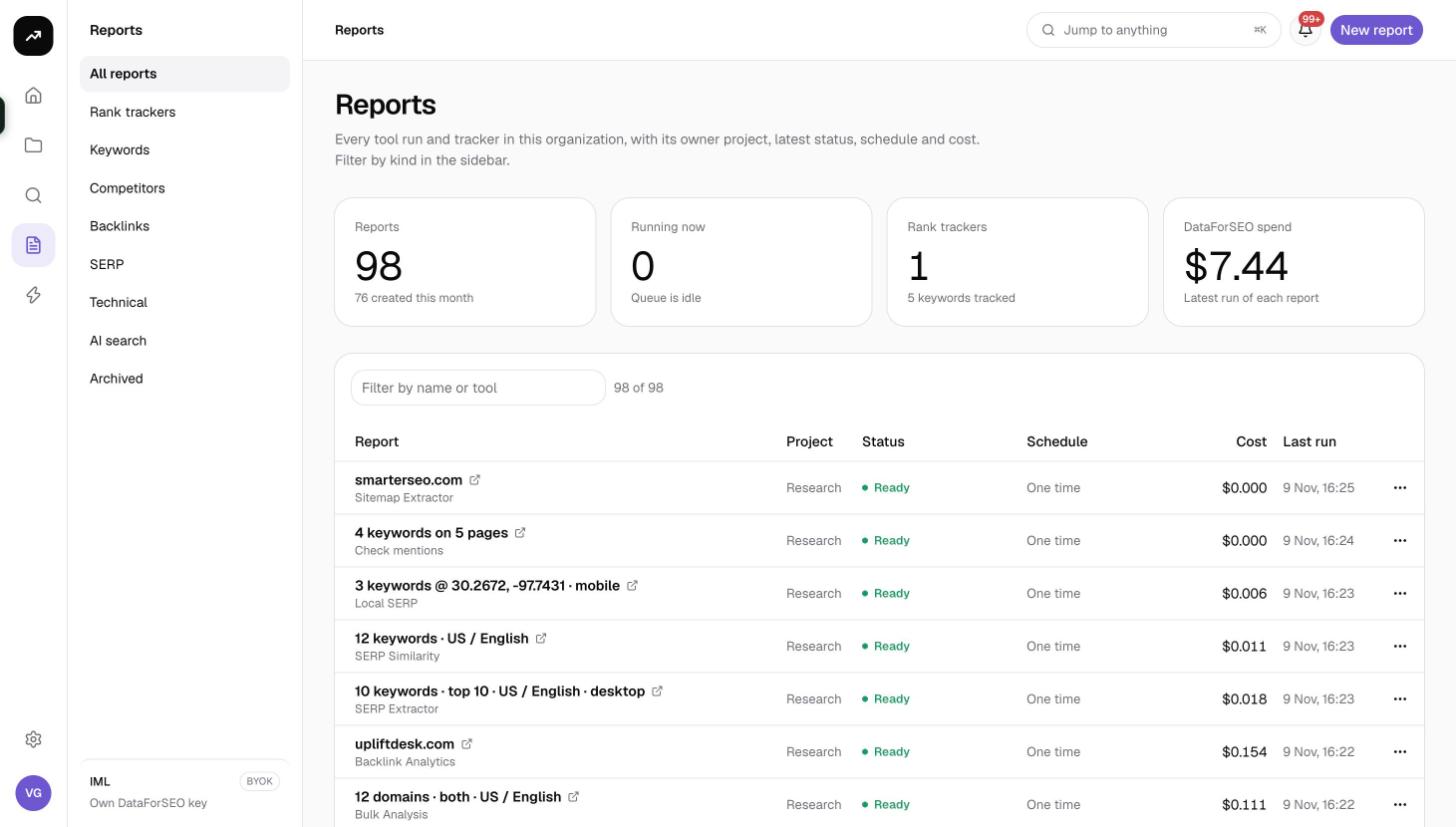
Reports reads "Every tool run and tracker in this organization, with its owner project, latest status, schedule and cost. Filter by kind in the sidebar." The New report button takes you to the Research hub.
Groups
The sidebar filters by kind: All reports, Rank trackers, Keywords, Competitors, Backlinks, SERP, Technical, AI search and Archived. Log file reports and IndexNow sites appear under Technical. An empty group reads "No {group} yet" with "Run any research tool or create a rank tracker and it appears here." and an Open research tools link. The empty archive reads "No archive yet" with "Archive a report from its row menu and it is kept here, results included."
Tiles
- Reports: total count.
- Running now: "Live progress under Jobs" when something is collecting, "Queue is idle" otherwise.
- Rank trackers: with "N keywords tracked".
- Credits used (or DataForSEO spend on the lifetime license).
Table
Use Filter by name or tool and the All projects dropdown to narrow the list. Columns:
| Column | Contents |
|---|---|
| Report | Name (links to the latest run), type label and keyword count where relevant |
| Project | The owner project, or "Research" for runs made from the hub |
| Status | "Archived", "Paused", or the latest job status |
| Schedule | "One time" for research tools; trackers show their cadence and "Next …" |
| Credits (or Cost) | What the latest run cost |
| Last run | When it last ran |
Row menu
- Open the latest results.
- Rename the report.
- Archive stops it running but keeps its results: "Archived reports keep their results but no longer run. Restore one to bring it back." Archived reports show Restore instead.
- Delete… removes it for good (owners and admins only): "The run's results are removed. This can't be undone." For trackers: "The tracker, its keywords, every snapshot and its alerts are removed."
Viewers can open reports but not change them.
Jobs
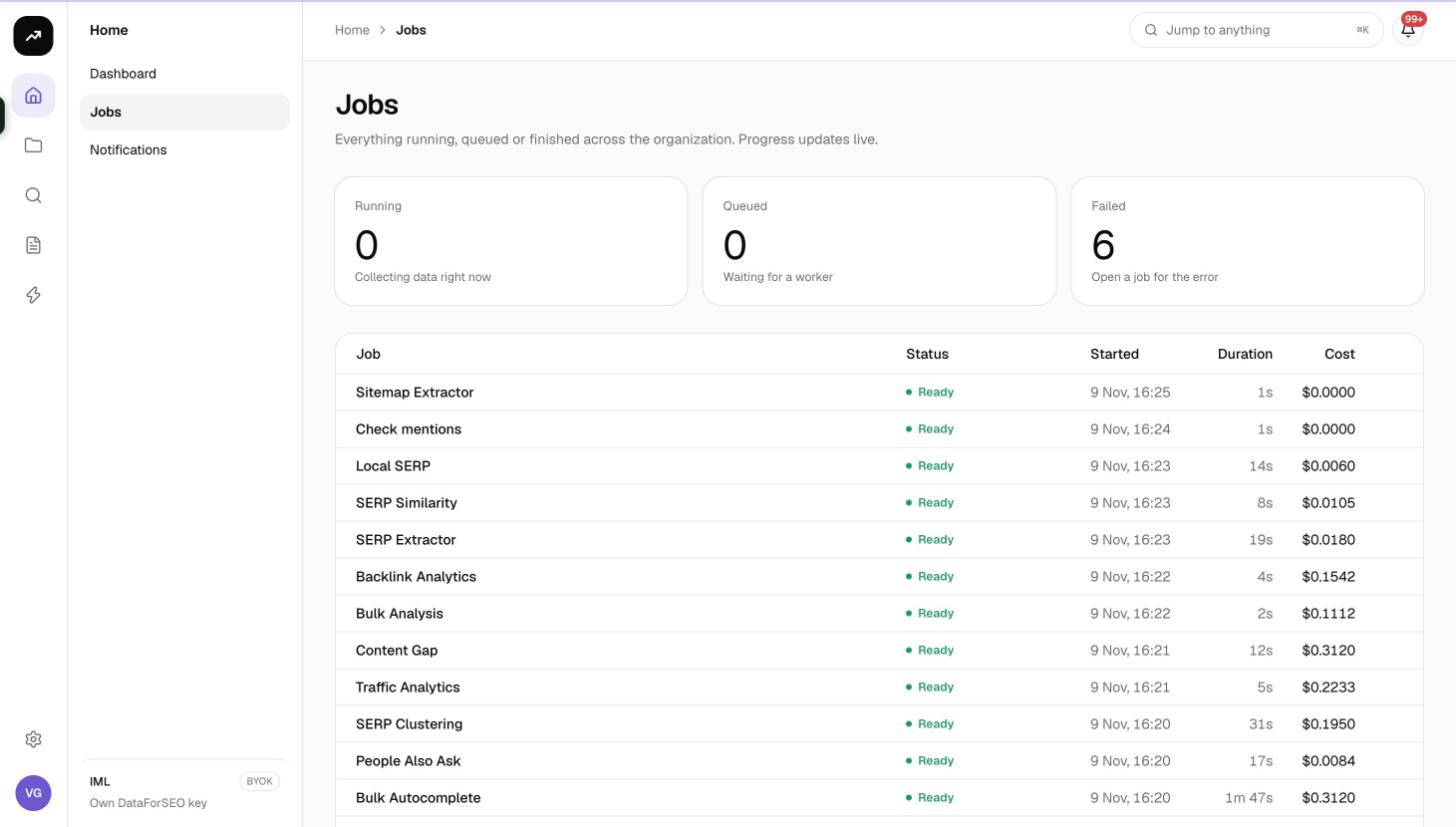
Jobs reads "Everything running, queued or finished across the organization. Progress updates live."
Tiles
- Running: "Collecting data right now".
- Queued: "Waiting for a worker".
- Failed: "Open a job for the error", or "Nothing needs attention".
Table
Columns are Job, Status, Started, Duration and Credits (or Cost in dollars on the lifetime license). Before a job finishes the credits column shows an estimate such as "~12". The empty state reads "No jobs yet" with "Run a research tool or start a tracker and it shows up here with live progress."
Statuses
| Badge | Meaning |
|---|---|
| Queued | Waiting for a worker. Scheduled runs queue behind manual ones. |
| Collecting | Running, with a percentage and a label such as "37 of 100 SERPs". |
| Ready | Finished; results are available. |
| Failed | Gave up after its attempts, or hit an error that is never retried. |
| Paused | Cancelled before it started. |
Only queued jobs can be cancelled: click the × (Cancel job) on the row. Once a job is collecting it runs to completion or failure.
Retries
Retries are automatic; there is no retry button. A job gets up to 3 attempts, with a growing delay between them (30 seconds, then 60, up to 15 minutes). Errors that will not change are never retried: not enough credits, the daily spend cap on the lifetime license, invalid credentials, or a permanent rejection by the data provider. If the worker keeps timing out, the job ends with "Gave up after repeated worker timeouts." Failed and cancelled runs bill only what was actually fetched.
Job detail
Open a job for its live status (with "attempt N" while retrying) and a View results button once it succeeds. The Details card lists Job id, Kind, Attempts ("N of 3"), Started, Finished, Credits ("~N estimated" until done) and Worker. The Log card shows timestamped lines by level (DEBUG, INFO, WARN, ERROR) such as "Served N keywords from cache" or "Failed, retrying in 30s: …", paginated; "No log lines yet." appears before the first attempt starts.
Tip: When a run fails, the log usually names the cause. Credit and credential failures are reported immediately; everything else will have retried first.
Notifications
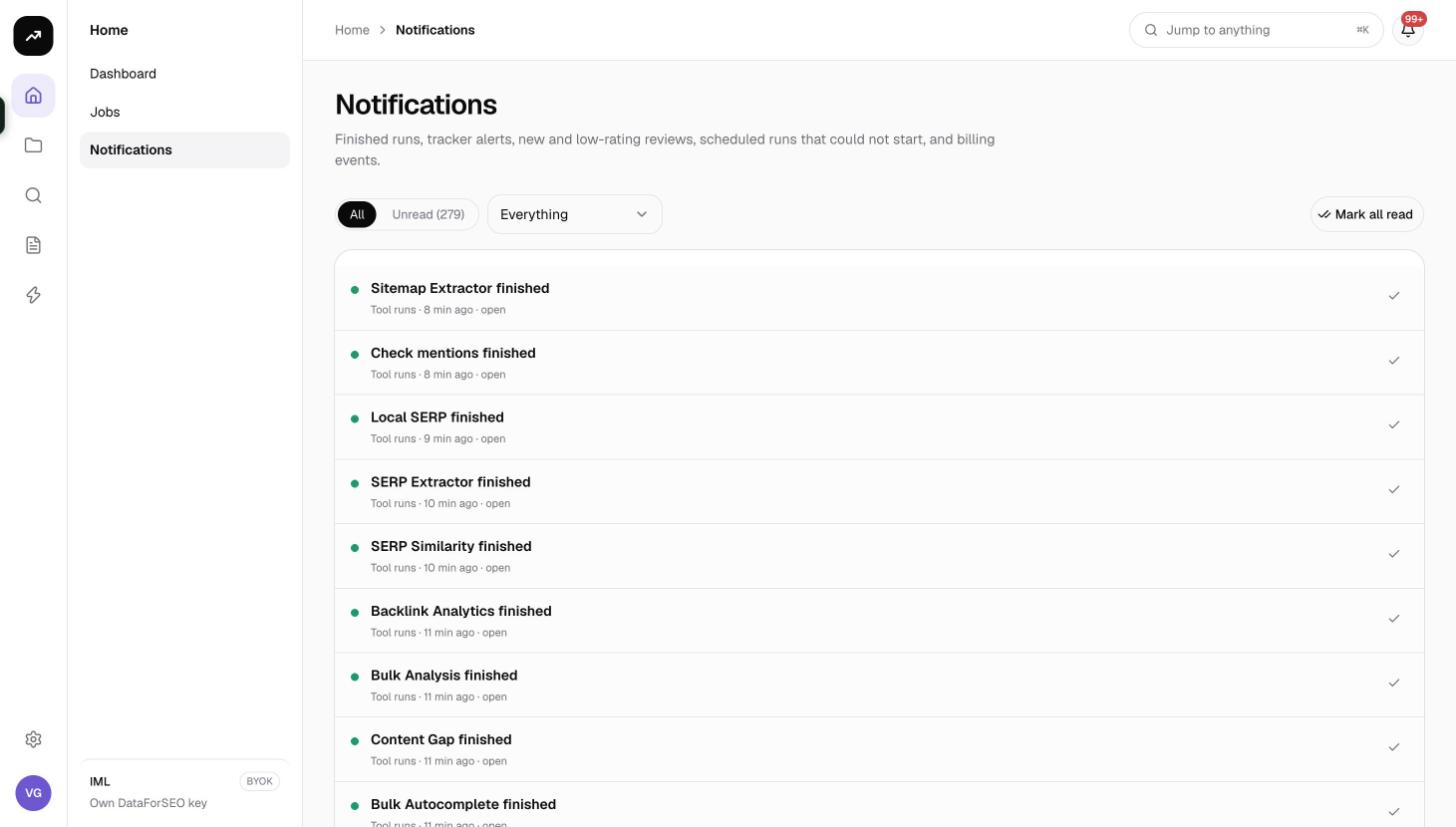
Notifications reads "Finished runs, tracker alerts, new and low-rating reviews, scheduled runs that could not start, and billing events." The bell in the top bar shows the unread count live and opens this page.
Filters
- All or Unread (N).
- Kind: Everything, Tool runs, Alerts, Trackers & reports, Billing, Other.
What you receive
- Tool runs: "{Tool} finished" or "{Tool} failed" (the body is the error), linking to the job. These go to the person who started the job.
- Tracker alerts, grid scans, AI checks, review fetches and citation scans.
- Scheduled runs that could not start: "Scheduled run of "{tracker}" skipped …" and, after 3 skips in a row, ""{tracker}" paused after 3 skipped runs."
- Billing: "Payment received", "Credits added", "Lifetime license activated", and "Credits are running low".
Each row has a colour dot (red for failed, skipped or paused; amber for alerts, low-rated reviews and low balance; green for finished runs), a title, a body and a line with the kind, the time and open. Clicking a row opens its link and marks it read. Mark all read clears the counter; you can also tick rows one by one. Empty states read "No notifications yet" or "Nothing unread".
Research runs never send email. Emails are limited to ranking-alert digests, low-balance and tracker-paused warnings, and long jobs (Search Console backfills, URL inspections, site crawls) when Reports and inspections is on. Set both toggles under Settings › General › Notifications; see Email notifications.