Traffic Analytics
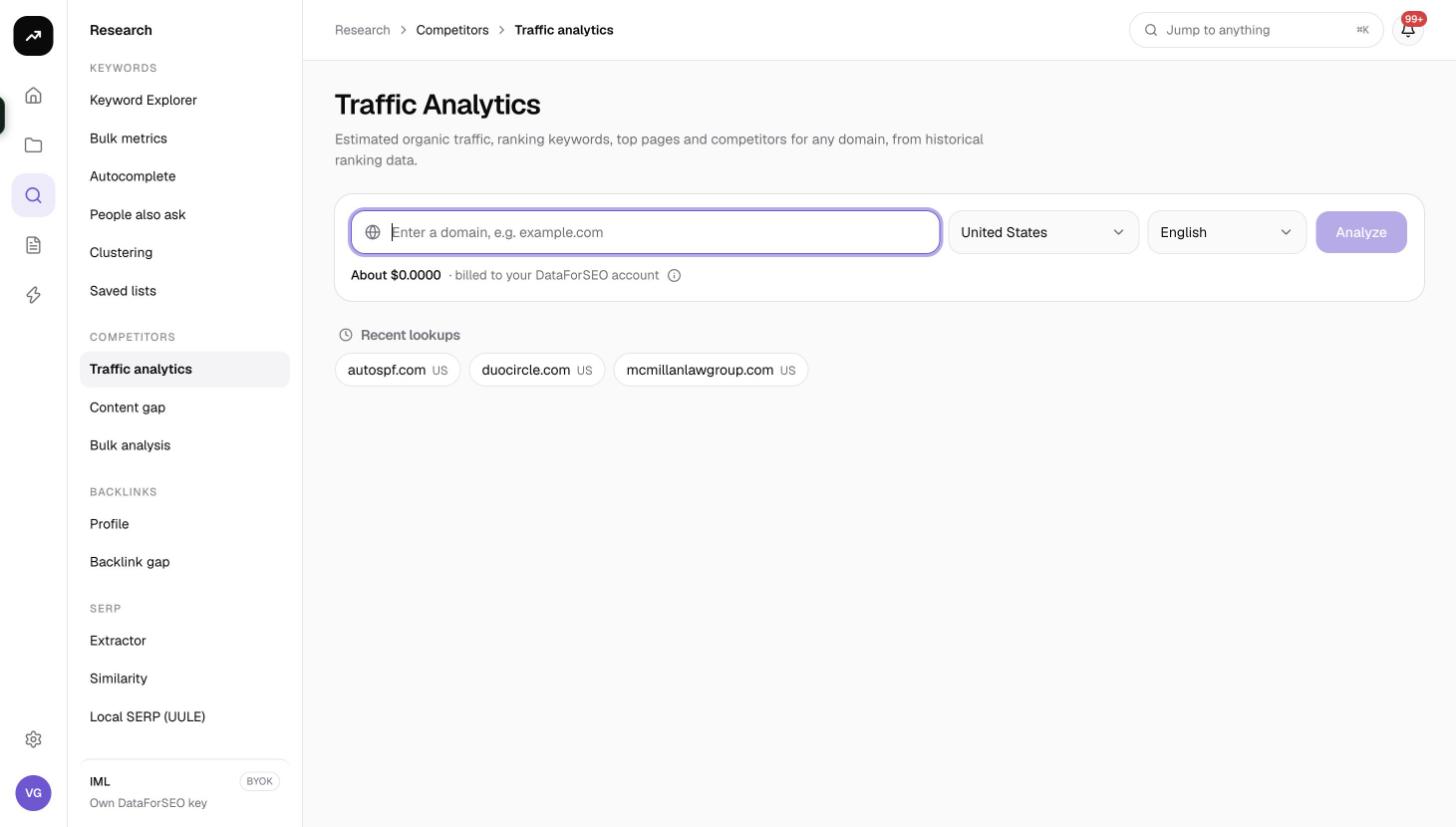
Estimated organic traffic, ranking keywords, top pages and competitors for any domain, from historical ranking data.
Traffic Analytics gives you an outside view of any website's organic search performance: how much traffic it earns from Google, how many keywords it ranks for, where those rankings sit, which pages do the work and who else competes for the same keywords. Use it to size up a prospect, benchmark a client against rivals, or find the pages worth studying before you write.
What it does
Enter a domain and SmarterSEO runs five lookups in parallel against historical ranking data for the market you choose:
- a domain overview with current organic and paid traffic estimates, keyword counts and traffic value
- twelve months of history for the traffic and keyword trend chart
- the top 200 ranking keywords by estimated traffic
- the 100 pages that attract the most organic traffic
- the 30 domains that share the most keywords with the target
The numbers are estimates derived from ranking positions and search volumes, not analytics data from the site itself. They are best used for comparison between domains in the same market rather than as absolute figures.
Before you start
- One domain per run. Enter it as "example.com"; you do not need the protocol. For many domains at once use Bulk analysis.
- Market and Language default to United States and English. The traffic estimate is for that market only, so a site with a UK audience will look small under a US market. Set both pickers; the language does not follow the market.
- Role and credits. Viewers cannot run tools. The button is disabled when the estimate exceeds the balance.
- No Save to list. Traffic Analytics is read-only; it does not save keywords to lists. Use the CSV export on the Keywords tab if you want to carry keywords into other tools.
Step by step
- Open Research and choose Traffic Analytics in the Competitors group (
/research/competitors/traffic). - Type the domain in the box labelled "Enter a domain, e.g. example.com".
- Choose the Market and Language.
- Check the cost line and click Analyze.
- The results page shows the status badge; the lookups run in parallel and usually finish in seconds. The page updates automatically.
- When the badge reads Ready, review the tiles and tabs. The page URL is the permanent link to this lookup.
Without a result open, the page shows up to eight Recent lookups chips. Click one to reopen it.
Reading the results
Tiles
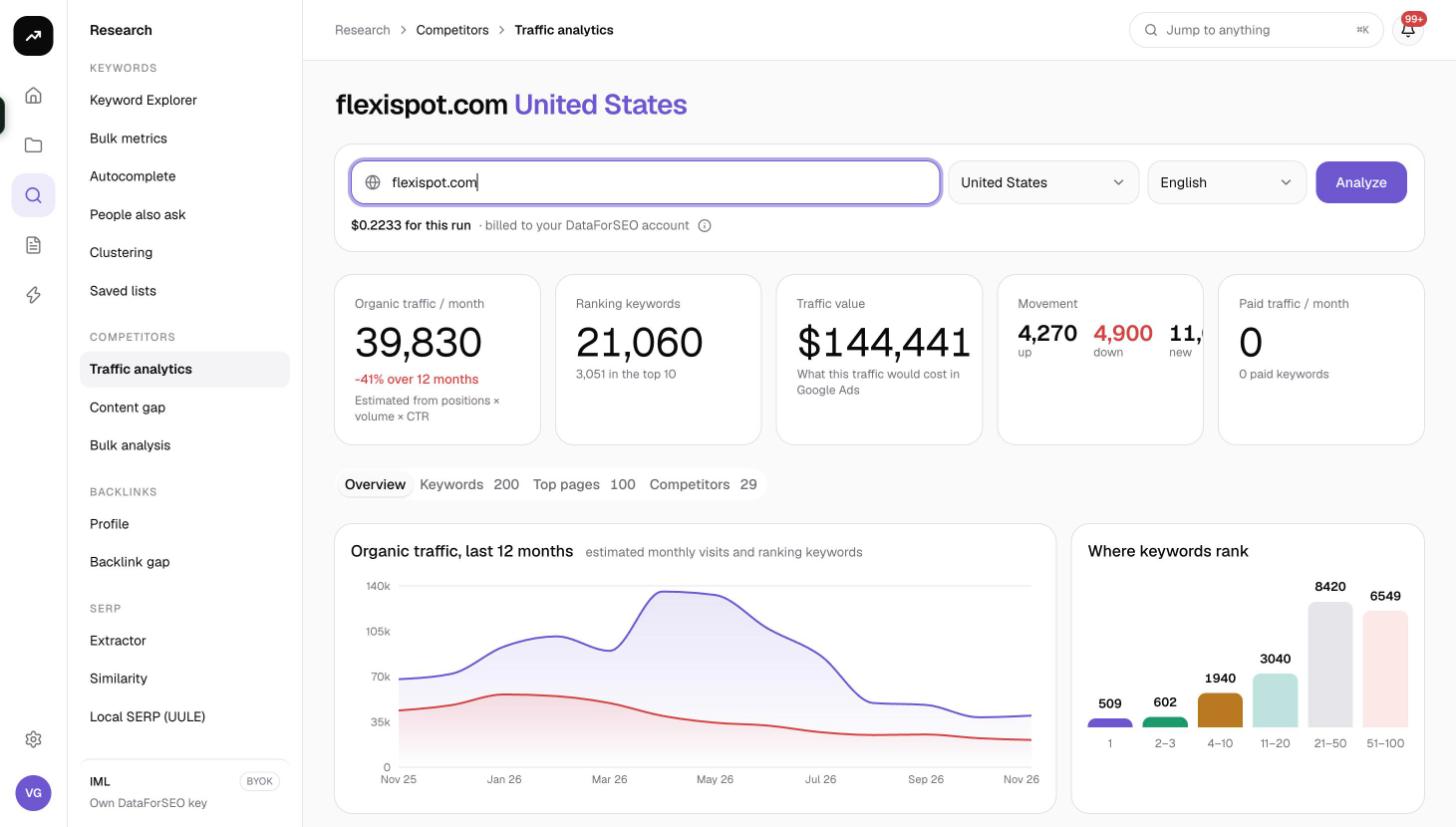
- Organic traffic / month: estimated monthly visits from organic search, with the percentage change over the last 12 months.
- Ranking keywords: the total number of keywords the domain ranks for, with how many of them are in the top 10 underneath.
- Traffic value: what the organic traffic would cost if bought as ads, based on CPC.
- Movement: how many keywords moved up, moved down, are new and were lost compared with the previous period.
- Paid traffic / month: estimated monthly visits from paid search ads.
Overview tab
- Organic traffic, last 12 months is a line chart with two series, Traffic and Keywords, so you can see whether traffic changes track the number of ranking keywords or come from position changes on existing ones.
- Where keywords rank is a distribution of ranking keywords across position bands: 1, 2–3, 4–10, 11–20, 21–50 and 51–100. A domain with a heavy 11–20 band has many pages one push away from page one.
Keywords tab
The top 200 keywords by estimated traffic:
| Column | Meaning |
|---|---|
| Keyword | The ranking keyword |
| Position | Current organic position |
| Volume | Monthly search volume |
| Traffic | Estimated monthly visits the keyword brings to the domain |
| KD | Keyword difficulty |
| CPC | Average cost per click |
| Intent | Search intent |
| Ranking page | The URL that ranks |
Use Filter keywords or URLs to narrow by keyword text or page, change the rows per page (25, 50, 100 or 250; default 100) and click CSV to download the table.
Top pages tab
The 100 pages with the most organic traffic: Page, Traffic, Keywords (how many keywords the page ranks for) and In top 10 (how many of those are on page one). This is the fastest way to find a competitor's money pages.
Competitors tab
Up to 30 domains that rank for the same keywords: Domain, Shared keywords, Avg. position (their average position on the shared keywords), Their keywords (their total ranking keywords) and Their traffic. Domains with many shared keywords and a better average position are your real competitors, whatever the company directory says.
Costs
Cost: 64 credits per domain: the overview (6), twelve months of history billed per month (36), ranking keywords (10), top pages (6) and competitors (6). Traffic data is cached for 7 days, so looking up the same domain, market and language again within a week is free.
The figure before the run is an estimate; the charge is the measured cost. The results page shows "N credits for this run" afterwards.
Tips and gotchas
- The Keywords tab is a sample. It lists the top 200 keywords by traffic, while the Ranking keywords tile counts every keyword in the index. Do not expect the two to match.
- History is the expensive part. More than half the cost is the 12-month trend. The price is the same for every domain, so there is no cheaper mode; rely on the 7-day cache when you compare several domains and come back to them.
- Compare like with like. Run competing domains in the same market and language and compare their tiles side by side; absolute estimates vary, relative differences are informative.
- Follow up on Top pages. Paste a competitor's best pages into the SERP tools or use them as the "ranking page" list when planning your own content.
- Pair with Content Gap. Once you know who the competitors are, Content Gap tells you exactly which of their keywords you are missing.