Projects
What a project holds, the New project dialog, the project overview and its modules, project settings, archiving and deleting, and plan caps.
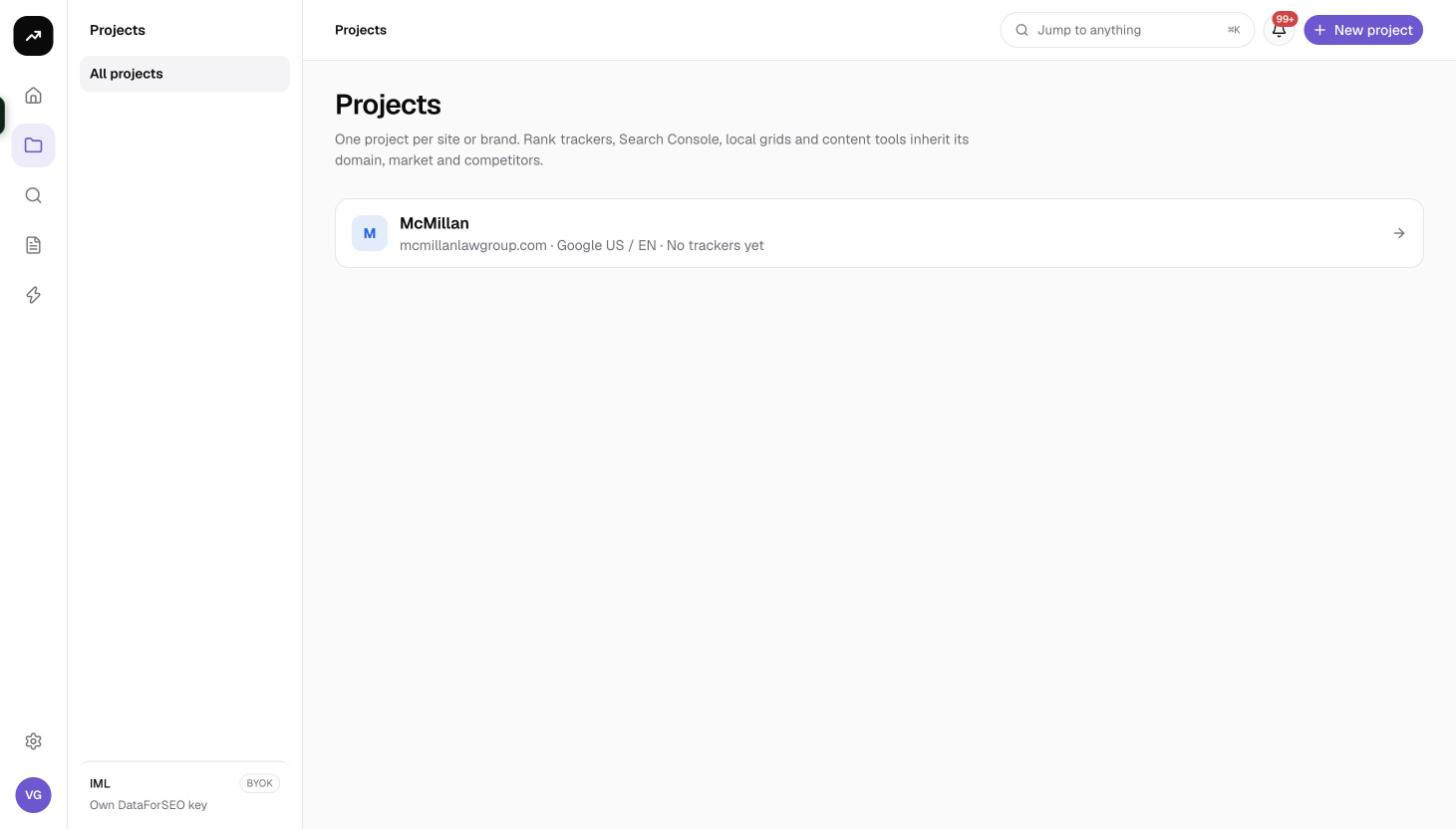
A project is one site or brand. It stores the domain, default market, language, search engine, device and brand names, and every rank tracker, local grid, AI search tracker, Search Console view, content tool and client share link inside it inherits those defaults. Research tools do not need a project; trackers and project modules do.
Before you start
- Plans cap the number of projects that are not archived (see the table below). The Free plan includes one.
- Viewers cannot create or edit projects. Members, admins and owners can.
- You can change every field later in the project settings, but note that existing trackers keep the market they were created with.
Create a project
- Open Projects from the rail (or Home) and click New project. The dialog reads "One project per site or brand. You can change everything later in the project settings."
- Project name: at least 2 characters. The project's URL slug is generated from it.
- Website: the domain, which must be valid. Trackers use it to find your positions.
- Market: the country, default United States.
- Language: follows the market's default until you change it.
- Search engine: Google or Bing.
- Device: Desktop or Mobile.
- Click Create project.
A note under the fields explains the role of these defaults: "Rank trackers, Search Console views and research tools start from this market. Each tracker can override it."
Brand names default to the project name; you can add more in the settings afterwards. If you are at your plan's limit you will see "The {plan} plan includes N project(s). Archive one, or upgrade under Settings › Billing & credits."
The project overview
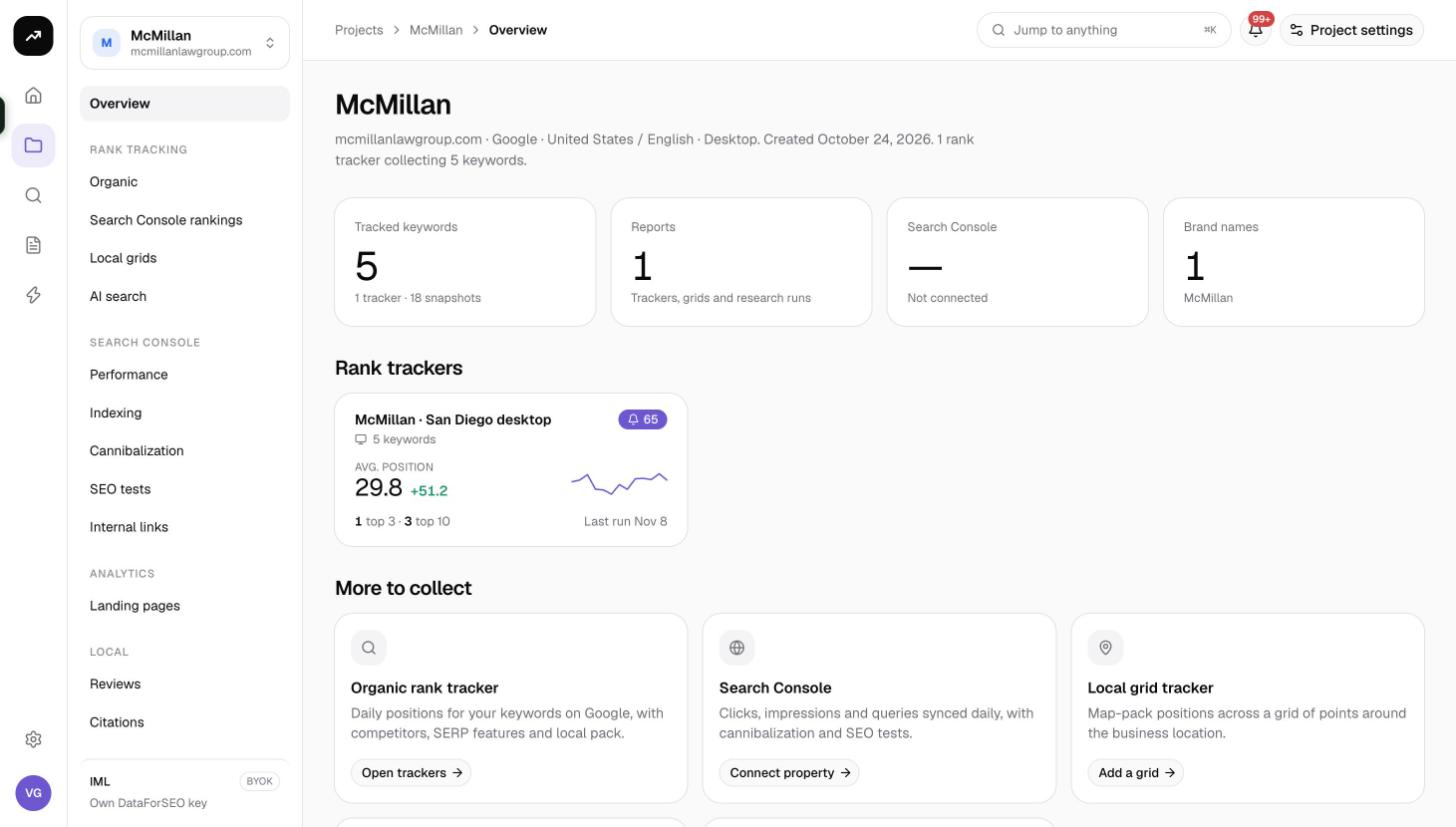
Opening a project lands on its Overview. The header shows the domain, the market and language, when it was created, and a status line such as "N rank trackers collecting N keywords" or "Nothing is being collected yet; pick a module below to start."
Tiles
- Tracked keywords: organic rank-tracker keywords in this project.
- Reports: "Trackers, grids and research runs" attached to the project.
- Search Console: connection state.
- Brand names: how many brand names are set.
Rank tracker cards
One card per organic tracker: Avg. position with the change over 7 days (or "first week" / "no run yet"), a two-week sparkline, "N top 3 · N top 10", "Last run …", and Paused or unread-alert badges where relevant. Click a card to open the tracker.
Modules
Below the trackers, a section titled Start collecting data (empty project) or More to collect lists the modules you have not set up yet:
| Module | Description | Button |
|---|---|---|
| Organic rank tracker | Daily positions for your keywords on Google, with competitors, SERP features and local pack. | Set up tracker / Open trackers |
| Search Console | Clicks, impressions and queries synced daily, with cannibalization and SEO tests. | Connect property |
| Local grid tracker | Map-pack positions across a grid of points around the business location. | Add a grid |
| AI search visibility | Brand mentions and citations in AI Overviews, ChatGPT and Gemini answers. | Track prompts |
| Content tools | Outlines from top-ranking pages and bulk metadata improvements. | Open content |
See Create a rank tracker, Connect Google, Local grids, AI search trackers and Content outlines.
The project menu
The sidebar inside a project groups every page: Rank tracking (Organic, Search Console rankings, Local grids, AI search), Search Console (Performance, Indexing, Cannibalization, SEO tests, Internal links), Analytics (Landing pages), Local (Reviews, Citations), Content (Outlines, Metadata) and Project (Connections, Client sharing, Automations, Settings).
Project settings
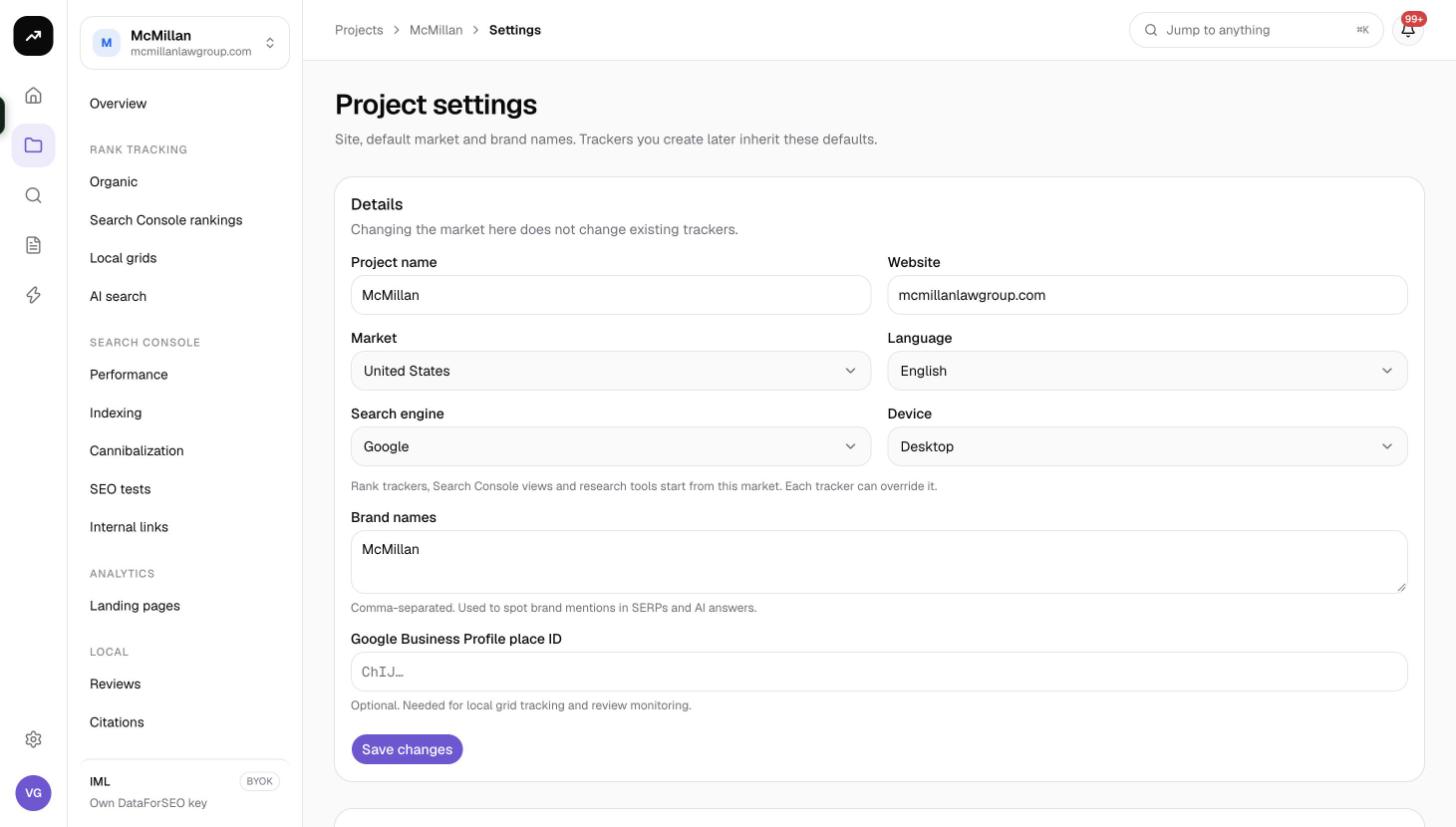
Project › Settings reads "Site, default market and brand names. Trackers you create later inherit these defaults."
Details card
The card warns "Changing the market here does not change existing trackers." It has the same fields as the create dialog plus:
- Brand names: "Comma-separated. Used to spot brand mentions in SERPs and AI answers." Up to 20.
- Google Business Profile place ID: optional. The hint reads "Needed for local grid tracking and review monitoring." In practice grids and review tracking find the business through their own lookup when you create them, so you can leave this empty.
Click Save changes.
Archive or delete card
- Archive project: "Hides it from lists and stops scheduled runs. Data is kept and you can restore it any time." Click Archive; an archived project appears in the Archived section of the Projects list with "Restore in settings →", and the Restore button brings it back. Archived projects do not count toward your project cap.
- Delete project: "Permanently removes the project and every report, tracker and snapshot inside it." You must type the project slug to confirm. Owners and admins only.
Tip: If you archive a project to free a project slot but still want to be certain its trackers stop, pause each tracker's schedule from its Settings tab first. Tracked keywords in archived projects still count toward the organization's tracked-keyword cap.
Plan caps
| Plan | Projects | Tracked keywords |
|---|---|---|
| Free | 1 | 10 |
| Lite | 1 | 25 |
| Starter | 2 | 100 |
| Growth | 3 | 250 |
| Pro | 5 | 500 |
| Agency | 10 | 1,000 |
| Lifetime license | Unlimited | 2,500 |
Only keywords in organic rank trackers count toward the keyword cap; Search Console tracker queries, grid keywords and AI prompts do not. See Plans and pricing.