Citations
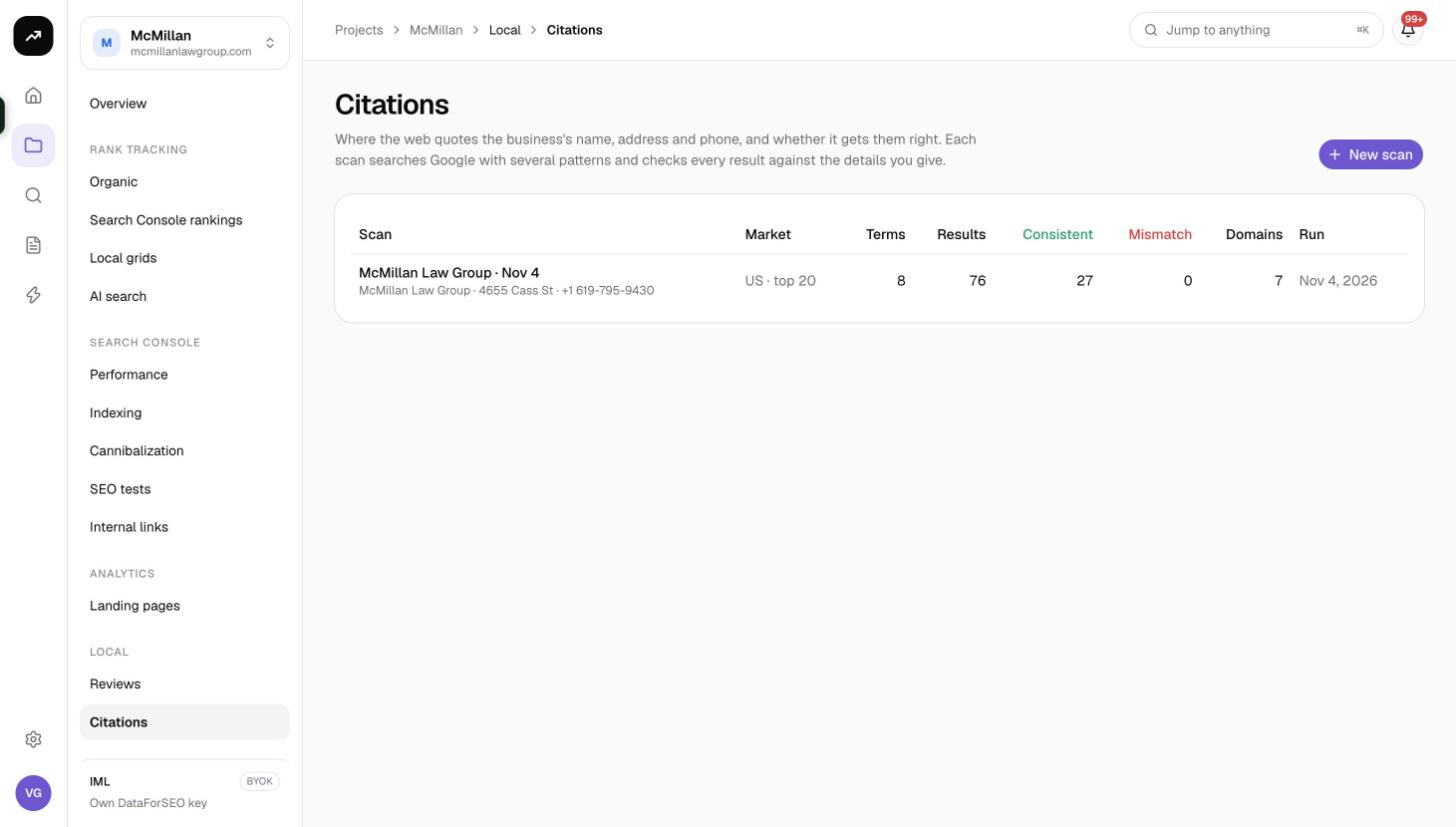
Scan Google for pages that quote a business's name, address and phone, check whether each one gets the details right and find the domains worth fixing.
A citation scan finds where the web quotes a business's name, address and phone number, and whether it gets them right. Consistent NAP details across directories and local pages support map-pack rankings; mismatched phone numbers and old addresses are the most common thing to fix. The scan runs a set of Google searches built from the business details and classifies every result.
Before you start
- Citations live inside a project under Local › Citations.
- Have the exact listing details to hand: the name as it appears on Google, the street address and the primary phone number. Any other numbers the business legitimately uses go in a separate field so they are not reported as mismatches.
- Viewers cannot run scans.
Run a scan
Click New scan to open the Scan for citations dialog. The business fields are pre-filled from the latest tracked review business or local grid in the project.
Business details
- Business name
- Street address, Address line 2 (optional), City, State, Postal code
- Phone
- Other correct numbers (optional): up to 5 additional numbers that should count as correct
Either a phone or a street address is required.
Search patterns
Patterns define the searches, one per line, up to 30. Each pattern mixes literal text with placeholders that are filled from the business fields: [business], [address_line_1], [address_line_2], [city], [state], [postal_code] and [phone]. Eight default patterns cover the usual combinations of name, phone, address and city. A pattern that references a blank field is skipped, so leaving Address line 2 empty simply drops the patterns that use it.
Market and depth
- Market and Language: the Google market to search. Use the market the business operates in.
- Results per term: 10, 20 (default) or 50 results read per search.
- Ignore domains: up to 50 domains left out of the results, such as your own site or large aggregators you do not care about.
- Scan name (optional)
Click the submit button to start. You receive the notification "{scan}: citation scan complete" when it finishes.
Costs
Cost: One organic SERP per search term at the chosen depth: 0.6 credits for 10 results, 1.0 for 20 and 2.4 for 50. With the eight default patterns at 20 results, a scan is about 8 credits; at 50 results, about 19. Each Run again costs the same as a fresh scan.
Reading the results
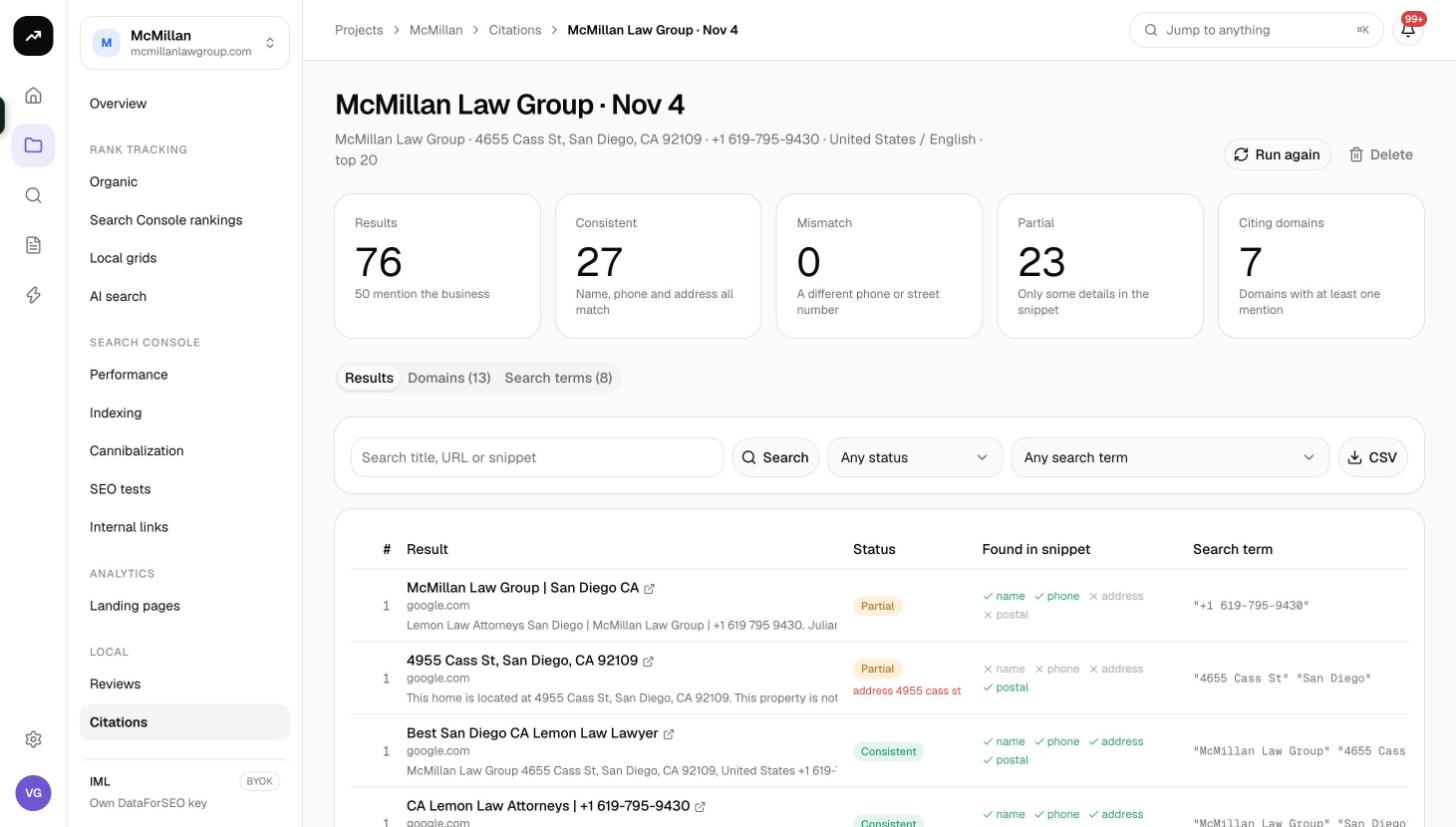
The scan page has Run again and Delete in the top bar. Run again repeats the same patterns and settings as a new scan.
Tiles
- Results: the total number of search results read.
- Consistent: "Name, phone and address all match".
- Mismatch: "A different phone or street number".
- Partial: "Only some details in the snippet".
- Citing domains: distinct domains among the results.
Results tab
Filter by status (Consistent, Mismatch, Partial, Not mentioned) and by search term. Columns:
- #: the position in the search results.
- Result: title and URL.
- Status: one of the four statuses.
- Found in snippet: ticks for name, phone, address and postal code, showing exactly which details the snippet contained.
- Search term: the search that produced the result.
Not mentioned means the result appeared for the search but its snippet did not contain the business details at all; it is usually a competitor, a directory category page or an unrelated page.
CSV exports the rows with Position, Title, URL, Domain, Status, Name, Phone, Address, Postal, Different phone, Different address, Search term and Snippet. The Different phone and Different address columns carry the wrong values the page shows, which is what you need when asking a directory to correct a listing.
Domains tab
One row per citing domain: Results, Terms (how many searches it appeared for), Best position, Consistent, Mismatch, Partial and Not mentioned. Sort by Mismatch to build a fix list, or by Best position to see which directories Google trusts most for this business.
Search terms tab
Each generated Term with its Mentions count, plus the list of ignored domains, so you can see which patterns found citations and which were wasted.
Tips and gotchas
- Classification reads the search snippet, not the full page. A Partial result can be a perfectly good citation whose snippet simply did not include the phone; open the URL before chasing a correction.
- Phone matching expects 10-digit numbers. Enter the number in that form and put tracking numbers or old numbers under Other correct numbers if they should count as correct.
- Add directories you have already fixed to Ignore domains in the next scan to focus on what is left.
- Run a scan before and after a cleanup and compare the Mismatch tile; keep the earlier scan rather than deleting it.