SERP Extractor
Pull the live Google results for up to 100 keywords in one run, then browse them by result, by keyword, by domain and by SERP feature, and export everything to CSV.
SERP Extractor fetches the live Google results page for every keyword you paste and lays them out as one sortable, filterable table. Use it when you need to know who ranks for a batch of terms right now, which domains keep showing up, and which SERP features (including AI Overviews) sit above the organic links.
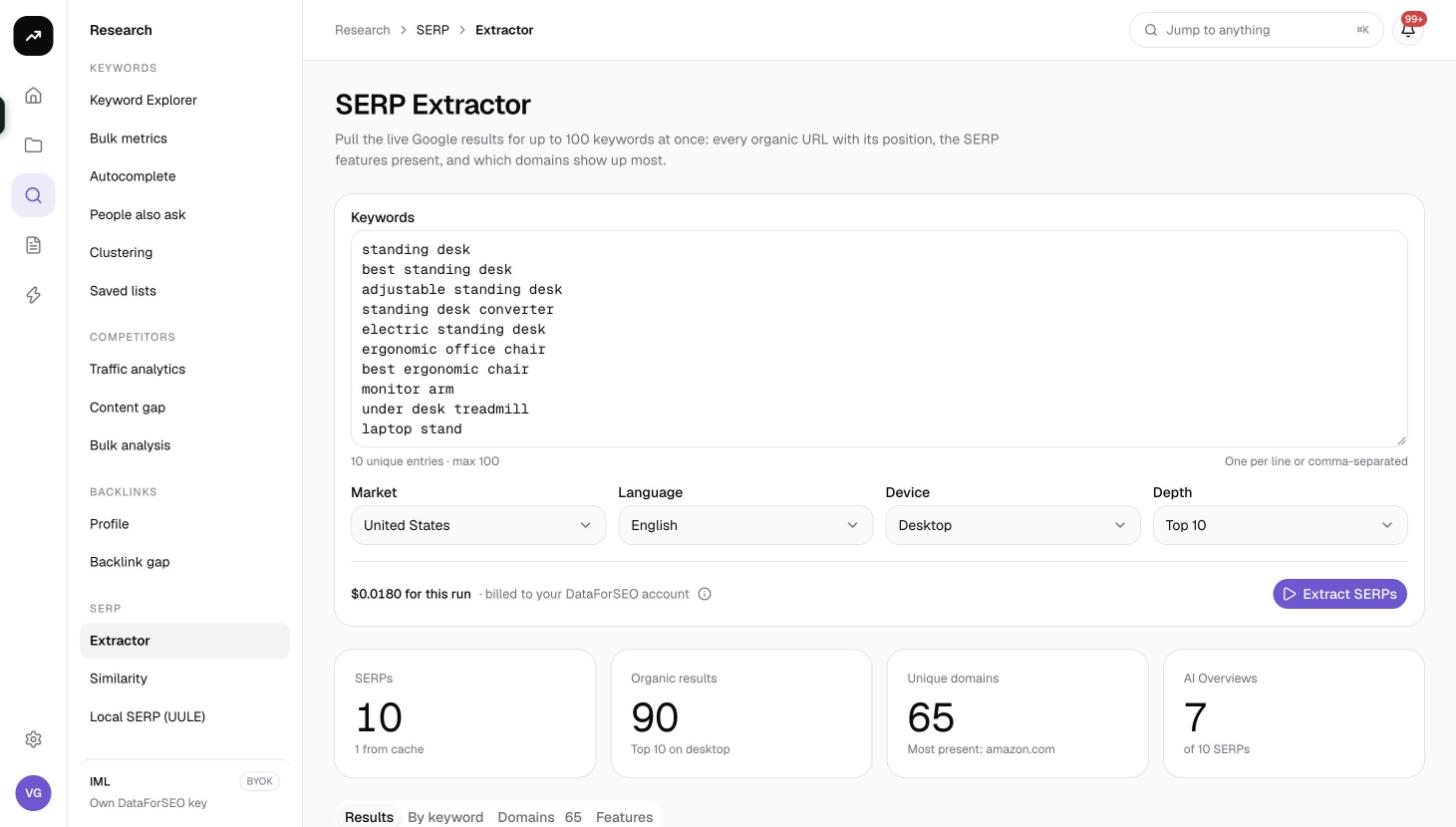
What it does
For each keyword, SmarterSEO requests a fresh organic SERP from the data provider for the market, language and device you choose, down to the depth you choose (top 10, 20, 50 or 100). The results are flattened into one table of rows (keyword, position, type, title, page, domain), then summarised three more ways: per keyword, per domain and per SERP feature.
SERPs are run five at a time, with one automatic retry if the provider returns an error for a keyword. Anything fetched in the last 24 hours for the same keyword, market, language, device and depth is served from the cache and costs nothing.
Before you start
- You need a role that can run tools. Viewers see Viewers can't run tools. and the button is disabled.
- Have your keywords ready, one per line. The form accepts 1 to 100 keywords per run.
- Check your credit balance under Billing & credits if you plan a deep run (100 keywords at depth 100 is 400 credits). The form refuses to start if the estimate is above your balance: This run needs X credits but the organization has Y.
- Decide which device matters. Mobile and desktop SERPs are fetched and cached separately.
Step by step
- Open Research and pick SERP Extractor in the SERP group, or go straight to
/research/serp/extractor. - Paste your keywords into Keywords, one per line (1 to 100).
- Choose the Market (default United States) and Language (default English). The language does not switch automatically when you change the market, so set both.
- Pick the Device: Desktop or Mobile.
- Pick the Depth: Top 10 (default), Top 20, Top 50 or Top 100. Deeper runs cost more per keyword (see Costs).
- Read the cost line under the form. On a credit plan it reads "About N credits · billed to your SmarterSEO credits"; the (i) tooltip explains the calculation.
- Click Extract SERPs. The page redirects to a permanent results link (
?job=<id>), shows Queued then Collecting · N% with a label such as "37 of 100 SERPs", and fills in automatically when the run is Ready. A report named after the run (for example "12 keywords · US / English") is added to Reports.
Reading the results
Tiles
- SERPs: how many result pages were fetched. The hint shows how many failed, or how many came from cache.
- Organic results: the total number of organic rows across all keywords, with "Top N on desktop/mobile" as context.
- Unique domains: how many distinct domains appear anywhere in the run, with the most present domain named.
- AI Overviews: how many of the SERPs carried a Google AI Overview, out of the total.
Results tab
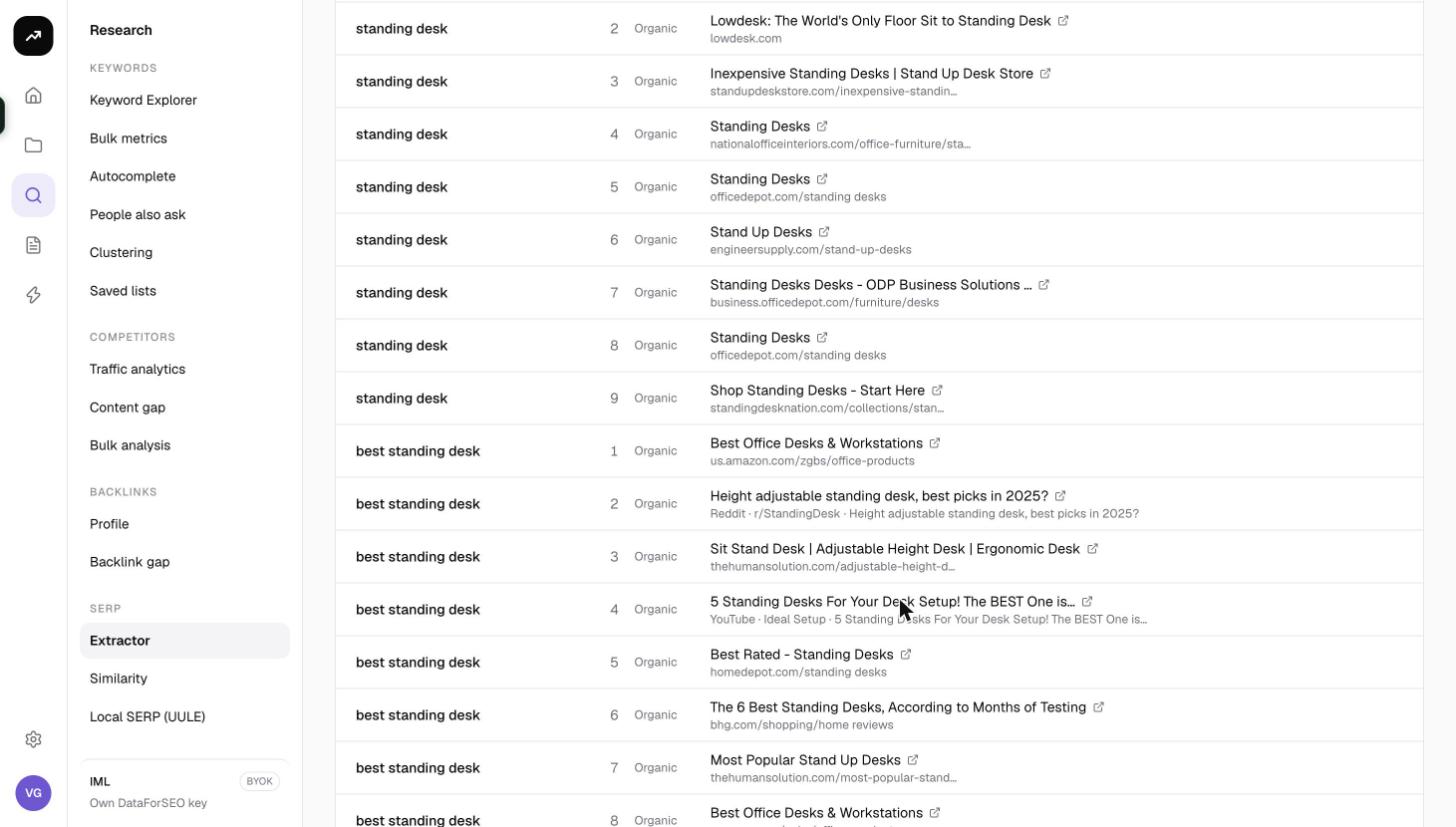
The default tab is a flat table of every result row.
- The type select defaults to organic; switch to All types to include every feature block (People also ask, videos, local pack, featured snippets and so on) as rows.
- Filter keyword, domain or URL narrows the table as you type.
- Columns: Keyword, # (position), Type, Result (title, page URL and domain).
- Save keywords opens the Save to a keyword list dialog for the keywords currently shown; pick Existing list or New list, add optional Tags, and the keywords are stored for later use in trackers or other tools. Keywords already in the list are skipped.
- CSV downloads the visible rows with the columns keyword, type, position, title, page, domain, link.
- Pagination is client-side: per page 25, 50, 100 (default) or 250, with a "1–100 of N" footer.
By keyword tab
One card per keyword showing its top 10 and badges for each SERP feature detected on that page. Use it to scan a batch quickly and spot keywords whose first page is crowded with features.
Domains tab
A domain-level roll-up with the columns Domain, Keywords (how many of your keywords it ranks for), Appearances (total rows), Best (best position), Avg. position and URLs (distinct ranking pages). Sort by Keywords to find the competitors that cover most of your list.
Features tab
A bar list of every SERP feature seen in the run and how many keywords carry it. This is the fastest way to see how many of your terms trigger AI Overviews, People also ask, video carousels or local packs.
Costs
Cost: per keyword, 0.6 credits at Top 10, 1.0 at Top 20, 2.4 at Top 50 and 4 at Top 100. SERPs fetched in the last 24 hours for the same settings are free. The number shown before the run is an estimate; the real charge is the measured data cost.
On a lifetime license the line reads "About $0.00 · billed to your DataForSEO account" and the run is charged to your own key (about $0.002 per 10 results).
Tips and gotchas
- Top 10 can return fewer than 10 organic rows. Google's first page often carries only about five organic results once features are counted. If you need a true top 10 organic list, run at Top 20.
- The Results tab shows only organic rows by default; switch to All types before concluding that a feature is absent.
- Results are cached per organisation for 24 hours. Re-running the same keywords inside that window returns the same data and is free; it does not refresh the SERP.
- Mobile and desktop are separate runs. Pick the device that matches your tracker if you plan to compare.
- A failed keyword is retried once automatically; persistent failures appear in the SERPs tile hint and do not block the rest of the run. Only what was fetched is billed.
- The results page is permanent. Bookmark the
?job=link or open it later from Reports or Jobs. - There is no direct "send to rank tracker" action. Use Save keywords to put them in a saved list, then pick that list when creating a tracker.