Local grids
Track where a business ranks on Google Maps across a grid of points around its location, with share of local voice, per-point results, keyword tables and a scan-by-scan trend.
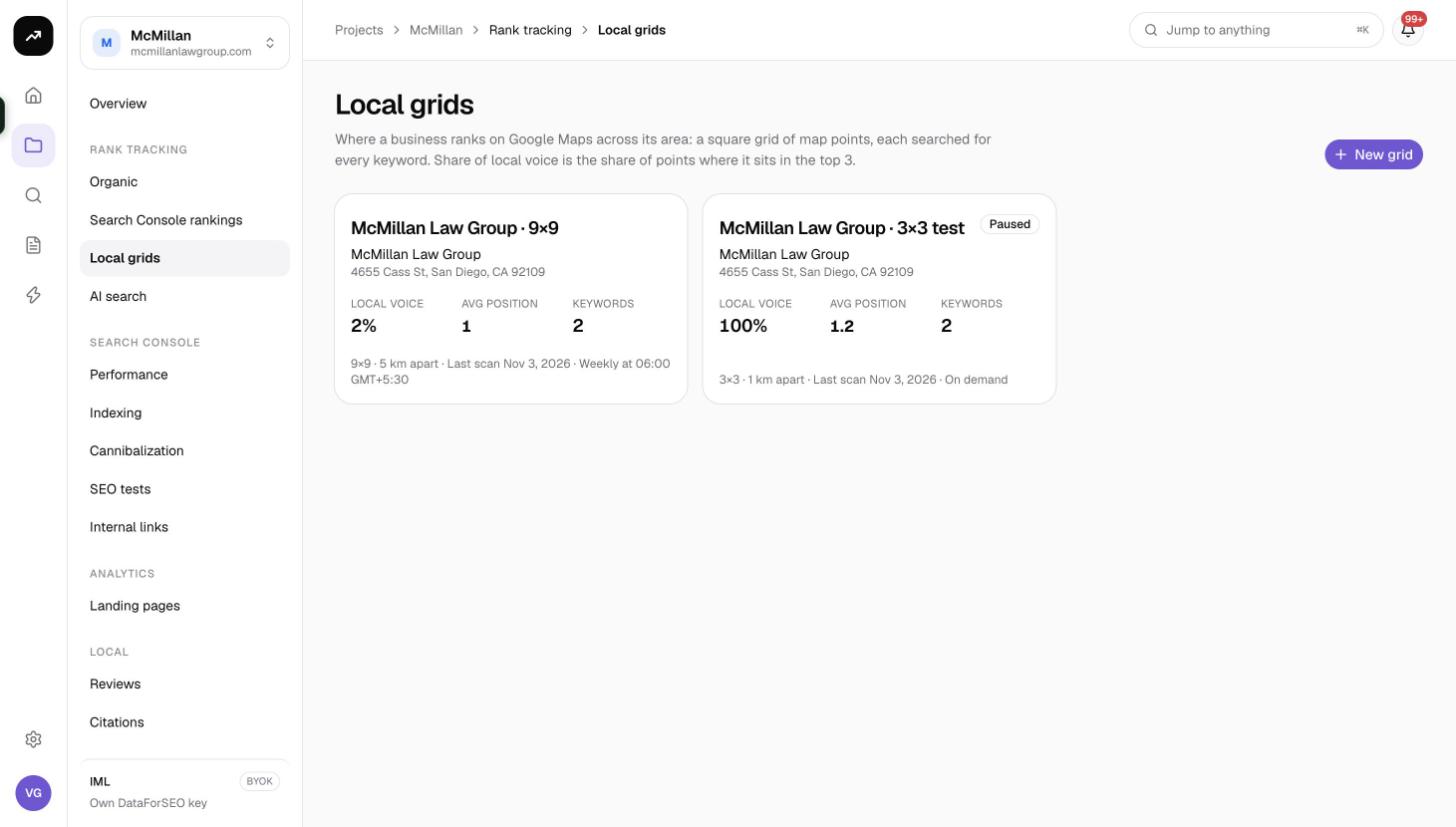
A local grid shows where a business ranks on Google Maps across its area. The app lays a square grid of map points over the business location and searches every keyword from every point, so you see the map-pack position a customer would get from each street rather than one position for the whole city. Share of local voice is the share of points where the business sits in the top 3.
Before you start
- Grids live inside a project, under Rank tracking › Local grids.
- You do not need a Google Business Profile connection. The business is found through a Google Maps lookup when you create the grid.
- Grid keywords do not count toward your plan's tracked-keyword cap (up to 50 per grid).
- Viewers cannot create or scan grids.
Create a grid
Click New grid to open the New local grid dialog.
1 · The business
- Type the Business name and, under Where, a city or a
lat,lngpair. - Click Find on Google Maps. The dialog notes "One Maps request per lookup"; it is billed like one grid point.
- Pick the right listing from up to 10 results. A listing with no map position cannot be used.
2 · The grid
| Field | Options | Default |
|---|---|---|
| Grid size | 3×3, 5×5, 7×7, 9×9, 11×11 (9 to 121 points) | 5×5 |
| Spacing | 250 m, 500 m, 1 km, 1 mile, 2.5 km, 2 miles, 5 km, 5 miles | 1 km |
| Keywords | One per line, up to 50 | |
| Name (optional) | Defaults to the business |
A hint under the spacing reminds you that Google only shows a business to people searching nearby, so keep most points within a few kilometres, and tells you how far the grid spans. A preview shows the points on the map as you change size and spacing.
Schedule
Rescan on a schedule is on by default, with Rescan every set to Day, 3 days, Week (default) or 2 weeks, plus a start hour and timezone. Turn the switch off for "On demand only: scans run when you press Scan now."
Leave Run the first scan now ticked, check the cost line and create the grid.
Warning: The business and the grid geometry (size, spacing, centre) are fixed after creation. Keywords, name, map zoom and schedule can be changed later.
Costs
Cost: A scan costs 0.3 credits per point per keyword. A 5×5 grid with 10 keywords is 25 × 10 × 0.3 = 75 credits per scan; weekly, that is about 300 credits a month. A 3×3 grid with 3 keywords is 8.1 credits per scan. An 11×11 grid with 50 keywords is 1,815 credits per scan, so size the grid to the business's real catchment. The business lookup when creating a grid is billed as one point (0.3 credits).
The cost line in the dialog and next to Scan now shows the number of Maps requests and the estimated credits; the actual debit is the measured data cost. On a lifetime license it reads as "{N} Maps requests per scan" billed to your own data account.
How a scan runs
Each keyword and point pair is sent to the Maps queue, reading the top 20 results on desktop at the grid's zoom level. Answers are collected as they arrive, so a scan can take a while; a request still unanswered after two hours is counted as failed. The business is matched by its Google listing ID first, then by name. New keywords are scanned on the next run; there is no partial scan for grids.
A progress meter shows the scan filling in. When it finishes you receive the notification "{grid}: scan complete" with the share of local voice, and the local-grid.run automation event fires (see Automations).
Reading a grid
Scan now
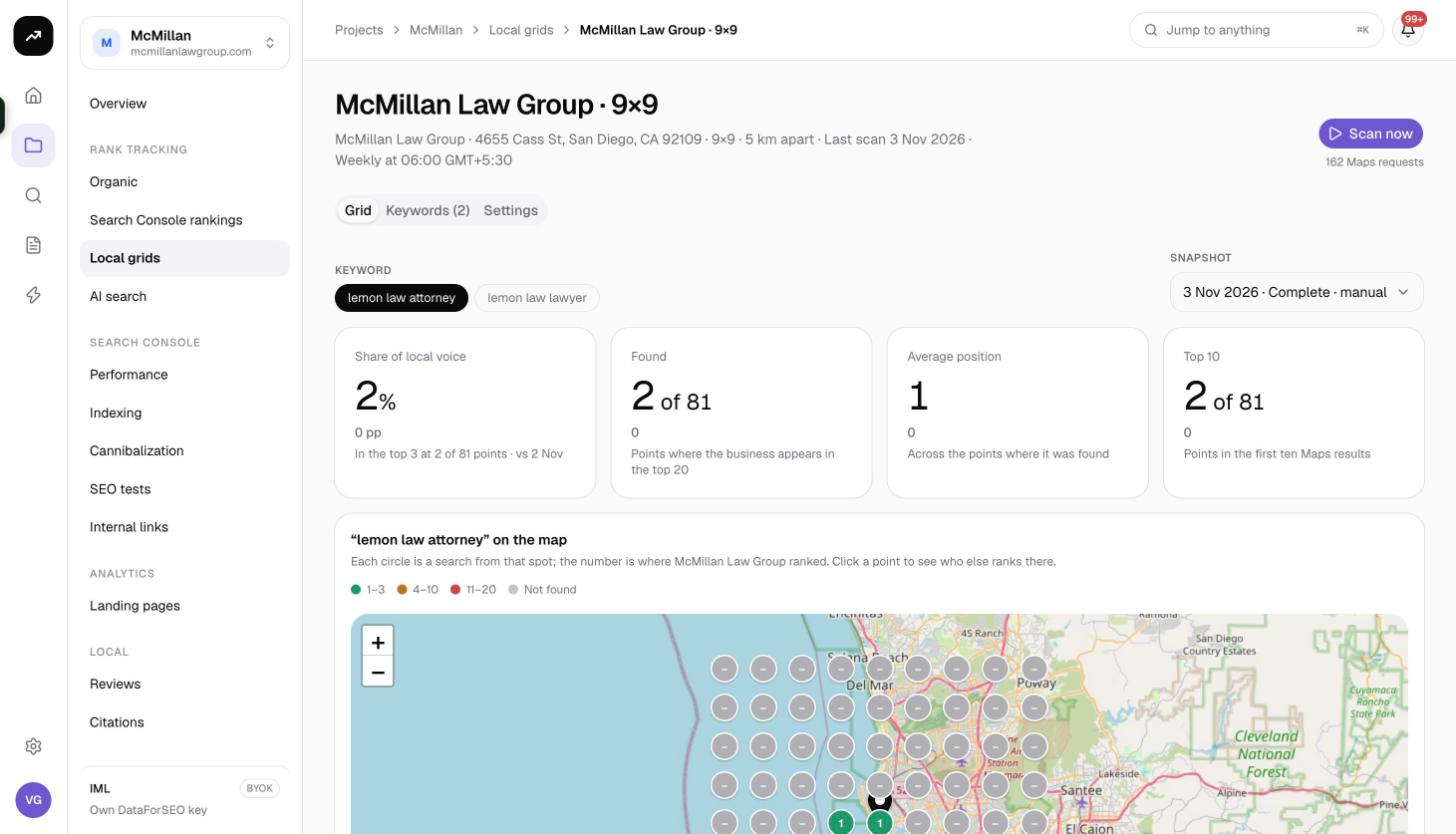
Scan now in the top bar starts a scan immediately and shows "{N} Maps requests · about X credits" before you confirm.
Grid tab
Keyword chips along the top switch the map and tiles between keywords; when there are more than 10 keywords they become a dropdown. The Snapshot picker lists every scan as date · Running / Complete / Failed · manual, so you can step back to any earlier scan.
Tiles for the selected keyword and snapshot:
- Share of local voice: the percentage of points where the business is in the top 3, with the percentage-point change against the previous scan.
- Found (of N): "Points where the business appears in the top 20".
- Average position: "Across the points where it was found".
- Top 10: points where it ranks in the top 10.
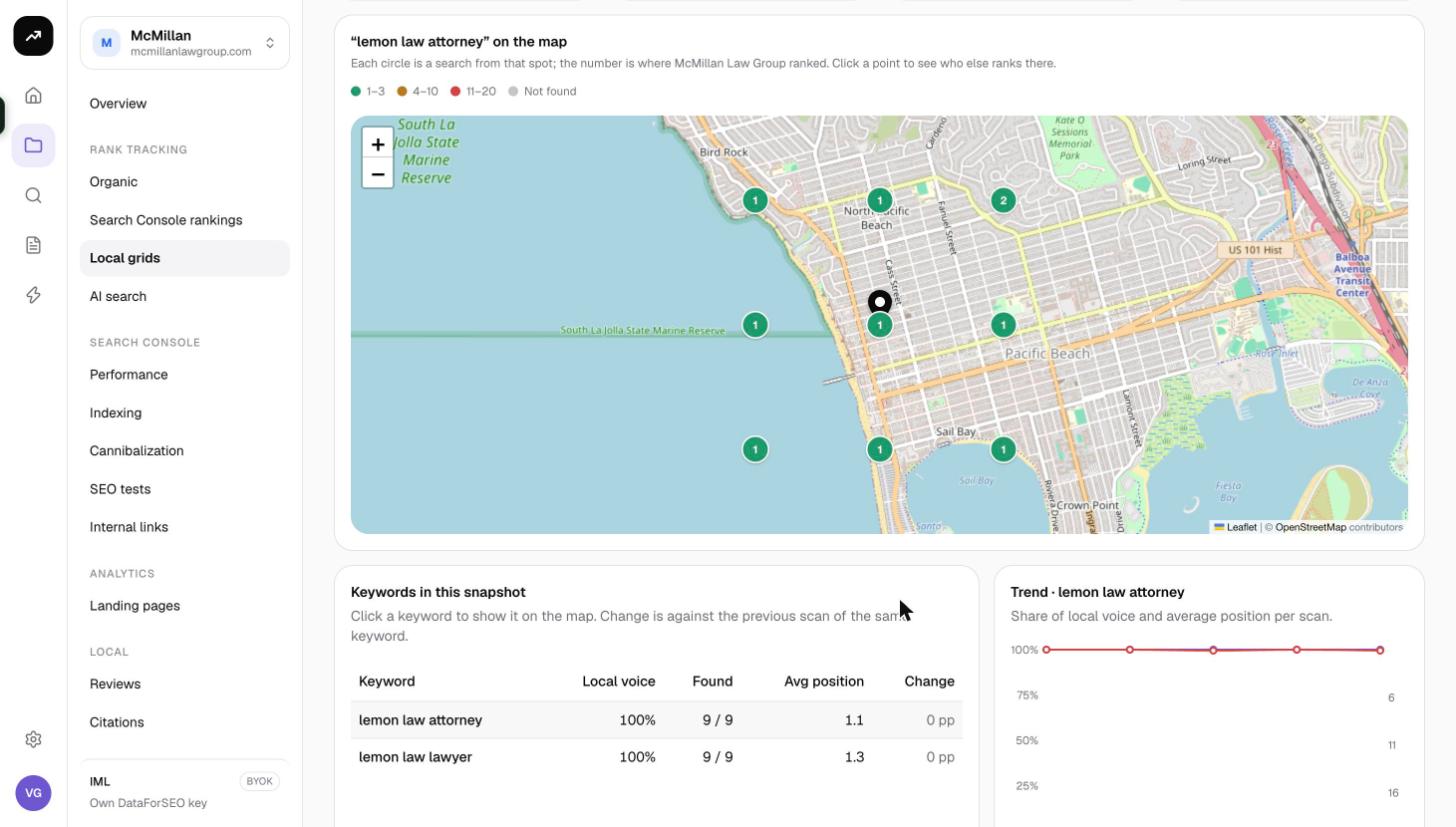
The map draws one numbered dot per point, coloured by band: 1–3, 4–10, 11–20 and Not found. Click any dot to open a panel for that point, titled "Point r·c", showing "#N" or "Not in top 20" and Top results here, the listings that ranked at that spot with their ratings and a You badge on the business.
Under the map, Keywords in this snapshot lists every keyword with Keyword, Local voice, Found, Avg position and Change (pp), so you can see which terms are strong across the area and which only work near the shop.
The Trend chart plots share of local voice and average position per scan. It appears after the second scan.
Keywords tab
Tracked keywords lists the grid's keywords with an Archive button per keyword. Add keywords accepts up to 50 per grid and reminds you that each one adds N Maps requests per run. Added keywords are included from the next scan.
Settings tab
- Name
- Map zoom: 12 (about 10 km, city), 13, 14 (default, neighbourhood), 15 or 16. Tighter zooms find fewer businesses and leave more empty cells; the change applies from the next scan.
- Schedule fields, as in the create dialog.
- Delete grid: type the grid name to confirm.
Skipped scans
When a scheduled scan comes due and your balance cannot cover it, the scan is skipped and you receive the notification "Scheduled scan of … skipped". Grids never pause themselves; the next scheduled scan is attempted as usual once credits are available. See Running out of credits.
Tips and gotchas
- Start with 5×5 at 1 km and widen only if the business genuinely serves a larger area. Doubling the grid side roughly quadruples the cost.
- A business that is strong at the centre and absent at the edge is normal; the useful signal is the trend over scans and the difference between keywords.
- The map legend is per keyword; switch keywords with the chips before concluding that a corner of the grid is lost.
- Client share pages show the Grid and Keywords tabs only, without the Scan button or Settings. See Client sharing.