Email notifications
Choose which emails SmarterSEO sends you, who receives low-balance and paused-tracker mail, what the in-app notification bell shows, and how invitation emails work.
SmarterSEO sends two kinds of email on its own: ranking alert digests after tracker runs, and completion notices for long jobs. Each member chooses their own, and the same preferences decide who gets the billing and paused-tracker warnings. Everything else shows up in the in-app notification bell.
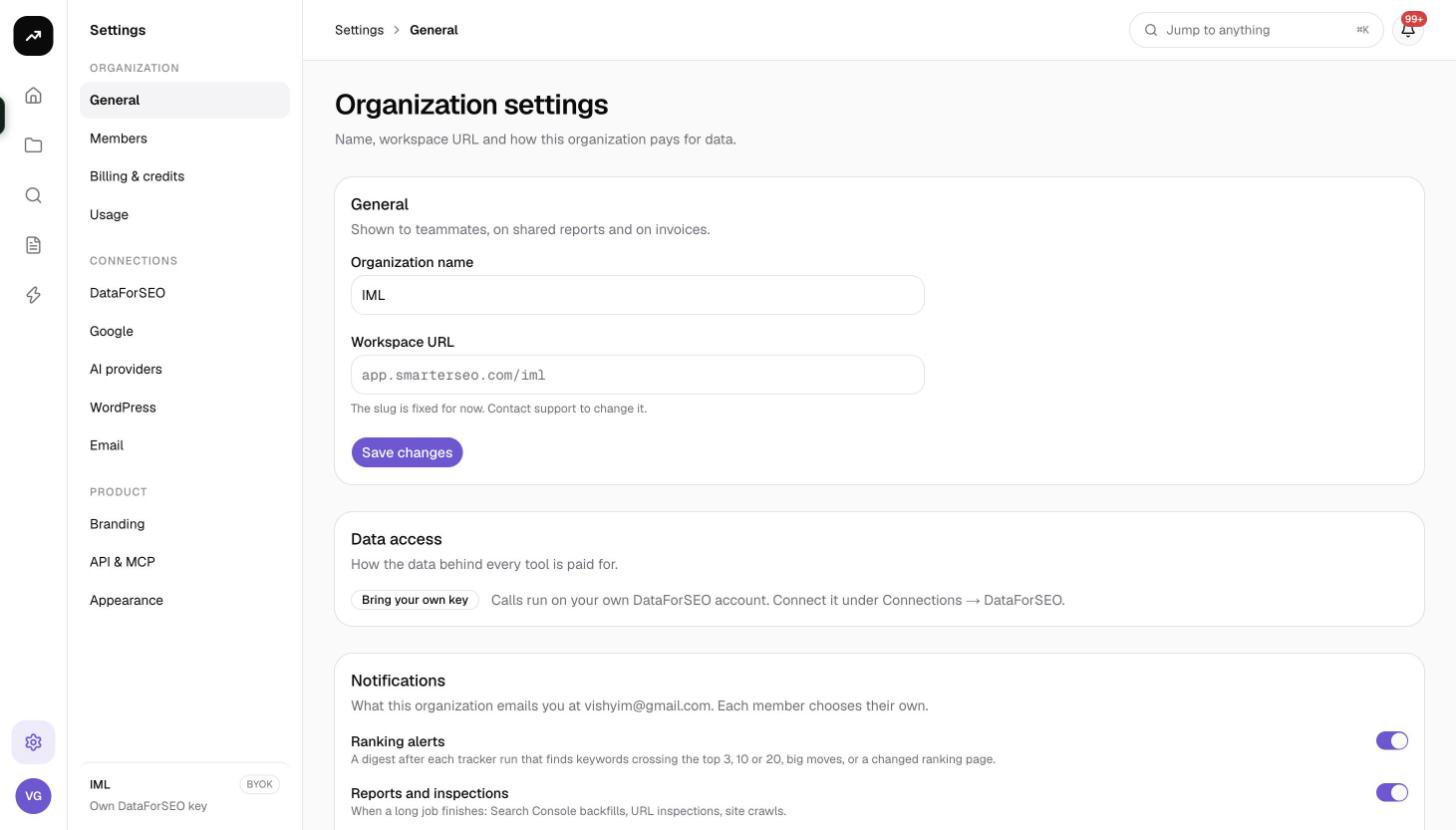
Where the settings are
Open Settings (the General page) and find the Notifications card. It reads "What this organization emails you at {email}. Each member chooses their own." The preferences are per member and per organisation, so a person in two organisations sets them twice.
Cost: Free.
The two email toggles
| Toggle | What it sends |
|---|---|
| Ranking alerts | "A digest after each tracker run that finds keywords crossing the top 3, 10 or 20, big moves, or a changed ranking page." One email per run that produced alerts, across every organic rank tracker in the organisation. |
| Reports and inspections | "When a long job finishes: Search Console backfills, URL inspections, site crawls." Sent only to the person who started the job. |
Click Save preferences after changing them. Send me a test email sends a sample so you can check deliverability; the page notes "Mail is sent from {address}." so you can whitelist the sender.
Who else gets Ranking alerts mail
The Ranking alerts toggle also controls two operational emails, sent to every member who has it turned on:
- Low balance: when the credit balance drops below what the scheduled trackers need. See Running out of credits.
- Tracker paused: when an organic rank tracker is paused automatically after three skipped runs.
If nobody in the organisation has Ranking alerts on, nobody is emailed about a low balance. Make sure at least one owner or admin keeps it enabled.
What triggers a Reports and inspections email
- A Search Console full backfill finishing (first link or Re-pull all history).
- A URL inspection run finishing on the Indexing page.
- A site crawl finishing on the Internal links page.
Ordinary research tool runs and scheduled tracker runs do not send email; they appear in the notification bell instead.
In-app notifications
The bell in the sidebar shows an unread count and opens the Notifications page: "Finished runs, tracker alerts, new and low-rating reviews, scheduled runs that could not start, and billing events."
Filter by All or Unread, and by kind: Everything, Tool runs, Alerts, Trackers & reports, Billing and Other. Click a row to open the linked page and mark it read, or use Mark all read.
Notification kinds you will see:
| Kind | Meaning |
|---|---|
| Job finished / failed | Every tool run writes " |
| Tracker alerts | An organic rank tracker run produced alerts. |
| Tracker skipped | A scheduled run could not start, usually for lack of credits. |
| Tracker paused | A tracker was paused after three skipped runs. |
| Search Console tracker alerts | Alerts after the nightly Search Console sync. |
| Local grid run | A grid scan finished. |
| AI search run | An AI search check finished. |
| Reviews run / low rating | Reviews were fetched, or a new review is at or below the alert rating. |
| Citations run | A citation scan finished. |
| Billing | "Payment received", "Credits added", "Lifetime license activated", and low balance. |
Red dots mark failures, skipped and paused runs; amber marks alerts, low ratings and low balance; green marks successful runs.
Invitation emails
When you invite a teammate under Settings › Members, they receive an email with an Accept the invitation button. The link works once and expires in 14 days ("The link works for 14 days."). If the email does not arrive, copy the invitation link from the pending invitations list and send it yourself. See Invitations.
Sign-in emails
Password resets, magic links and account confirmations are sent by the sign-in system from a separate address. They are not affected by the toggles above. If you cannot find one, check spam, then try again after a minute. See Sign-in and passwords.
Client-facing email
The emails above are for your team. To email clients automatically, for example a weekly ranking summary with a read-only link, use an automation with an Email action; those go to any recipients you choose and are independent of these preferences. Note that automation emails are not white-labelled.
Tips and gotchas
Tip: Keep Ranking alerts on for at least one owner or admin so that low-balance and paused-tracker emails always reach someone who can act on them.
Note: The alert digest is sent only when a run finds something to report. A quiet tracker produces no email, which is the intended behaviour, not a delivery problem.
- Test delivery with Send me a test email after adding the sender to your allowlist.
- Email preferences do not affect the in-app bell; every event is always recorded there.