Automations
Send an email with a read-only client link or call a webhook whenever a tracker finishes, a grid scans, an AI check runs or reviews arrive. Every firing is logged and can be retried.
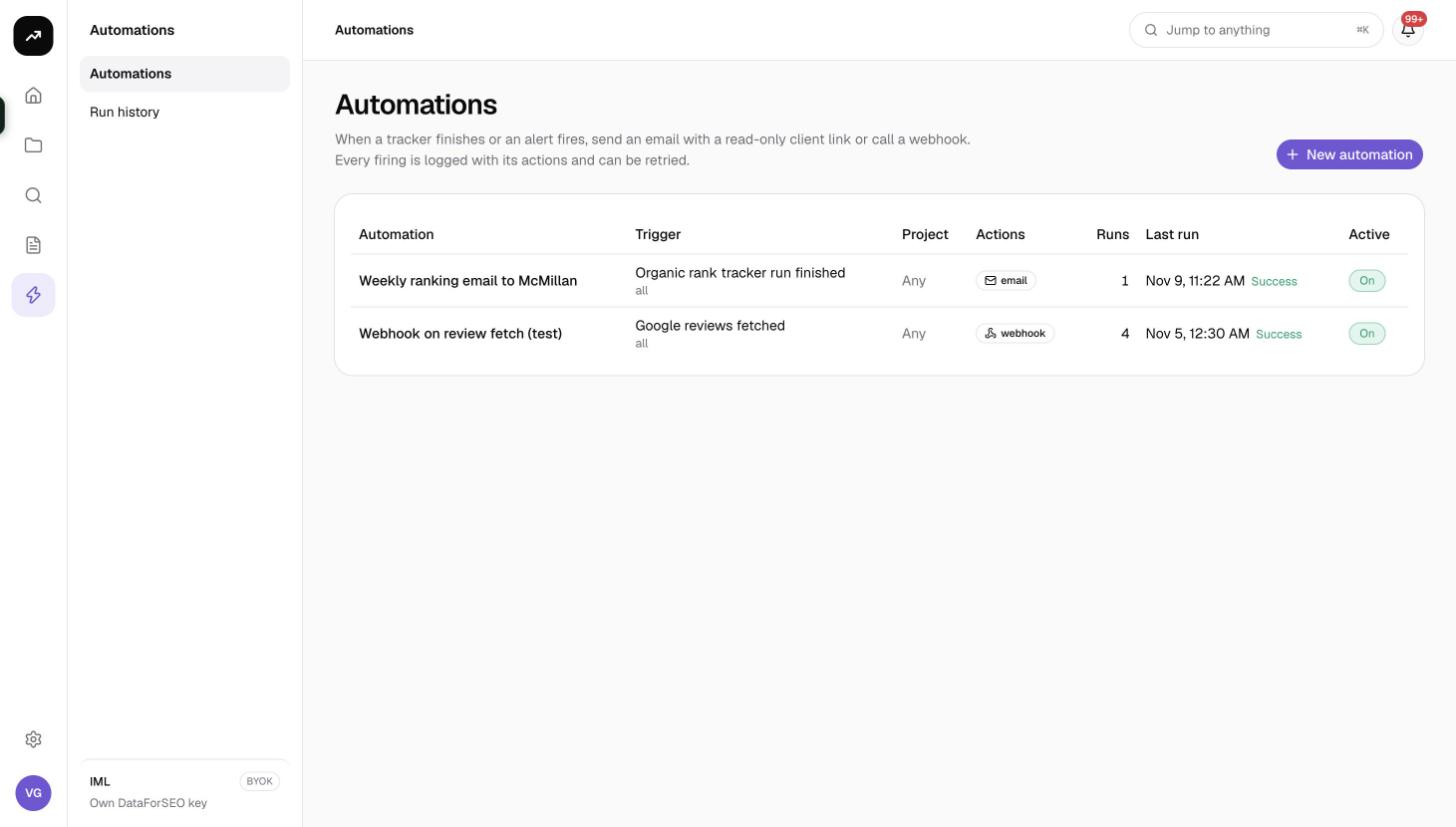
Automations connect what happens in SmarterSEO to the outside world. "When a tracker finishes or an alert fires, send an email with a read-only client link or call a webhook. Every firing is logged with its actions and can be retried." Use them for weekly client ranking emails, Slack or Zapier hooks, or pushing review alerts into your helpdesk.
What it does
An automation has three parts: a trigger (which event, for which project and reports, under which conditions), one or more actions (email or webhook) that run in order, and a history of every run with its actions and the trigger data. Triggers are event-based; there is no time-based schedule, because the trackers themselves already run on a schedule and the automation fires when they finish.
Cost: Free. Automations are included on every plan and never use credits. The runs that trigger them are billed as usual.
Before you start
- You need the Member role or above. Viewers cannot create, edit, test, retry or delete automations.
- Have at least one tracker, grid, AI tracker or review business in a project, or create the automation first and it will fire for ones created later.
- For webhooks, have an https:// endpoint ready. For email, nothing is needed; mail is sent from SmarterSEO.
Creating an automation
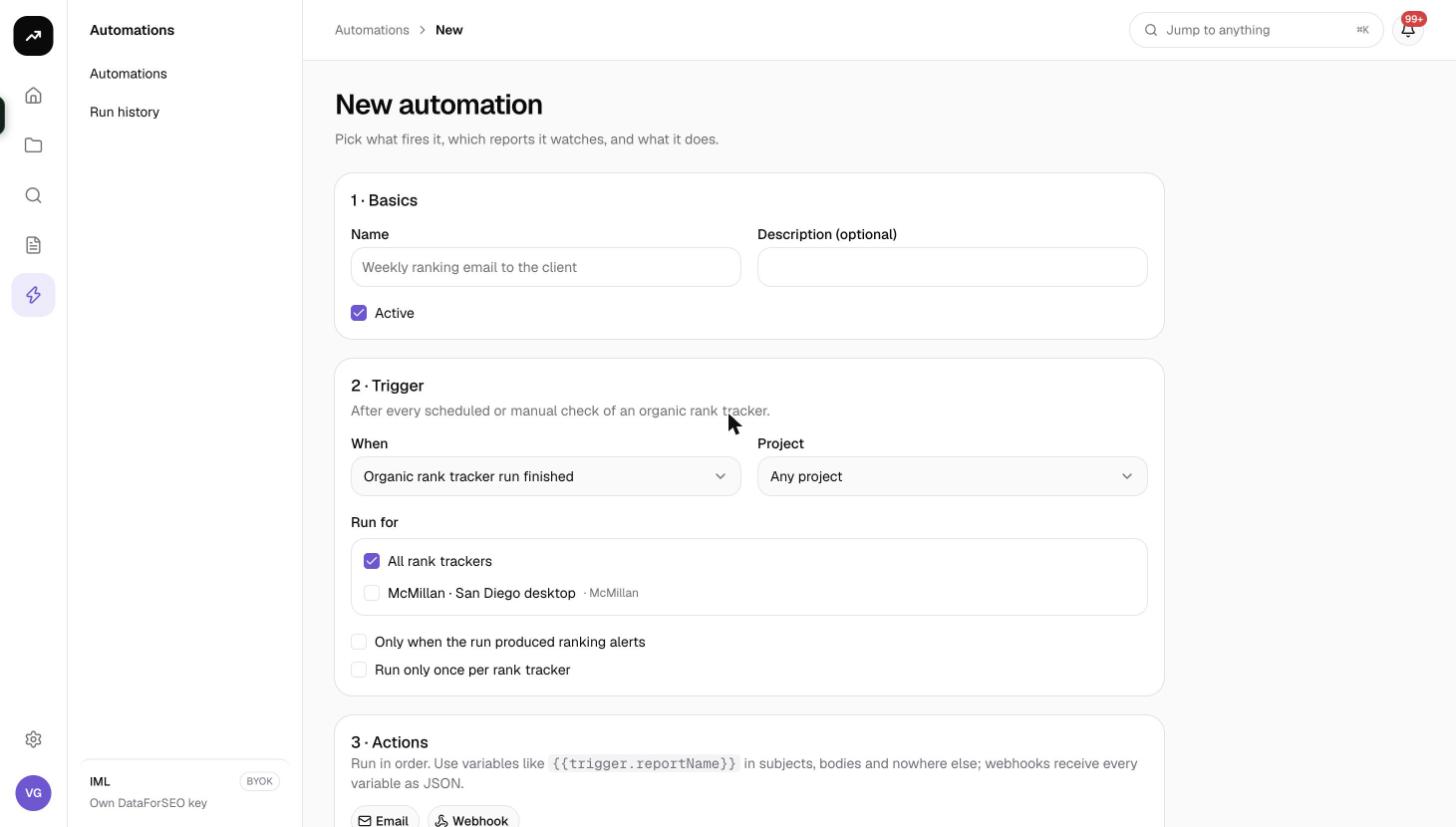
Click New automation on the Automations page (or on a project's Automations tab, which pre-selects the project). The builder has three numbered sections.
1 · Basics
| Field | Details |
|---|---|
| Name | Required, up to 120 characters, for example "Weekly ranking email to the client". |
| Description | Optional, up to 500 characters. |
| Active | On by default. Turn it off to keep the automation without firing it. |
2 · Trigger
When chooses the event:
| Trigger | Fires when | Event name in webhooks |
|---|---|---|
| Organic rank tracker run finished | A rank tracker completes a check | rank-tracker.run |
| Search Console tracker alerts | A Search Console tracker produces alerts after the nightly sync | gsc-tracker.alerts |
| Local grid scan finished | A local grid completes a scan | local-grid.run |
| AI search check finished | An AI search tracker completes a check | llm-tracker.run |
| Google reviews fetched | A tracked business's reviews are refreshed | reviews.run |
Project: Any project, or one project.
Run for: All of the trigger's targets (all rank trackers, all grids and so on) or specific ones. If the project has none yet the builder says "No
Conditions depend on the trigger:
- Rank tracker: Only when the run produced ranking alerts. Without it, every run fires, which is what you want for a scheduled client email; with it, you get an alert-only email.
- Google reviews: Only when the fetch found new reviews and Only when a new review is at or below the alert rating.
- All triggers: Run only once per
, which fires a single time for each tracker or business and then ignores it.
3 · Actions
"Run in order. Use variables like {{trigger.reportName}} in subjects, bodies and nowhere else; webhooks receive every variable as JSON." Add actions with the Email and Webhook buttons; you need at least one.
Email ("Send email"):
| Field | Details |
|---|---|
| Recipients | Up to 20 addresses. "Each email action needs at least one valid recipient." |
| Cc | Optional. Cc recipients receive a separate copy with the subject prefixed "Cc: ". |
| Subject | Up to 200 characters. Default {{trigger.reportName}}: {{trigger.summary}}. |
| Body | Up to 5,000 characters, plain text with variables. |
| Attach a read-only client link to the report (30 days), available as {{trigger.shareUrl}} | On by default. Creates a share link that expires in 30 days, once per run, and makes it available as a variable. |
The email carries an Open in SmarterSEO button and the footer "Sent by the automation "{name}"."
Webhook ("Call webhook"):
| Field | Details |
|---|---|
| URL | Must start with https://. "Each webhook needs an https:// URL." |
| Signing secret (optional) | "Sent as X-SmarterSEO-Signature: sha256=HMAC(secret, body)." Use it to verify the payload came from SmarterSEO. |
Click Create automation (or Save automation when editing; a Saved. confirmation appears).
Note: If the server has no email provider configured, the builder warns "Email sending is not configured on this server (RESEND_API_KEY), so email actions will fail until it is." On app.smarterseo.com email is configured; the warning is relevant to self-hosted installs.
Variables
Variables are written as {{trigger.name}}. Unknown variables render as empty text.
| Available for | Variables |
|---|---|
| Every trigger | type, reportName, projectName, domain, ranOn, summary, url, shareUrl |
| Organic rank tracker | keywords, top3, top10, avgPosition, alerts, up, down |
| Search Console tracker | alerts, up, down |
| Local grid | businessName, keywords, points, localVoice |
| AI search | prompts, mentioned, cited |
| Google reviews | businessName, newReviews, lowReviews, rating, totalReviews, reviewsList |
Example body for a weekly client email:
Hi,

{{trigger.reportName}} ran on {{trigger.ranOn}}.
{{trigger.top3}} keywords in the top 3, {{trigger.top10}} in the top 10, average position {{trigger.avgPosition}}.
{{trigger.up}} moved up and {{trigger.down}} moved down.

Full report (link valid 30 days): {{trigger.shareUrl}}
Webhook payload
The webhook is a POST with a JSON body:
{
  "event": "rank-tracker.run",
  "automation": { "id": "…", "name": "Weekly ranking email to the client" },
  "run": { "id": "…", "test": false },
  "trigger": { "type": "rank-tracker.run", "reportName": "…", "projectName": "…", "top3": 12, "…": "…" },
  "sentAt": "2026-11-09T06:04:12.000Z"
}
Headers: Content-Type: application/json, User-Agent: SmarterSEO-Automations/1.0, X-SmarterSEO-Event with the event name, and X-SmarterSEO-Signature: sha256=<hex HMAC> when a signing secret is set. To verify, compute HMAC-SHA256 of the raw request body with your secret and compare it to the hex value.
Delivery rules: 15-second timeout, redirects are not followed, and any non-2xx response marks the action as failed. run.test is true for runs started with Send test.
Testing, history and retries
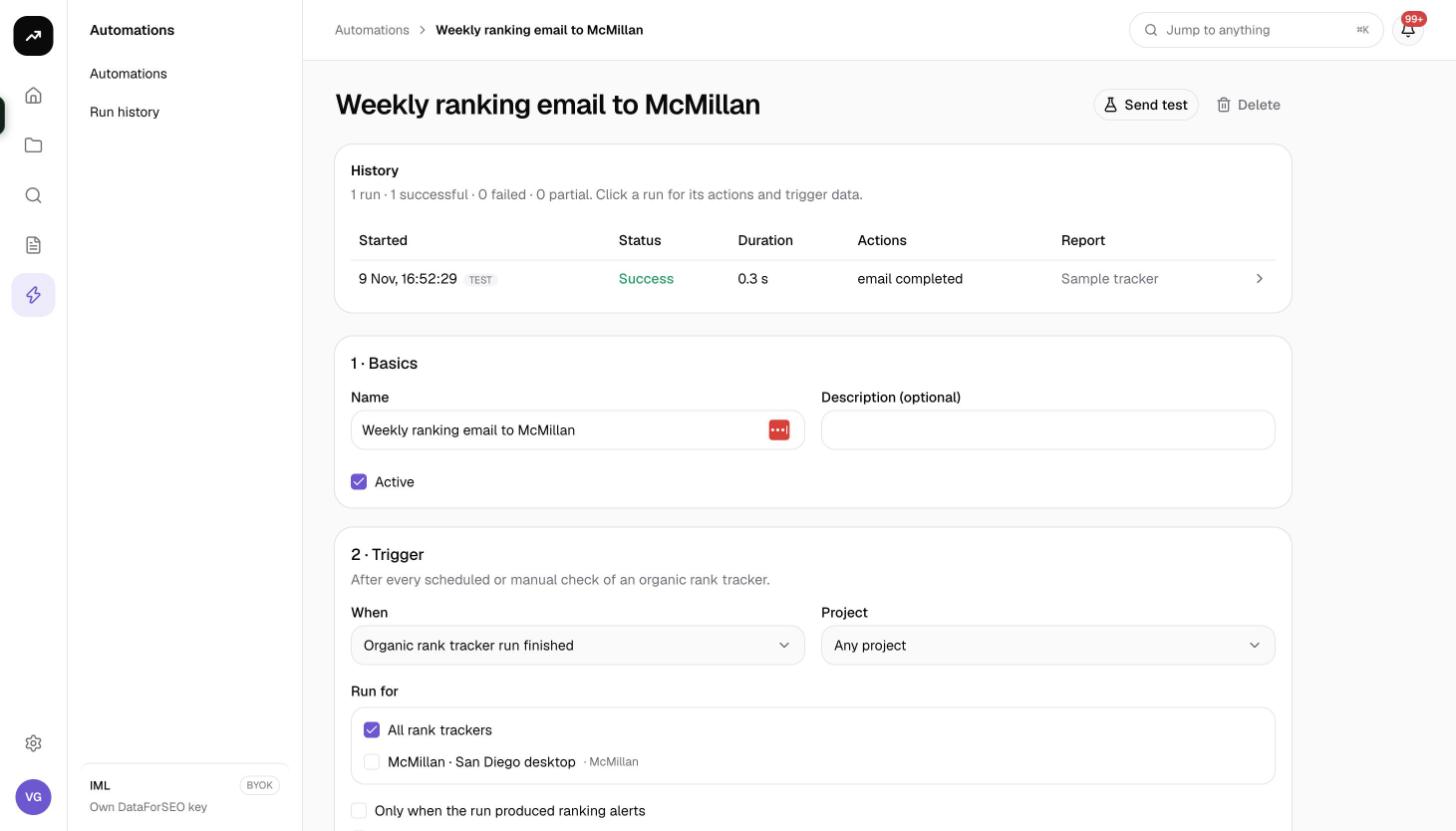
Open an automation to see its detail page.
- Send test queues a test run with sample trigger data: "Test run queued for "
". Results appear in the history within a minute." Test runs are tagged in the history and carry run.test: truein webhooks. - Delete removes the automation and its history.
- History summarises "N runs · N successful · N failed · N partial." and lists each run with Started, Status (Success, Failed or Partial, meaning some actions failed), Duration, Actions and Report. Expand a run to see each action's outcome (completed, failed or skipped, for example "No recipients") and the full Trigger data.
- Retry failed actions re-runs only the failed ones; Retry all re-runs everything. Both answer "Retry queued." A run still in progress says "That run is still in progress."
- The history refreshes every 5 seconds while a run is live. An empty history reads "No runs yet. Use Send test, or wait for the trigger."
The Automations list shows Automation, Trigger (with "all" or "N selected", and "· once each" when the once-per-target condition is on), Project ("Any" or the name), Actions as badges, Runs, Last run and the Active toggle. Flip the toggle to pause an automation without editing it. All runs (/automations/history) lists "Every automation firing across this workspace, newest first."
Tips and gotchas
Tip: Build the automation, click Send test, and check the email or webhook before the first real run. The test uses realistic sample values for every variable.
Warning: An automation never fails the tracker run that triggered it. If an email bounces or a webhook times out, the run itself is fine; look in the automation's history for the error and retry.
- Share links created by the email action expire after 30 days and are listed on the project's Client sharing page like any other link.
- To send to Slack, Teams or Zapier, use their incoming webhook URL as the Webhook action and map the
triggerfields on their side. - There is no WordPress action; WordPress is used only from content outlines.