Client sharing
Create public, read-only links to rank trackers, Search Console trackers, local grids, AI search trackers and Performance reports, with expiry, view counts and instant revocation.
Client sharing gives each report its own public, read-only link that a client can open without signing in. The page carries your branding, hides every control that costs money or changes settings, and can be set to expire or revoked at any moment from the project's Client sharing page.
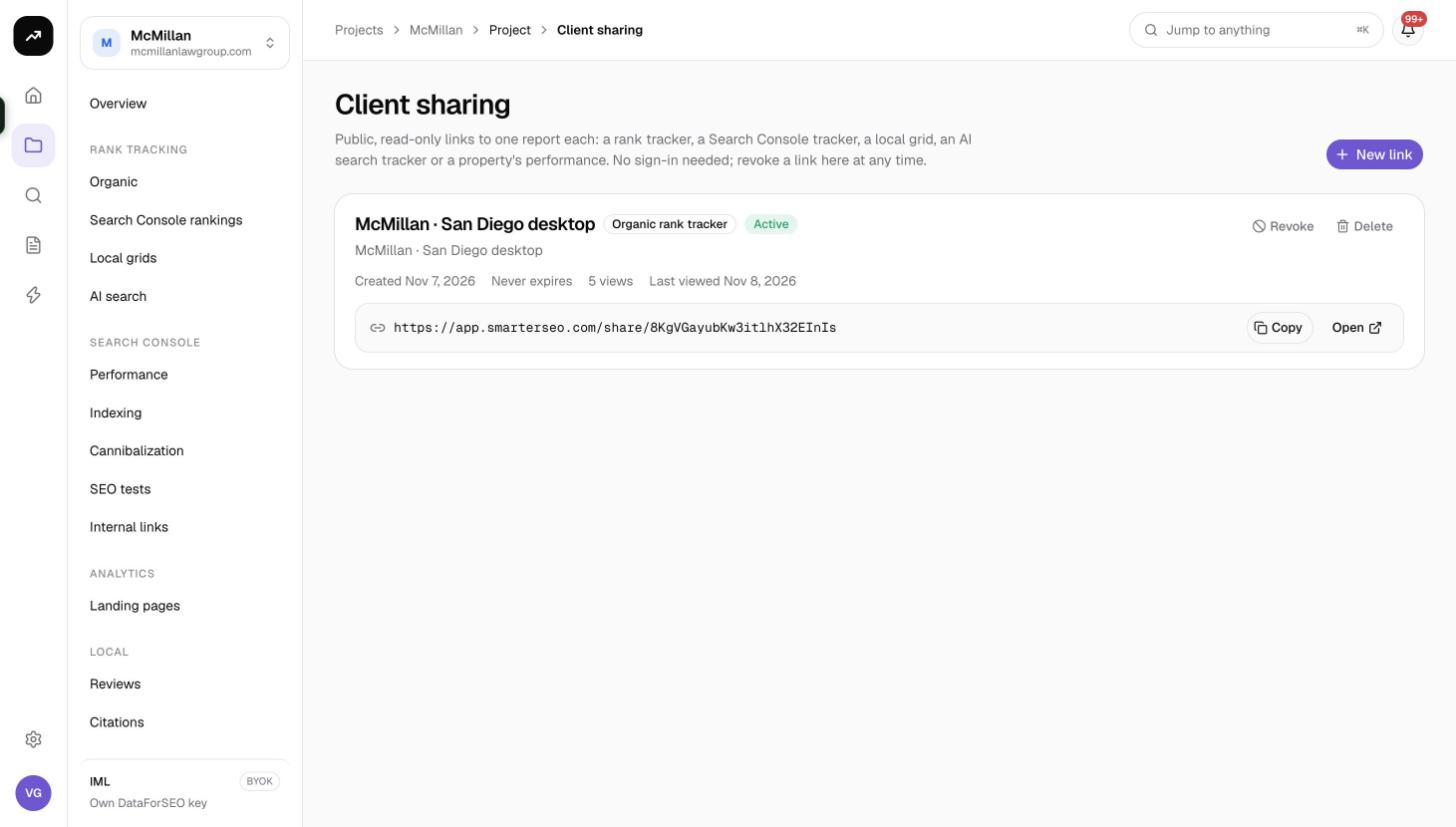
What it does
The page describes itself as "Public, read-only links to one report each… No sign-in needed; revoke a link here at any time." Every link points at exactly one report. Visits are counted, the page is not indexed by search engines, and the organisation's white-label branding applies to every link, including links created before the branding was set.
Cost: Free on every plan, white label included.
Which reports can be shared
| Report type | What the client sees |
|---|---|
| Organic rank tracker | Overview, keywords, movers, pages and distribution, with the CSV button. |
| Search Console tracker | Overview and keyword table. |
| Local grid | Keyword chips, snapshot picker, tiles and the map. |
| AI search tracker | Visibility, citations and per-engine results. |
| Search Console performance | The full Performance view without the property switch or the Manage link, with the CSV button. |
Reviews, citations, SEO tests and content tools cannot be shared. For those, export the CSV or take screenshots.
Before you start
- The report must exist in the project you are sharing from.
- Viewers cannot create or revoke links; you need the Member role or above.
- Set up White-label branding first if you want your logo and colour on the shared page; existing links pick it up automatically later anyway.
Creating a link
- Open the project and go to Client sharing.
- Click New link.
- Fill in the dialog:
| Field | Options |
|---|---|
| What to share | Pick the report from the project's rank trackers, Search Console trackers, local grids, AI search trackers and Search Console Performance. |
| Label (optional) | Shown in the shared page's header. Defaults to the report name. Use the client's name or the campaign. |
| Expires | Never (default), 7 days, 30 days, 90 days or 1 year. |
- Click the confirm button. The dialog switches to Link ready with the URL and a copy button.
Paste the link into an email, a client portal or a slide. It needs no account on the client's side.
Managing links
Each row in the list shows:
- Status: Active, Revoked or Expired.
- Created and Expires (or Never expires).
- The view count and Last viewed, so you know whether the client has actually opened it.
- Copy and Open buttons.
- Revoke: the link stops working immediately but the row and its view count stay for your records.
- Delete: removes the row entirely.
A revoked or expired link shows visitors the message "This link is no longer available". Create a new link if you want to share the report again; revocation cannot be undone.
What the client sees
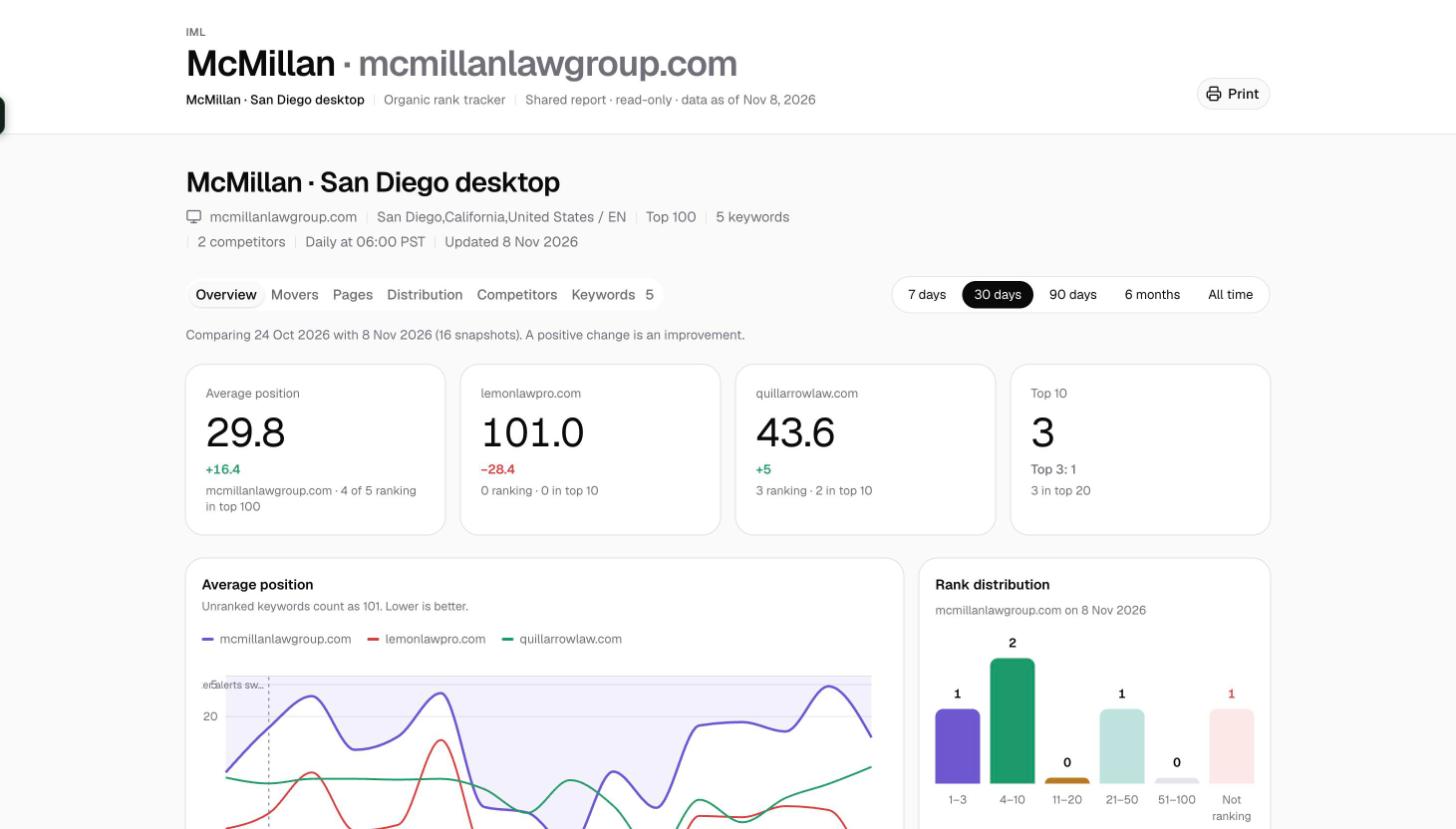
The public page at /share/{token} has three parts:
- Header: your logo, your brand name linked to your website and your accent colour (from Branding), then the project name and domain, the link label, the report type and the line "Shared report · read-only · data as of {date}". A Print button produces a clean printout or PDF through the browser.
- The report: the same charts, tiles and tables as in the app, read-only.
- Footer: your custom footer line, or "Generated by SmarterSEO" unless you have hidden it in Branding, plus either "This link expires {date}." or "This link stays available until it is revoked."
What is deliberately left out:
- Settings tabs on trackers.
- Alerts tabs on organic and Search Console trackers.
- Scan, Check and Run buttons: a client can never trigger a run or spend credits.
- Any cost or credit information.
The CSV buttons remain on the organic rank tracker and the Performance page so the client can take the data with them.
Tips and gotchas
Tip: Create one link per client per report and label it with the client's name. The view count and Last viewed then tell you which clients read their reports, which is useful before a review call.
Warning: Anyone with the link can open it. Treat links like the reports themselves: do not post them publicly, and revoke a link when an engagement ends.
- The data on the shared page is live: it updates after every tracker run or sync, so a link created once keeps serving the latest numbers.
- Automations can create 30-day share links automatically and put them in emails; see Automations.
- Clients who need to see several reports or comment on them can instead be invited with the Client role; see Members and roles.