Check mentions
For every keyword and page you list, see whether the keyword appears in the title, meta description, H1, other headings and body text. Free, with pages fetched directly.
Check mentions is a fast on-page audit for keyword placement. Paste up to 100 keywords and up to 100 page URLs, and SmarterSEO fetches each page once and tells you, for every keyword × page pair, whether the keyword is in the title, meta description, H1, other headings and how many times it appears in the visible text.
What it does
Each page is fetched directly by SmarterSEO (no paid provider), six pages in parallel, with a 20 second timeout and the first 3 MB of HTML. The tool then does a whole-phrase, case-insensitive search for each keyword in five places: the <title>, the meta description, the H1, other headings (H2 to H6) and the visible body text. The body count is the number of occurrences in visible text.
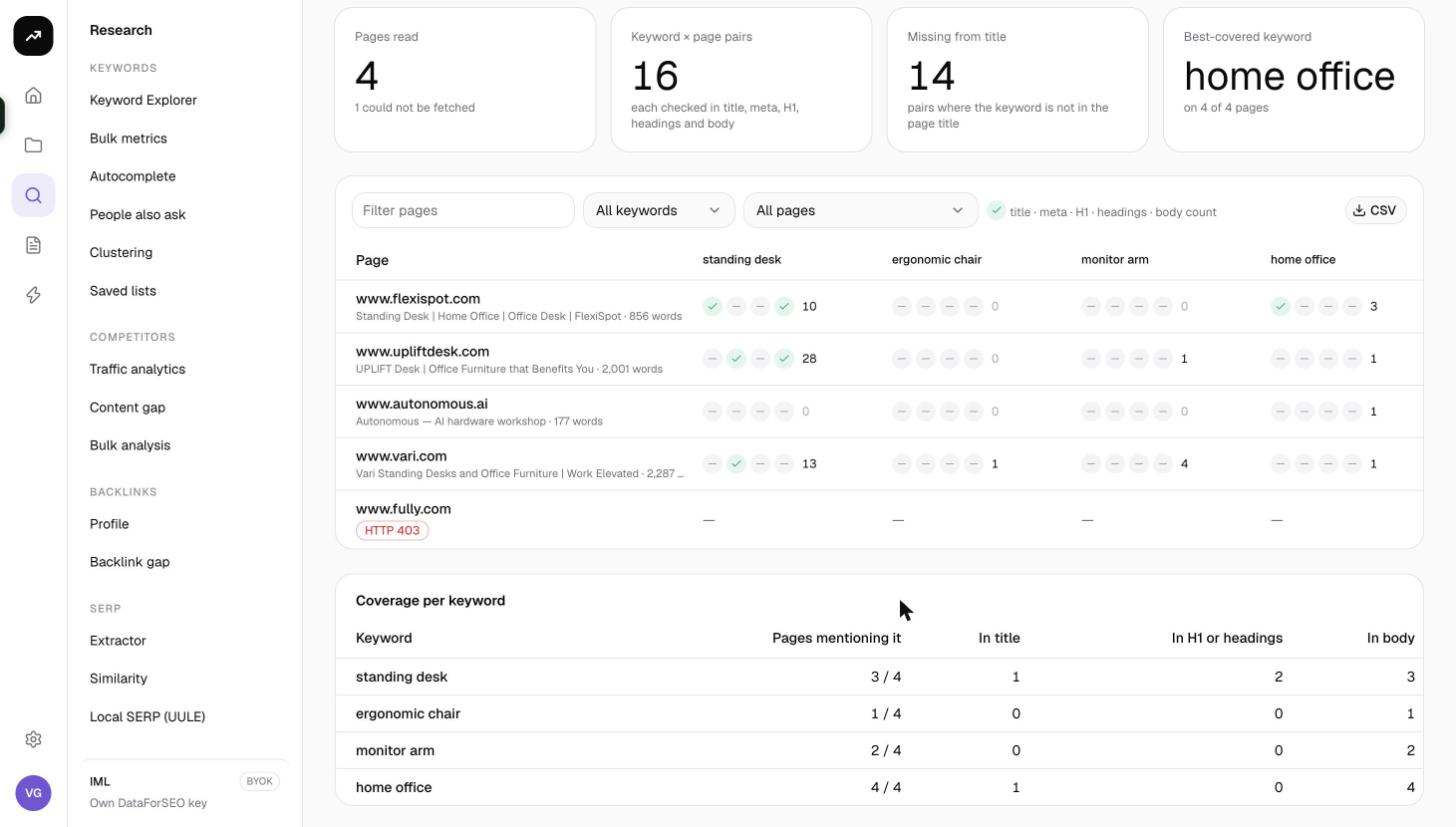
The result is a matrix of pages against keywords with five markers per cell, plus a per-keyword coverage summary and a CSV.
Before you start
- You need a role that can run tools; viewers see Viewers can't run tools.
- Prepare the keyword list: one per line or comma-separated, each 1 to 120 characters, up to 100 unique keywords. Duplicates are removed and the counter reads "N unique · max 100 · one per line".
- Prepare the page list: full URLs, up to 100. If you omit the scheme,
https://is added. - Pages must return HTML or XML. PDFs, images and other file types are reported as "Not an HTML page".
- Matching is whole-phrase. "standing desk" will not match "standing desks" or "desk for standing".
Step by step
- Open Research, then Check mentions in the Technical group (
/research/technical/mentions). - Paste your Keywords.
- Paste your Pages, one URL per line.
- The cost line reads Free: "Each page is fetched once and checked for every keyword in its title, meta description, H1, other headings and visible text."
- Click Check mentions. The page redirects to its permanent
?job=link, shows Reading pages…, and fills in when the run is Ready.
Reading the results
Tiles
- Pages read: how many URLs were fetched successfully out of the total.
- Keyword × page pairs: the number of checks performed (keywords multiplied by pages read).
- Missing from title: how many pairs have the keyword absent from the page title.
- Best-covered keyword: the keyword that appears on the most pages.
Filters
- Filter pages narrows the matrix by URL.
- The keyword select shows All keywords (first 6 shown) by default; pick a single keyword to show just its column across every page.
- The show select limits rows: All pages, Keyword missing from title, Keyword not mentioned at all or Keyword mentioned.
Matrix
One row per page, starting with the Page column (URL, fetch status and page title). Then, for each keyword, a cell with five markers in order: title · meta · H1 · headings · body count. A filled marker means the keyword was found in that element; the last value is the number of times it appears in the visible text. Failed pages show their error (for example "Timed out" or "Not an HTML page (application/pdf)") instead of markers.
Coverage per keyword
A summary table with one row per keyword: Keyword, Pages mentioning it, In title, In H1 or headings and In body. Sort by the first column to find keywords with no page targeting them at all.
CSV
The CSV button exports one row per keyword × page pair with the columns url, status, page_title, keyword, in_title, in_meta, in_h1, in_headings, body_count.
Costs
Cost: free on every plan. Pages are fetched by SmarterSEO; nothing is sent to a paid provider.
Tips and gotchas
- Each page is fetched once no matter how many keywords you list, so a 100 × 100 run is 100 fetches and 10,000 checks.
- Pages behind a login, a bot wall or a JavaScript-only renderer return little or no HTML; the tool reads server HTML, not a rendered page.
- A 20 second timeout and a 3 MB cap apply per page. Very large pages may be truncated before the footer.
- Because matching is whole-phrase, list the variants you care about as separate keywords ("standing desk", "standing desks", "stand-up desk").
- Pair this tool with a Metadata audit when the problem turns out to be titles and descriptions across a whole site rather than specific keywords.
- Use a Sitemap Extractor export to get the list of pages to paste here.