Log file analysis
Upload or automatically import server access logs and see which search engines and AI crawlers fetch your pages, what they read, where they hit errors and whether they respect robots.txt.
Log file analysis reads your web server's access logs and turns them into a crawler report: which bots visit, which pages they fetch, how often they hit errors, and, specifically for AI, whether answer engines and training crawlers are reading your content and keeping up with search engines. You can drop files in by hand or connect an SFTP, FTP or S3 location so new logs are pulled on a schedule.
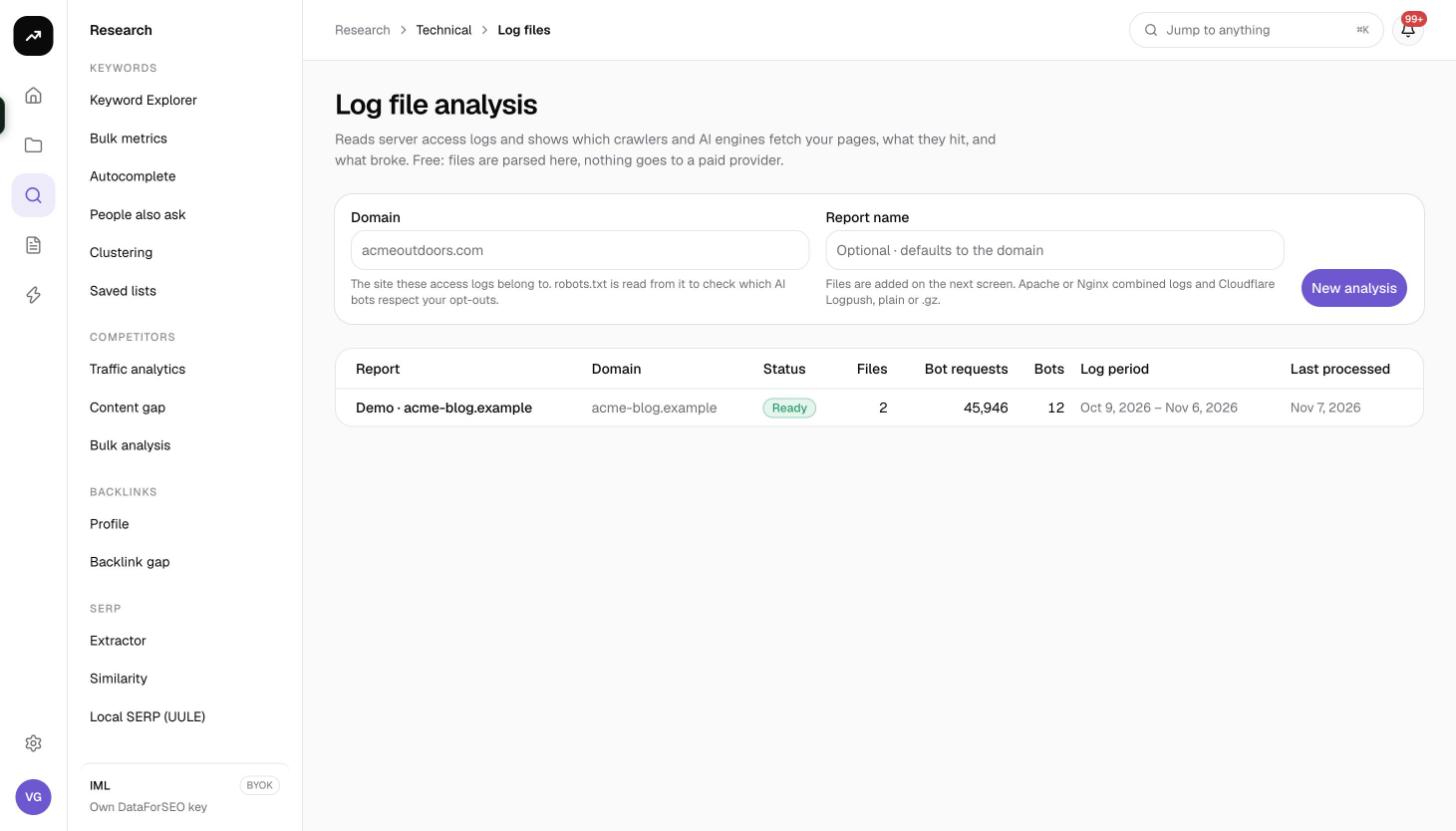
What it does
Each report belongs to one domain. You add log files (uploaded or imported), SmarterSEO parses them, keeps only bot traffic, and classifies every user agent into a category: AI answer engines, AI assistants, AI training, Search engines, Social, SEO tools, Monitoring or Other. The report then shows an AI-focused view, an overall overview, per-bot and per-page tables, the queries AI engines sent in their referrers, your files and your scheduled sources. The domain's robots.txt is read so the report can show which AI bots ignore your opt-outs.
Parsing is free and runs as a job you can follow under Jobs.
Before you start
- You need a role that can create reports; viewers see Viewers can't create reports. and Viewers can see reports but can't add files.
- Find your access logs. Supported formats are detected automatically from the first 20 lines: Apache combined, Nginx combined (including an x-forwarded-for field), Cloudflare Logpush JSON, JSON lines, CloudFront standard, IIS / W3C extended and AWS load balancer logs. Plain or gzipped (.gz) files both work.
- Files can be up to 500 MB each when uploaded from the browser. Split or gzip anything larger.
- For scheduled imports you will need a read-only account or key for the server or bucket where logs rotate.
Step by step
Create a report
- Open Research, then Log files in the Technical group (
/research/technical/logs). - Enter the Domain the logs belong to (for example
acmeoutdoors.com). The help text explains that robots.txt is read from it to check which AI bots respect your opt-outs. - Optionally give it a Report name; it defaults to "Log analysis ·
" (120 characters max). - Click New analysis. The report opens with an empty upload panel headed Add the access logs for
.
Upload files
- Drag files onto Drop access logs here or click to choose, or click Choose files (.log, .txt, .gz, .json, .jsonl; several at once).
- Each file shows "waiting", "uploading…", then "uploaded" (or "failed"). Files go straight from your browser to storage. A file over 500 MB is rejected before upload: "
is over 500 MB. Split or gzip it first." - When uploads finish, the parser job starts: "N file(s) queued for parsing." A banner reads Parsing your log files… this page updates when it finishes. Progress shows the file being read ("access.log.3 (2 of 5)") and a line count every 200,000 lines.
- To add more later, open the Files tab and use Add more logs. New files are merged into the report; a file already imported is recognised and skipped.
Connect a scheduled source
- Open the Sources tab and click Add source. The dialog Add a log source reminds you: "Credentials are stored encrypted and only used to read files. Use a read-only account or key."
- Enter a Source name (for example "Production nginx") and pick the Type: SFTP (SSH) (default), FTP, FTPS (TLS) or S3 / Cloudflare R2 / S3-compatible.
- For SFTP, FTP and FTPS fill in:
- Host (required) and Port (defaults: 22 for SFTP, 21 for FTP, 990 for FTPS).
- Username (required).
- Authentication: Password or Private key. Key authentication is only available for SFTP.
- Private key ("OpenSSH or PEM format. Paste the whole file.") and Key passphrase ("Only if the key has one."), or Password.
- Remote directory ("Where the logs are, e.g. /var/log/nginx. Empty = the account's home.").
- For S3 fill in:
- Endpoint ("Leave empty for Amazon S3. R2: https://
.r2.cloudflarestorage.com"). - Region ("Amazon S3 only, e.g. us-east-1. R2 uses auto.").
- Bucket (required) and Folder (a key prefix).
- Access key ID and Secret access key. The dialog advises an R2 API token with Object Read only, or on S3 an IAM user with s3:ListBucket and s3:GetObject on that bucket.
- Endpoint ("Leave empty for Amazon S3. R2: https://
- Common fields:
- File pattern: default
access.log*(or*.gzfor S3). Matched against file names, case-insensitive;*,?and{a,b}lists work. - Check for new files: Hourly, Every 6 hours or Daily (default).
- Import history ("How far back the first run reaches, by file date."): Last 7 days, Last 30 days (default), Last 90 days, Everything available or Only from now on.
- File pattern: default
- Click Test connection. It lists matching files ("Found N files." with oldest and newest), sniffs the newest file's format ("Detected format: …") and shows a sample line. For SFTP it also shows the host key fingerprint ("SHA256:… It will be pinned for future connections."). Errors are in plain language: no such host, the host did not answer, connection refused on that port, permission denied (check the username, password or key, or the account cannot read that directory), or no files matched the pattern in that directory.
- Click Save and import. The toast reads "Source added. The first import is running." Each import pulls at most 25 files, 300 MB per file and 600 MB in total; if more files remain, the next run is scheduled 5 minutes later. The parser is queued automatically after each pull.
Reading the results
Report header
- Date range: Last 7 days, Last 30 days (default), Last 90 days or All time. It applies to the tiles, charts and the Bots table; the Pages and AI pages tables are always all time.
- A description line: "
· N bot requests across N files · N human requests not counted". - Filter paths or bots narrows the tables.
- Delete removes the report and its uploaded files after confirmation.
New crawlers card
When the parser meets user agents it does not recognise, a card titled N new crawler(s) asks you to confirm how to count them. Unknown bots are filed under Other; move the ones you know into the right group so the AI and search charts stay honest. Use the counted as dropdown per row, then Confirm (or Confirm all (N)), Copy bot names to research them, and Show all N / Show fewer to expand the list. Categories you confirm apply to every report in the organisation.
AI view tab (default)
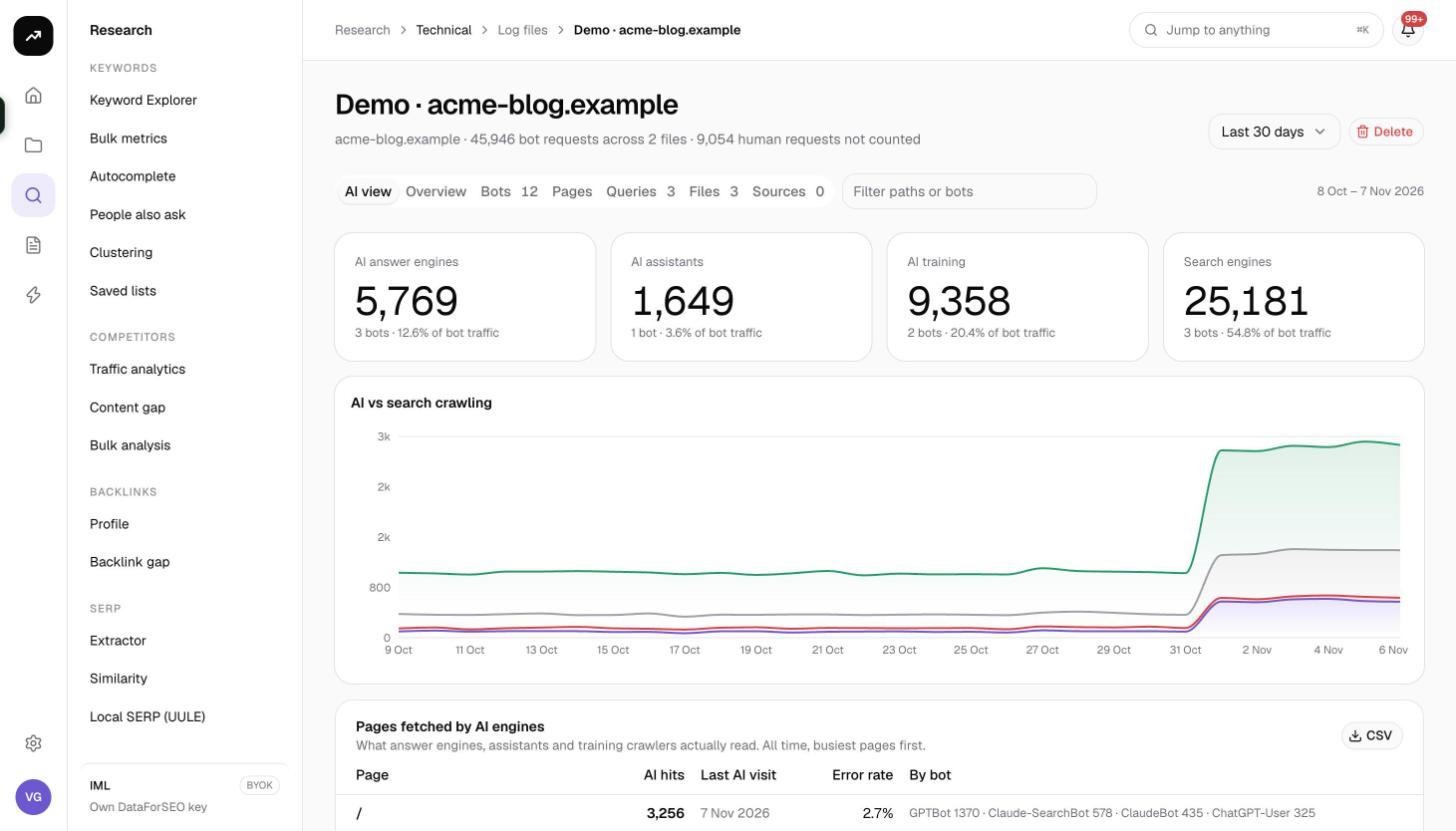
- Tiles AI answer engines, AI assistants, AI training and Search engines, each with "N bots · X% of bot traffic" (or "No hits in this period").
- AI vs search crawling: a stacked daily chart of AI categories against search engines.
- Pages fetched by AI engines: "What answer engines, assistants and training crawlers actually read. All time, busiest pages first." Columns Page, AI hits, Last AI visit, Error rate (red above 5%) and By bot (the top 4 bots). Up to 200 rows, with a CSV (path, ai_hits, last_ai_visit, error_rate, bots).
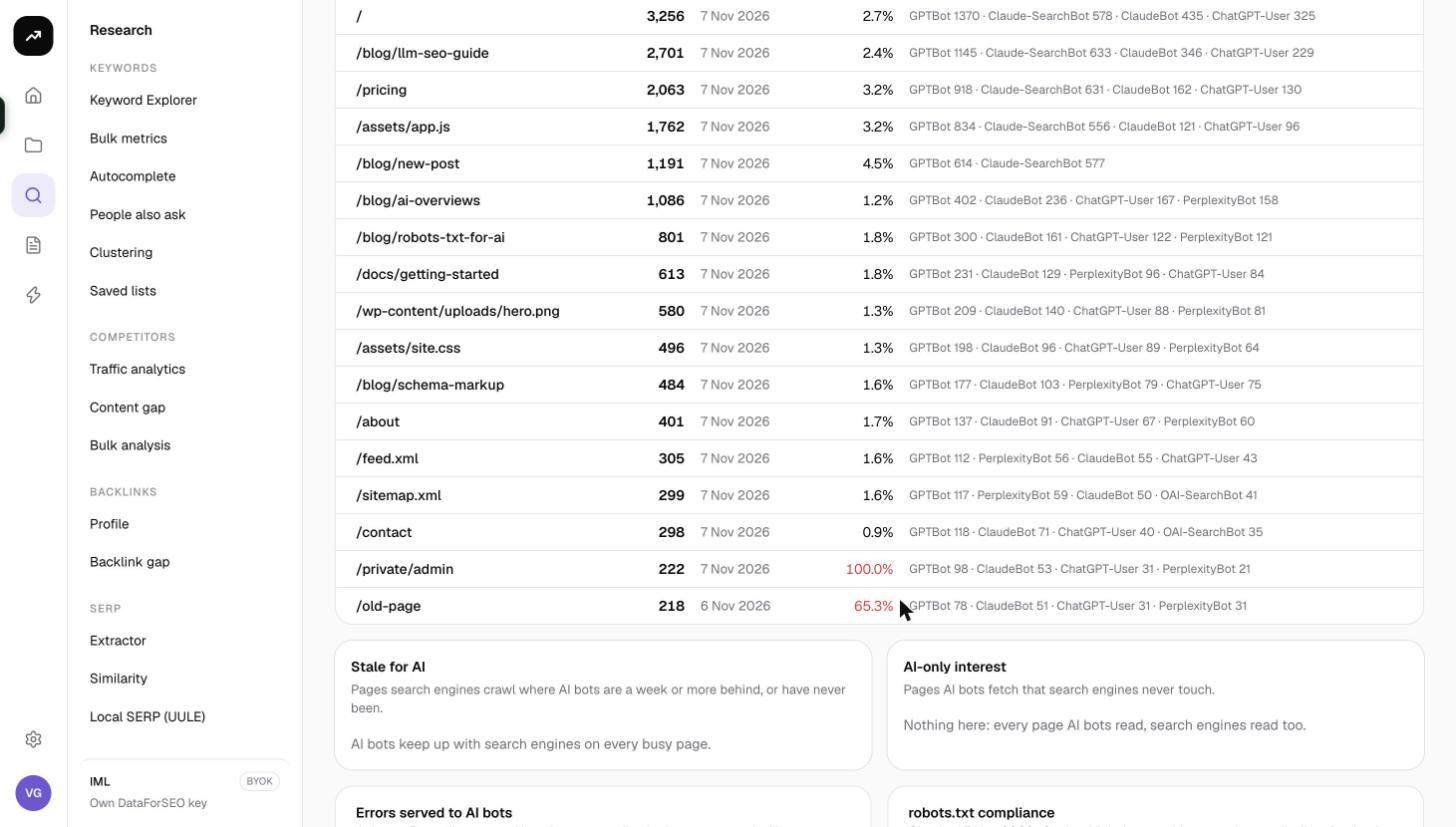
- Stale for AI: "Pages search engines crawl where AI bots are a week or more behind, or have never been." HTML pages only, top 50, each marked "never seen by AI" or "N days behind".
- AI-only interest: "Pages AI bots fetch that search engines never touch." Top 50.
- Errors served to AI bots: "A 4xx or 5xx spike means AI engines are reading broken pages, and will answer from them." Columns Bot, Requests, 2xx, 3xx, 4xx, 5xx, Errors.
- robots.txt compliance: "Checked
· N rules. Violations are hits on paths you disallow for that bot." Columns Bot, Opt-out status (Allowed, Disallowed or a dash when no rule applies), Hits, Violations. The longest matching rule wins and Allow beats Disallow on a tie. If the file could not be fetched the card says so.
Overview tab
- Tiles Bot requests (with days of logs and bytes served), Unique bots, Error rate (red above 5%, with client and server error counts) and Mobile share.
- Crawl activity by bot: a daily chart of the top 6 bots plus Others.
- Bar cards Bot categories, Status codes, File types crawled (page, image, script, style, document, data, font, media, other) and Devices.
- A warning card Pages answering differently to different bots lists paths where the last status seen differs by crawler class, a sign of cloaking, bot blocking or an unstable page.
Bots tab
"Every crawler in the selected period. Share is of all bot requests." Columns Bot, Category, Requests, Share, Errors, Mobile, First seen, Last seen. CSV available.
Pages tab
"The busiest paths, all time, with hits per crawler." Up to 1,000 paths. A bot selector (All bots or one bot) changes the per-bot columns. Columns Path (with file type), Hits, up to 8 per-bot columns and Last (the last status code). CSV available.
Queries tab
"Questions AI engines asked before fetching your pages", taken from the Referer header on bots that share it (Perplexity, You.com, Phind). ChatGPT-User and Claude-User strip it, so a short list is normal. Columns Query, Bot, Hits, Pages; top 200.
Files tab
The upload panel plus a table of every file: File, Format ("imported" for files pulled from a source), Status (uploaded, parsing, parsed, skipped, failed), Lines, Bot requests, Covers (the date span), Size and a delete action. Deleting asks "Remove
Sources tab
Each source is a card with its name, kind, location, pattern and interval; a badge Pending first run, OK, Running, Failing (N) or Paused; Last run, Next run and a Last import line ("N matched · N fetched · N already here · N too big"); and Host key pinned for SFTP. Buttons: Run now ("Import queued."), Pause / Resume, and Delete ("Files already imported stay in the report."). If the server's host key changes, the error offers Trust the new key.
Costs
Cost: free. Parsing and importing cost 0 credits on every plan, including the lifetime license. Only the job time is used.
Tips and gotchas
- Only bot traffic is stored. Human requests are counted for the header line and then discarded, so this is not a web analytics replacement.
- Query strings are stripped and paths are capped at 500 characters; a report keeps the busiest 50,000 paths per file.
- A source skips a file whose size has not changed, continues a grown plain-text file from the last byte, and never partially re-reads a compressed file. Rotate logs into dated .gz files for the cleanest imports.
- A source is paused automatically after 5 failed runs. Fix the credentials or path, then Resume. If you see "The source has no stored credentials", delete it and add it again.
- Large files are parsed across several worker runs ("Pausing before the function deadline; N file(s) continue in the next run."). The page updates when they complete.
- Confirm new crawlers soon after the first parse. Until you do, unknown AI bots sit in Other and the AI tiles under-count.
- robots.txt is re-read at most once a day after a parse, so a change you make today shows in the compliance table after the next parse tomorrow.
- Finished jobs send an in-app notification ("Log file analysis finished" or "failed"); there is no email for this tool.