Keyword Explorer
Volume, difficulty, intent and the live top 10 for one keyword, plus suggestions, related keywords and questions people ask.
Keyword Explorer is the place to start when you want to understand a single keyword: how often it is searched, how hard it is to rank for, what searchers want, who ranks today, and which other keywords and questions sit around it. One search returns everything in a few seconds, and the results page gets a permanent link you can come back to.
What it does
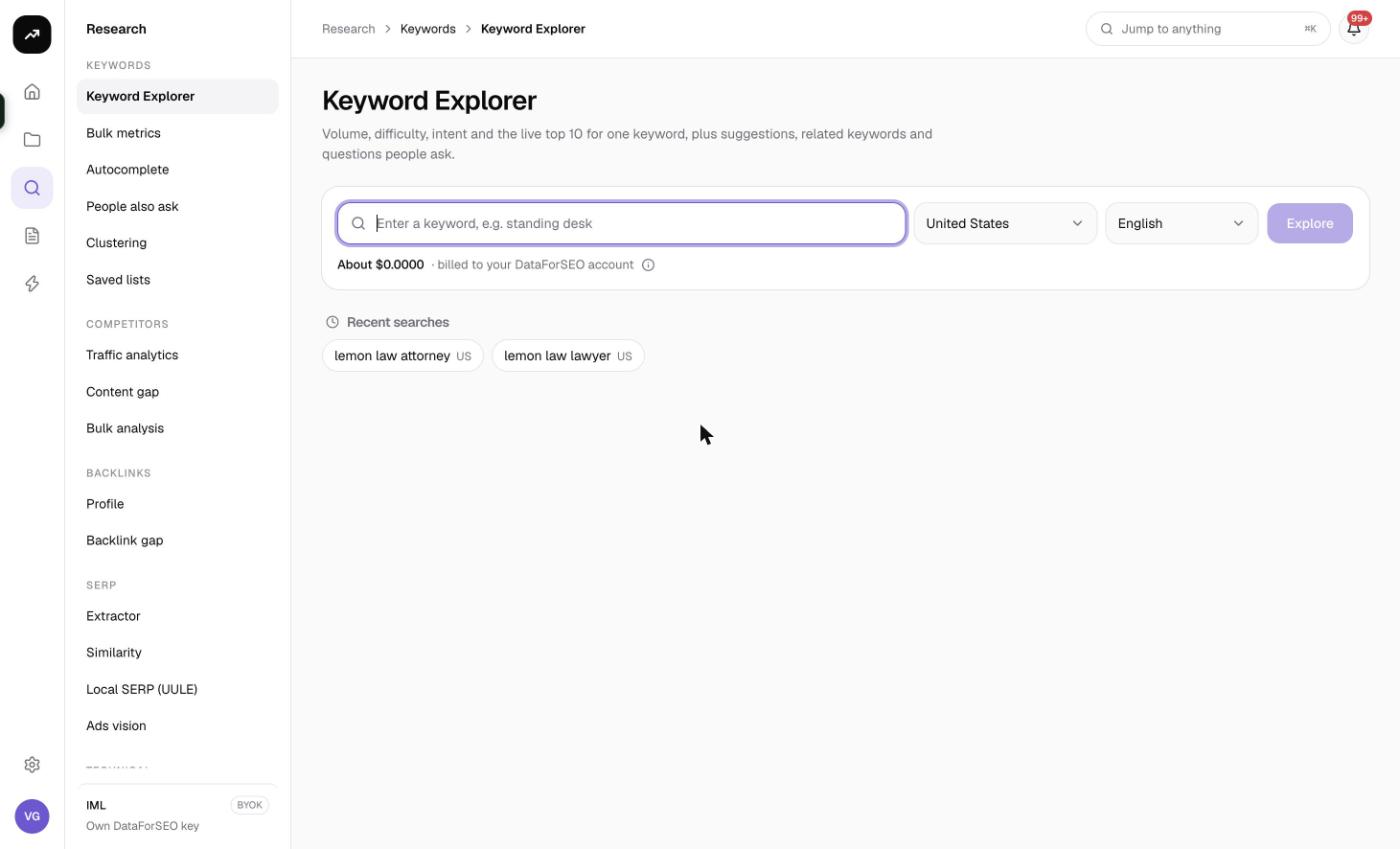
You type one keyword, choose a market and language, and click Explore. SmarterSEO then runs four lookups at the same time:
- a keyword overview with search volume, keyword difficulty, CPC, competition, intent, 12-month trend and the SERP features recorded for the keyword
- up to 200 keyword suggestions, ordered by search volume
- up to 200 related keywords, found by following Google's "searches related to" links two hops deep
- a live Google desktop search for the keyword, so you see who ranks right now
Everything lands on one results page with summary tiles at the top and four tabs underneath. Because the lookups run in parallel, a search usually finishes in seconds. If the keyword overview itself cannot be fetched, the whole search is marked as failed; the other three lookups are supporting data and are not enough on their own.
Before you start
- One keyword per search. The box accepts up to 100 characters. For lists of keywords use Bulk keyword metrics instead.
- Market and Language are separate pickers. There are 42 markets (default United States) and 25 languages (default English). Changing the market does not change the language automatically, so set both when you research a non-English market.
- Role. Viewers cannot run research tools; you need an editor or admin role in the organization. Viewers see the message "Viewers can't run tools."
- Credits. The form shows an estimate under the button ("About N credits · billed to your SmarterSEO credits"). If the estimate is more than the organization's balance the button is disabled and the form says how many credits the run needs and how many you have.
Note: On a lifetime (bring-your-own-key) license the same line reads "About $0.0000 · billed to your DataForSEO account", which is what you will see in the screenshots in this knowledge base. On a monthly plan the line shows credits.
Step by step
- Open Research from the sidebar and choose Keyword Explorer in the Keywords group, or go straight to
/research/keywords/explorer. - Type your keyword in the box labelled "Enter a keyword, e.g. standing desk".
- Pick the Market and Language you want the data for.
- Check the cost line under the form, then click Explore.
- You are taken to the results page. While the lookups run you see a status badge ("Queued", then "Collecting") and the text "Exploring… this page updates automatically." You do not need to refresh.
- When the badge shows Ready, the tiles and tabs fill in. The URL of this page is the permanent link to the result; bookmark it or paste it to a colleague in the same organization.
If you open Keyword Explorer without a result, the page shows Recent searches as up to eight chips. Click a chip to re-run that search with the same market and language; if the data is still cached it costs nothing.
Reading the results
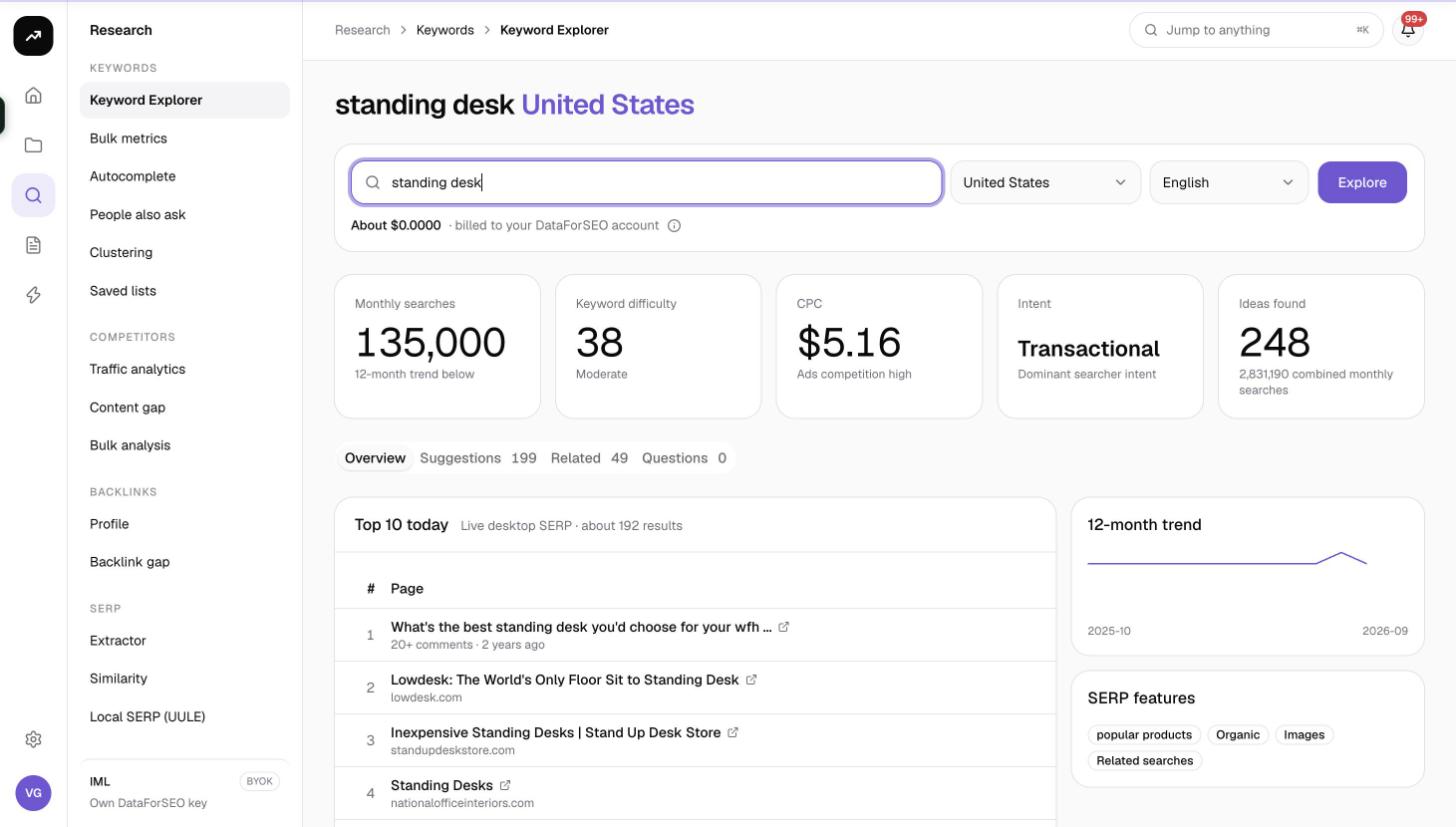
Summary tiles
- Monthly searches: the average monthly search volume for the keyword in the chosen market and language.
- Keyword difficulty: a 0 to 100 score with a label. Below 30 reads Easy to rank, 30 to 59 reads Moderate, 60 and above reads Hard.
- CPC: the average cost per click advertisers pay, with an Ads competition label of low, medium or high underneath.
- Intent: the dominant search intent recorded for the keyword (for example informational, commercial or transactional).
- Ideas found: how many suggestions, related keywords and questions the search produced in total.
Overview tab
- Top 10 today lists the pages ranking on the first page of Google right now, with a position number and the page URL. The caption reads "Live desktop SERP · about N results", where N is Google's estimated result count.
- 12-month trend is a sparkline of monthly search volume over the past year, so you can spot seasonality at a glance.
- SERP features shows badges for the features present on the results page, such as People also ask, featured snippets, videos or shopping results. Features seen in the live search take priority over the ones recorded in the historical snapshot.
Suggestions, Related and Questions tabs
Each tab title carries a count, for example Suggestions 200. The tables share the same columns:
| Column | Meaning |
|---|---|
| Keyword | The idea itself |
| Volume | Average monthly searches |
| KD | Keyword difficulty, 0 to 100 |
| CPC | Average cost per click |
| Intent | Search intent |
| Hops | Related tab only: how many "related searches" steps away from your seed the keyword was found (1 or 2) |
| Trend | 12-month volume sparkline |
Above each table:
- Filter keywords narrows the rows to those containing the text you type.
- Save to list opens the "Save to a keyword list" dialog. Choose Existing list or New list, give a New list name if needed, add Tags (optional) and confirm. The dialog tells you how many keywords will be saved with their current metrics and that keywords already in the list are skipped. Afterwards you see "Saved N keywords." (or "Saved N new keywords; M already in the list.") with an Open list link.
- CSV downloads the visible rows with the columns keyword, volume, kd, cpc, competition and intent.
- Tables are paginated client side. Choose 25, 50, 100 or 250 rows per page (default 100); the footer reads "1–100 of N" and "Page X of Y".
The Questions tab has two parts: a People also ask card with the questions Google showed in the live search, and a table of question-form keywords (who, what, how, why and so on) pulled from the suggestions and related sets.
Costs
Cost: About 18.6 credits per search, made up of the keyword overview (6), suggestions (6), related keywords (6) and the live top 10 (0.6). Keyword data is cached for 30 days, so repeating the same keyword, market and language within that window is free.
The figure shown before you run is an estimate; the actual charge is the measured data cost. After the run, the results page shows "N credits for this run". Hover the info icon to see whether every request was served from the cache, and what a fresh run would be estimated at.
Tips and gotchas
- Top 10 today can show fewer than ten pages. Google's first page often carries only around five organic results once features such as videos, People also ask and shopping blocks are included, so a short list is normal and not an error.
- Use the Related tab for topic expansion. Hops 2 keywords are two steps away from your seed and are often the ones your competitors have not spotted.
- Save as you go. You can save different selections from Suggestions, Related and Questions into the same list; duplicates are skipped automatically.
- Check the market. If you research a UK keyword with the market still on United States, the volume and the Top 10 will both be American. Recent search chips remember the market and language for you.
- Repeat lookups are free for 30 days across your organization, so colleagues exploring the same keyword do not spend credits twice.