Saved keyword lists
Keep keywords from Explorer, Bulk metrics, Autocomplete, People Also Ask, clustering and Content Gap in lists with metrics and tags, then feed them into rank trackers.
Saved keyword lists are where research turns into a plan. Every keyword tool, Content Gap and the SERP tools have a Save to list button; the keywords you keep arrive here with their metrics, tags and source, and from here they flow into rank trackers and clustering runs. Lists are free to create and edit, and only refreshing metrics costs credits.
What it does
A list is a named collection of keywords for one market and language. Each keyword carries whatever metrics it had when you saved it (volume, KD, CPC, intent), any tags you added, and the tool it came from. You can add keywords by hand, tag and remove them in bulk, refresh their volume and CPC, export to CSV, and use the list as the starting point when creating a rank tracker.
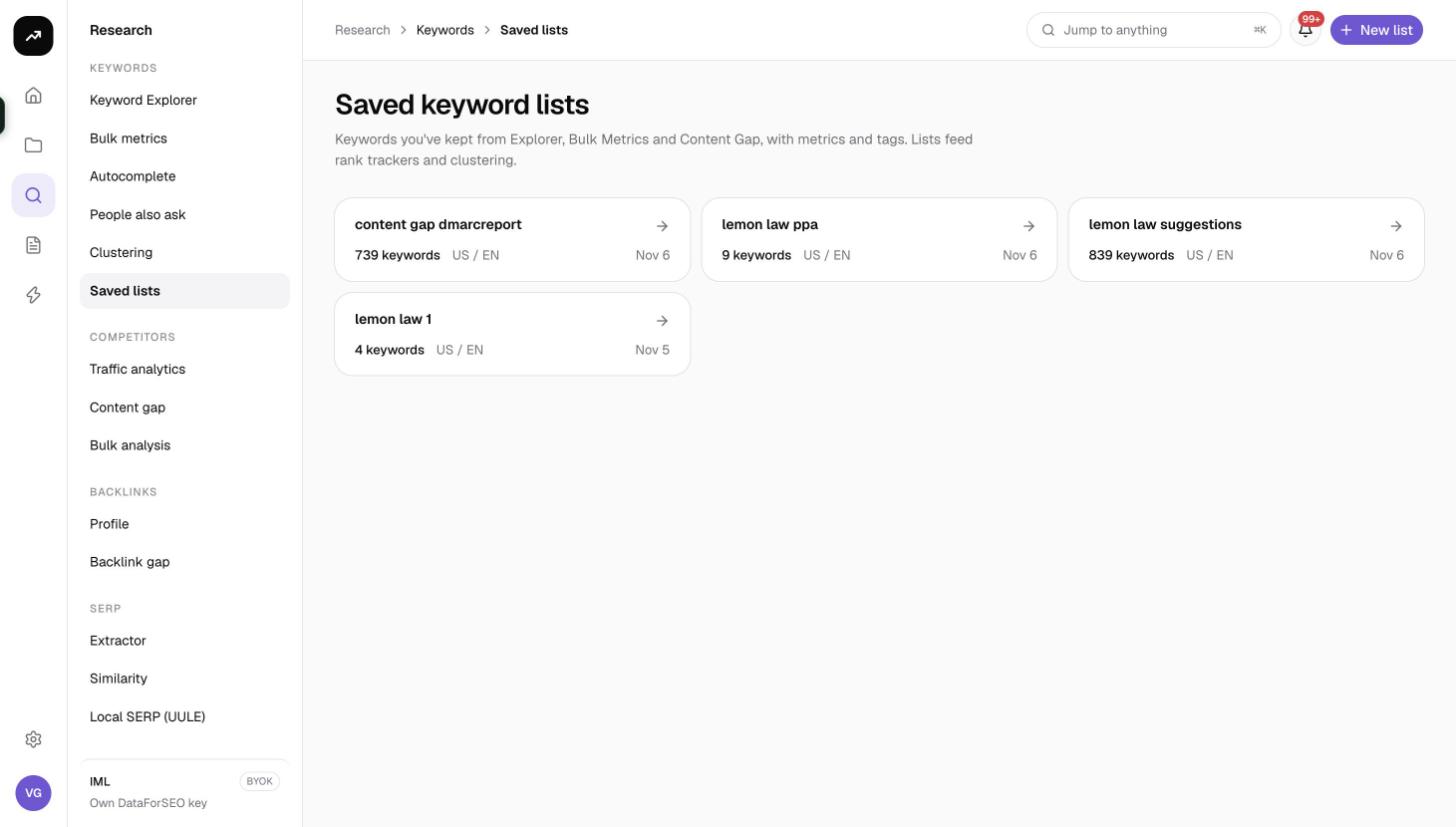
The index page describes it as "Keywords you've kept from Explorer, Bulk Metrics and Content Gap, with metrics and tags. Lists feed rank trackers and clustering."
Before you start
- Lists belong to the organization, so everyone in the workspace sees them. Optionally link a list to a project to keep client work together.
- A list has one Market and Language. Keep separate lists for separate markets so the metrics stay comparable.
- Viewers can look at lists but cannot create or change them.
- Refresh metrics is the only action that costs credits. It runs on up to 1,000 keywords per list.
Step by step
Create a list
- Go to Research, then Saved keyword lists (
/research/keywords/lists). - Click New list.
- Fill in Name, an optional Description, the Market and Language, and optionally a Project (optional).
- Click Create list. The new list appears as a card showing its keyword count, market and language, and the date it was last updated. Before you have any lists the page shows "No lists yet".
Save keywords from a tool
- Run any keyword tool and open the results.
- Click Save to list (or Save questions in People Also Ask, Save on a cluster row or Save standalone in SERP clustering).
- In the "Save to a keyword list" dialog, choose Existing list and pick one, or choose New list and type a New list name.
- Add Tags (optional), separated by commas, to label the batch.
- Confirm. The dialog notes that keywords already in the list are skipped, then reports "Saved N keywords." or "Saved N new keywords; M already in the list." with an Open list link.
Add keywords by hand
- Open a list and click Add keywords.
- Paste keywords one per line or comma-separated into the box, add Tags (optional) such as "brand, local", and confirm. The dialog reminds you to use Refresh metrics afterwards to fill in volume and CPC, because keywords added by hand arrive without metrics.
Reading a list
At the top of a list you see a summary such as "120 of 340 · 45,200 monthly searches · 310 with metrics": how many keywords match the current filter, their combined monthly volume, and how many have metrics at all.
Controls:
- Filter matches keyword text.
- All tags is a select that narrows the list to one tag.
- CSV downloads the visible keywords with the columns keyword, volume, kd, cpc, intent, tags, source and added (the date each keyword was saved).
- Refresh metrics fetches current volume and CPC for up to 1,000 keywords and writes them back. A Refreshing metrics badge shows while it runs.
- Add keywords opens the manual entry box.
- Select rows with the checkboxes to enable Add tags and Remove.
The table:
| Column | Meaning |
|---|---|
| Keyword | The keyword |
| Volume | Monthly searches, from the tool that saved it or the last refresh |
| KD | Keyword difficulty, where the source tool provided it |
| CPC | Average cost per click |
| Intent | Search intent, where known; questions saved from People Also Ask are informational |
| Tags | Your tags |
| Source | A short identifier for the tool the keyword came from, such as keywords.explorer, keywords.paa, competitors.content-gap or serp.extractor; blank for keywords added by hand |
Under List settings you can rename the list, change its description, or use Delete list to remove it.
Using lists elsewhere
- Rank trackers. When you create an organic rank tracker inside a project, you can start from a saved list instead of pasting keywords. See Create a rank tracker.
- Clustering. Export a list to CSV, or copy the keyword column, and paste it into SERP clustering; save each cluster back to a tagged list.
- Bulk metrics. Lists without volume (for example from Autocomplete) get their numbers from Refresh metrics, which runs the same lookup as Bulk keyword metrics.
Costs
Cost: Creating, editing, tagging and exporting lists is free. Refresh metrics costs 20 credits per list of up to 1,000 keywords, the same as a Bulk keyword metrics run, and repeats within 30 days are served from the cache.
Tips and gotchas
- Tags are your folders. One list per market with tags for topic, cluster, client page or priority is easier to maintain than dozens of tiny lists.
- Duplicates are skipped, not merged. If a keyword is already in the list, saving it again keeps the original row and its metrics; use Refresh metrics to update numbers.
- Refresh on a schedule. Volume moves seasonally. Refreshing a list before a quarterly review costs 20 credits and keeps the tracker setup honest.
- KD and intent do not refresh. Refresh metrics updates volume and CPC from Google Ads data only. Keyword difficulty and intent stay as they were when the keyword was saved.
- Only the first 1,000 keywords refresh. If a list grows beyond 1,000, split it by tag or market.