People Also Ask
Every question Google shows for your keywords, clicked open level by level, with the page Google uses to answer each one.
People Also Ask collects the question boxes Google shows under the results for your keywords. Because each question you click on Google reveals more questions, the tool can open them for you, several levels deep, and record which page Google used to answer each one. It is the fastest way to build an FAQ, a content outline or a list of question keywords for a topic.
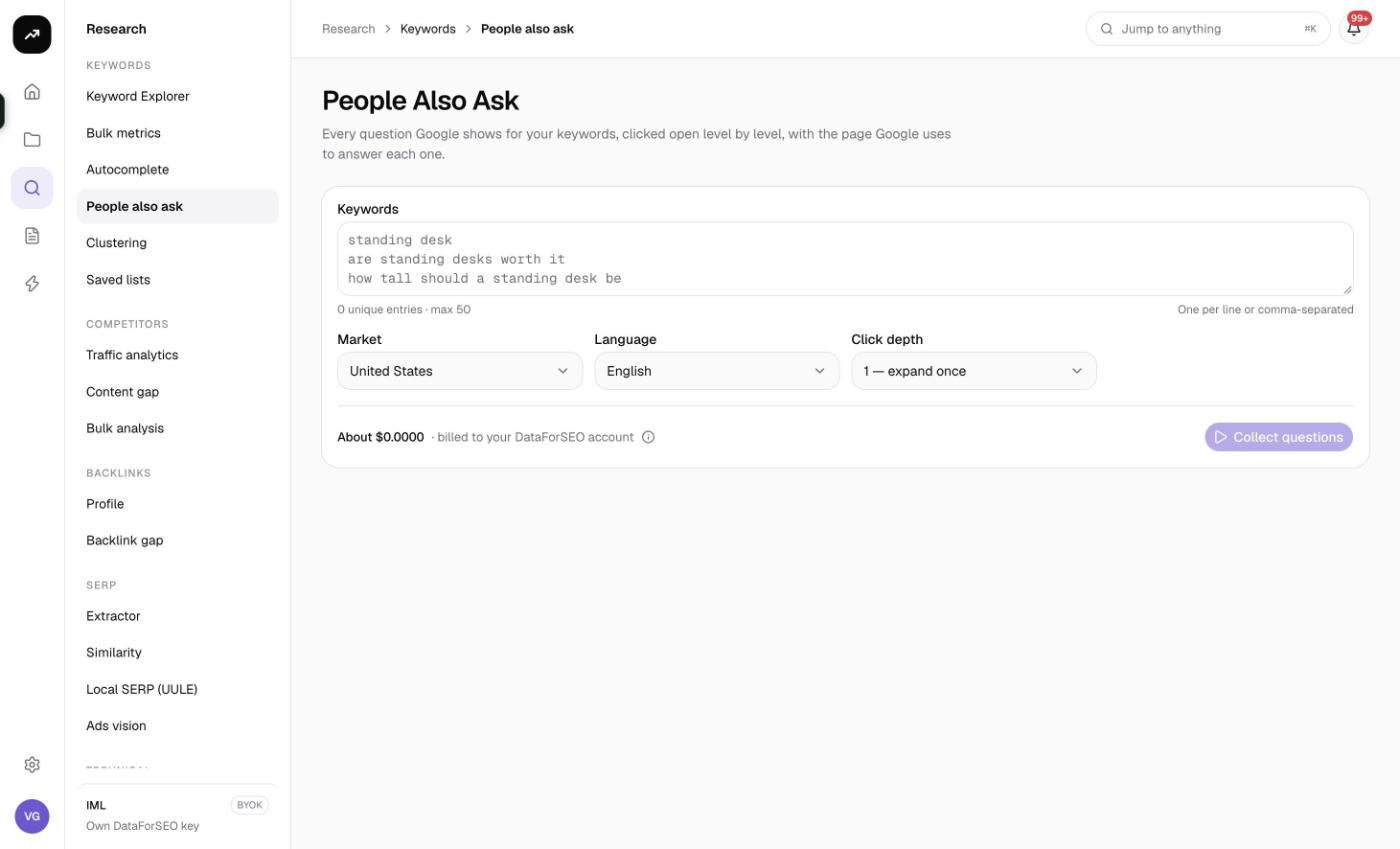
What it does
For every keyword you enter, SmarterSEO runs a live Google desktop search and reads the People also ask box. At click depth 0 it keeps only the questions shown by default. At higher depths it expands each question the way a user would, collecting the new questions that appear, up to four expansions deep. For each question it stores the level, the keyword and question that revealed it, and the answer source: the domain, page title and URL Google quoted. If Google answered with an AI Overview, that is recorded too.
Up to five keywords are processed at a time, and the status badge shows progress while the run is collecting.
Before you start
- 1 to 50 keywords per run, one per line.
- Market and Language default to United States and English. Set both; the language does not follow the market.
- Click depth controls how far each question tree is opened:
| Option | What you get |
|---|---|
| Default questions only (0) | The questions visible without clicking |
| 1 — expand once (default) | The default questions plus the ones revealed by opening each of them |
| 2 | Two expansions |
| 3 | Three expansions |
| 4 — expand four times | The deepest tree, four expansions |
- Role and credits. Viewers cannot run tools. The button is disabled if the estimate is more than the organization's balance.
- Not every keyword has a PAA box. Brand names and very short navigational queries often do not; those keywords return no questions and are counted in the "Keywords with a PAA box" tile.
Step by step
- Open Research and choose People Also Ask in the Keywords group (
/research/keywords/paa). - Paste your keywords into the Keywords box.
- Choose the Market and Language.
- Pick a Click depth. Depth 1 is a good default; go deeper for pillar pages and content hubs.
- Review the cost line and click Collect questions.
- The results page shows Queued, then Collecting with a progress label such as "12 of 50 SERPs", then Ready. The page updates automatically and its URL is the permanent link.
With no result open, the page lists up to eight Recent searches chips.
Reading the results
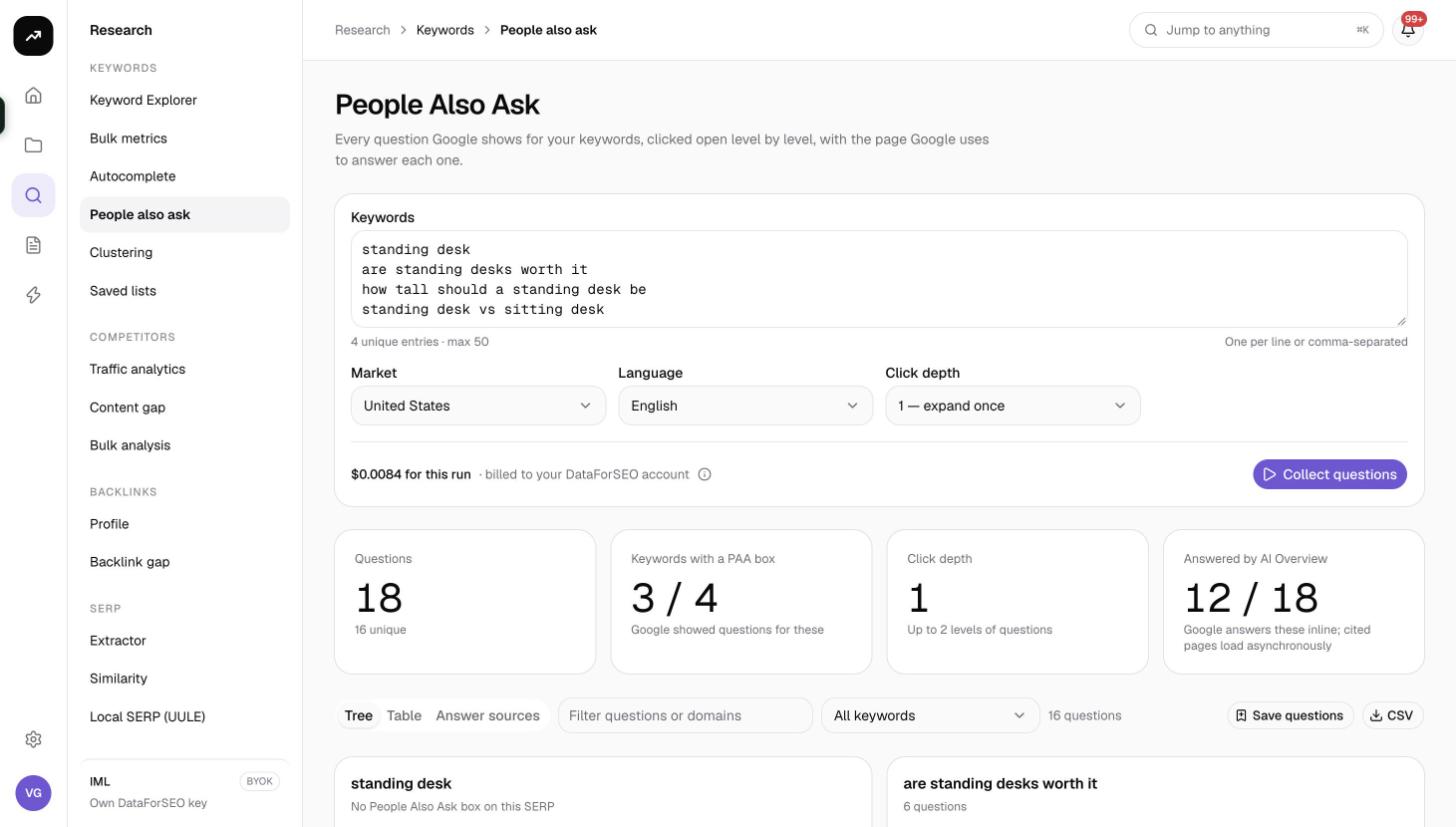
Tiles
- Questions: unique questions collected across all keywords and levels.
- Keywords with a PAA box: shown as X / Y, how many of your keywords had a People also ask box at all.
- Click depth: the depth you chose for this run.
- The fourth tile is either Answered by AI Overview, counting questions Google answered with an AI Overview, or Answer sources, counting the distinct domains Google quoted.
Tree tab
The default view. Each keyword is a collapsible section containing its default questions; nested underneath each question are the questions revealed by expanding it, level by level. Next to each question you see the answer source as a domain and page title link, and an AI Overview badge where Google used an AI Overview rather than a web page.
Table tab
A flat list that is easier to filter and export:
| Column | Meaning |
|---|---|
| Question | The question text |
| Level | 0 for default questions, 1 to 4 for revealed ones |
| Keyword | The seed keyword whose SERP produced it |
| Revealed by | The parent question that was expanded to reveal it, blank at level 0 |
| Answer source | The domain and page Google quotes as the answer |
Answer sources tab
Domains Google uses to answer is a bar list of the top 40 domains by how many questions they answer. This is a quick competitor check: these sites already hold the featured answers for your topic.
Filters, saving and export
- Filter questions or domains narrows every tab to questions or answer domains containing your text.
- The keyword select restricts the view to one seed keyword.
- Save questions saves the visible questions to a new or existing keyword list through the usual "Save to a keyword list" dialog, with optional tags. Questions are saved with the intent set to informational. Duplicates already in the list are skipped.
- CSV downloads the columns seed, question, parent, level, answer_domain, answer_url and answer_title.
- Tables paginate client side with 25, 50, 100 or 250 rows per page (default 100).
Costs
Cost: 0.6 credits per keyword for each level, that is 0.6 × (depth + 1). At the default depth of 1 a keyword costs 1.2 credits, so 50 keywords cost 60 credits; at depth 4 each keyword costs 3 credits. Search results are reused for 7 days, so repeating the same keywords within a week is free.
The pre-run figure is an estimate; the charge is the measured cost of the searches that actually ran. If a keyword's search fails, only what was fetched is billed.
Tips and gotchas
- Depth grows the tree fast. Each expansion can reveal several new questions. Depth 1 or 2 is usually enough for an article; use 3 or 4 when planning a whole topic cluster.
- Answer links can be opaque. Some answer URLs come back as Google redirect links rather than the page address. The tool identifies the site from the breadcrumb Google shows, so the domain is reliable even when the URL is not.
- AI Overview answers are only sources when Google cites a page. If an AI Overview answered a question without exposing the page it drew from, that question gets the AI Overview badge but no answer domain.
- A run fails only when every search fails. If a few keywords fail, the rest are kept and the failures are noted.
- Pair with Autocomplete. Bulk Autocomplete with the Questions and comparisons expansion finds questions people type; People Also Ask finds the ones Google chooses to show. Together they cover a topic well.
- Feed content outlines. Save questions to a list tagged by topic, then use them when building content outlines and FAQ sections.