Local SERP
See Google exactly as a searcher at a specific map coordinate or named place sees it, with the local pack, People also ask and organic results for up to 10 keywords.
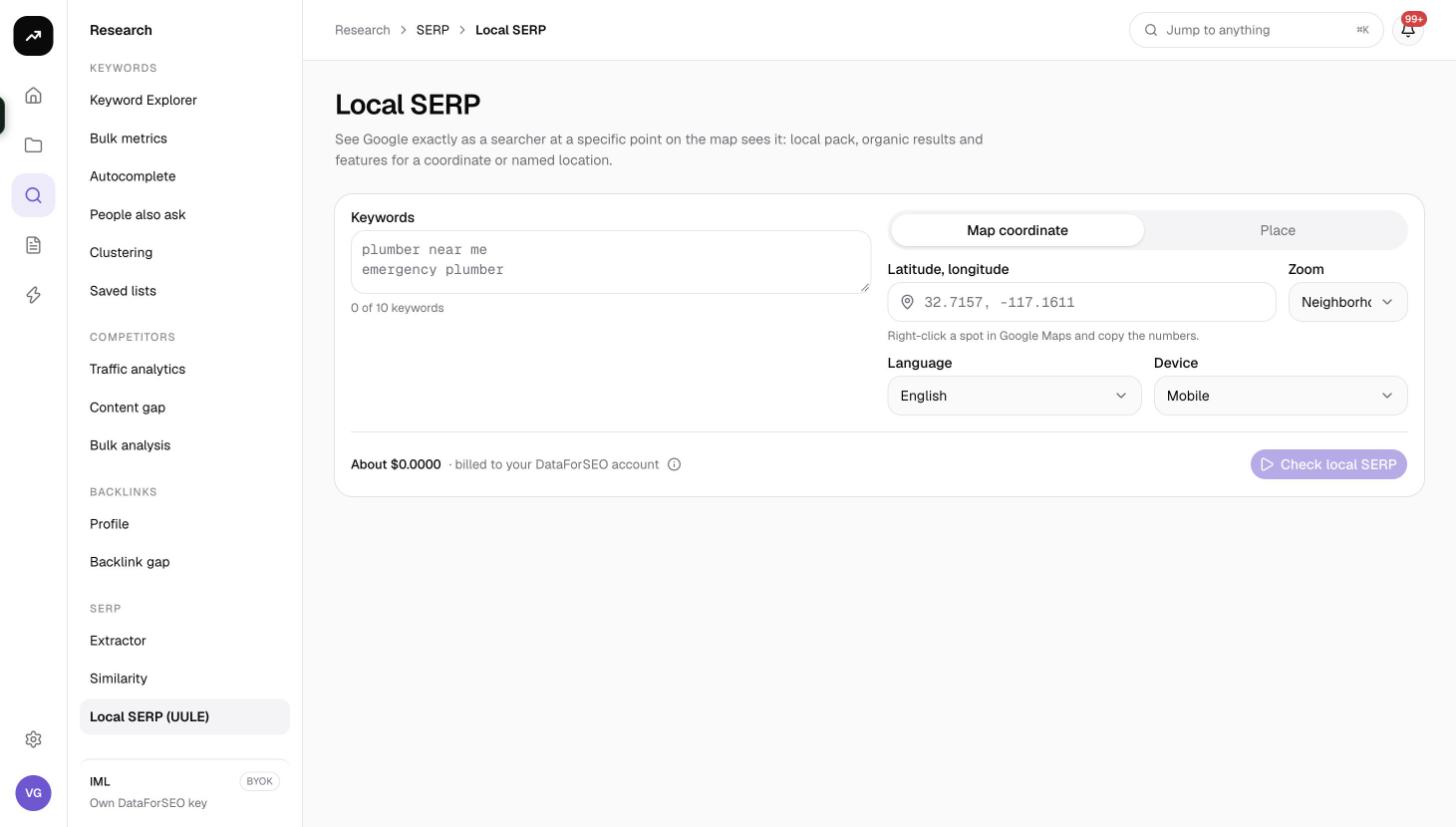
Local SERP shows the first page of Google for a searcher standing at a precise spot: a latitude and longitude at a chosen zoom level, or a named city, region or postal code. It is the quickest way to check what the local pack and organic results look like from a client's neighbourhood without driving there.
What it does
For each keyword you enter, SmarterSEO fetches one live, location-encoded Google SERP (the "UULE" mechanism Google uses to pin a search to a place) at depth 10 on the device you choose. The results come back as one card per keyword with the local pack, People also ask questions and the organic list, plus a link to open the same search in Google.
Keywords run three at a time. A SERP fetched in the last 24 hours for the same keyword, location, language and device is served from the cache for free.
Before you start
- You need a role that can run tools; viewers see Viewers can't run tools.
- Decide how to describe the location:
- Map coordinate when you want a specific point: right-click the spot in Google Maps, copy the two numbers, and pick a zoom level.
- Place when a named area is enough (a city, region or postal code).
- Keep the keyword list to the 10 that matter. This tool is for inspection, not bulk extraction; it has no CSV export and no save-to-list.
- Mobile is the default device because most local searches happen on phones. Switch to Desktop if that is what you need to see.
Step by step
- Open Research, then Local SERP in the SERP group, or go to
/research/serp/uule. - Enter up to 10 keywords in Keywords, one per line (the counter reads "N of 10 keywords"). Phrases such as "plumber near me" behave as they would for a real searcher at that spot.
- Choose the location mode:
- Map coordinate: type Latitude, longitude (for example
32.7157, -117.1611; the help text reminds you to "Right-click a spot in Google Maps and copy the numbers."). Then pick Zoom: City (10z), District (12z), Neighborhood (14z) (default), Street (16z) or Block (18z). A tighter zoom tells Google the searcher is in a smaller area. - Place: use the location search ("Search a city, region or postal code") and pick a result from the list.
- Map coordinate: type Latitude, longitude (for example
- Pick the Language (default English). There is no market picker: the location itself sets the country.
- Pick the Device: Mobile (default) or Desktop.
- Check the cost line ("N keywords × 0.6 credits. Balance N."), then click Check local SERP. The page shows Fetching local SERPs… and fills in automatically when the run is Ready.
Reading the results
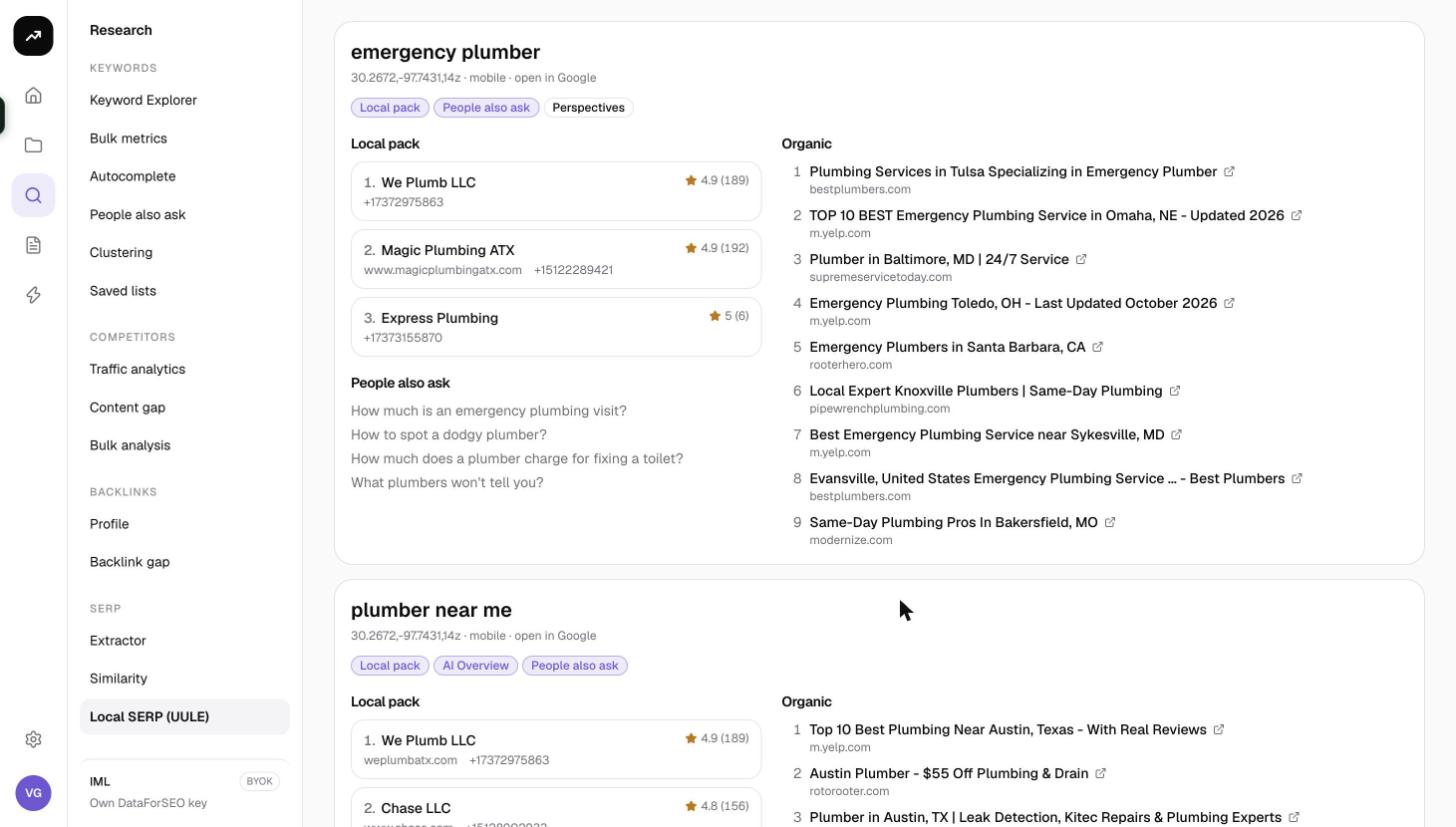
There are no tiles, tabs or tables on this tool. Each keyword gets its own card with:
- Header: the keyword, where the search was made (the coordinate and zoom, or the place name), the device, how many results came back, and an open in Google link that reproduces the search in your browser.
- Feature badges: every SERP feature detected on the page (local pack, People also ask, AI Overview, videos and so on), so you can see at a glance how busy the first page is.
- Local pack: the map-pack businesses in order, each with its star rating, review count, domain and phone number where Google shows them. Compare this with your client's Google Business Profile listing to see whether they are in the pack from that spot.
- People also ask: up to six questions Google shows for the query at that location.
- Organic: the organic results in order, with position, title, domain and URL.
If a keyword fails (for example an unrecognised place or a provider error), the card shows the error as a red line instead of results; the other keywords are unaffected.
Costs
Cost: 0.6 credits per keyword, one live top 10 SERP each. SERPs fetched in the last 24 hours for the same settings are free. The estimate before the run is pre-authorised; the real charge is the measured data cost. On a lifetime license this is about $0.002 per keyword on your DataForSEO account.
Tips and gotchas
- Unrecognised place names are not retried. If you see "That location name isn't recognised. Use the exact City,Region,Country form … or switch to a map coordinate.", type the place as
City,Region,Country(for exampleSan Diego,California,United States) or switch to Map coordinate, which always works. - Zoom changes results. Block (18z) and Street (16z) can produce a noticeably different local pack from City (10z) for the same coordinate. Use the zoom that matches how precisely you want to simulate the searcher.
- Results from the last 24 hours are cached. Changing the zoom, device, language or coordinate even slightly counts as a new request.
- This tool has no CSV export and no Save to list. For bulk extraction use SERP Extractor; for recurring local-pack rank checks across a whole area, set up a Local grid, which scans a map grid of points on a schedule.
- The results page is permanent (
?job=), so you can send the link to a colleague or come back to it from Reports.