Alerts and movers
Spot improved and declined keywords on the Movers tab, understand every alert type on the Alerts tab, receive the Ranking alerts email digest and annotate the chart with notes and Google updates.
A rank tracker produces a snapshot per run. The Movers tab compares two snapshots so you can see what rose and what fell, and the Alerts tab turns run-over-run changes into a log you can read, filter and receive by email. Notes let you mark Google updates and your own work on the position chart so that movements have context.
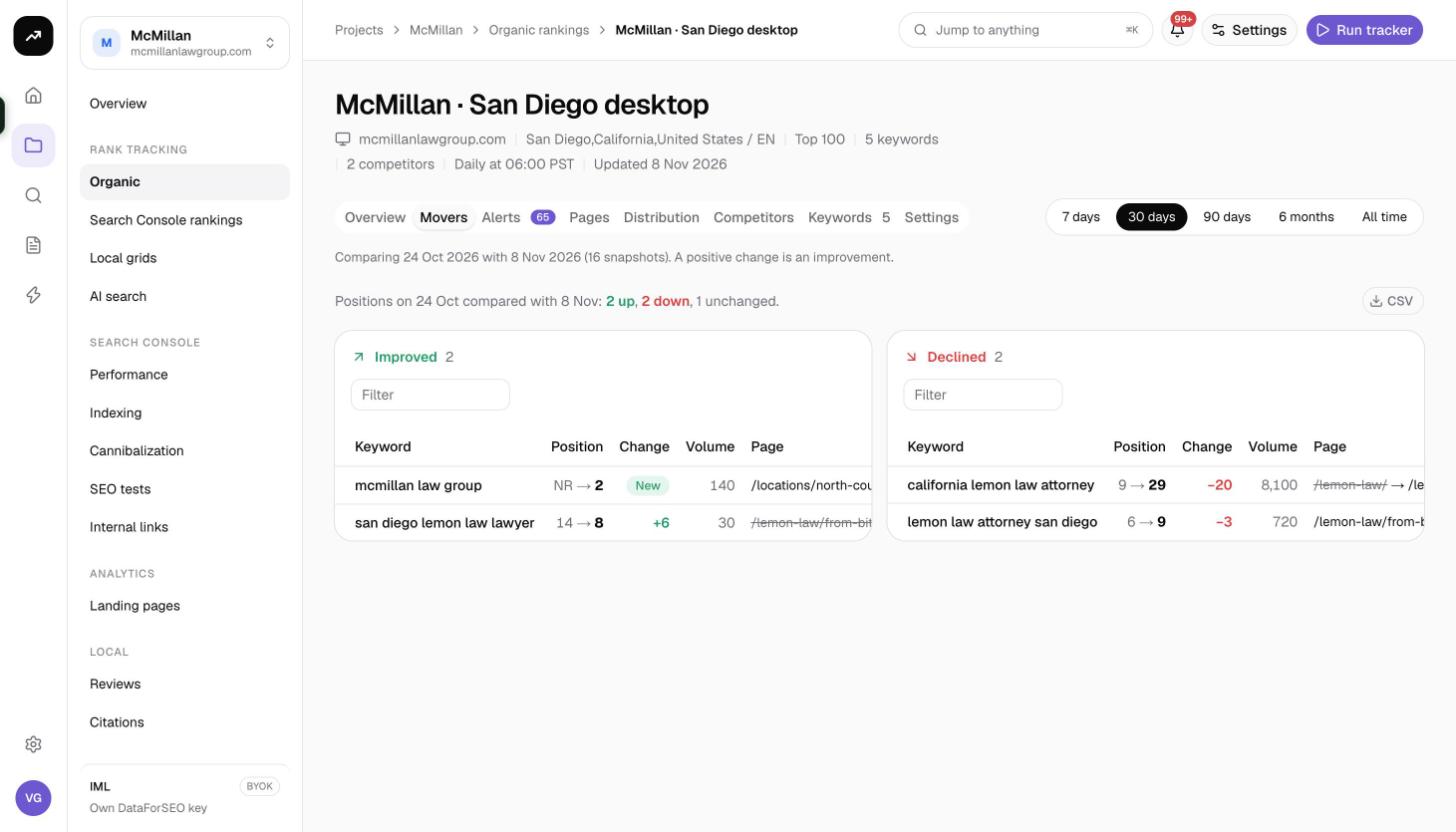
Movers
The Movers tab shows two tables, Improved and Declined, for the period selected at the top of the tracker (7 days, 30 days by default, 90 days, 6 months or All time). It compares the first and the last snapshot in that range for your domain.
Columns in both tables:
- Keyword
- Position: from → to
- Change: positions gained or lost; positive is an improvement
- Volume: monthly search volume, if you have refreshed metrics
- Page: the ranking URL; when Google switched pages it shows old → new
Each table has its own filter box, and each exports to CSV. Movers need at least two snapshots in the range; with only one day of data the tab shows "Needs two days".
The Movers tile on the Overview tab gives the same picture in one line (N up, N down) for the current period.
Tip: Switch the period to 7 days after a Google update, then to 90 days to check whether the change held.
Alerts
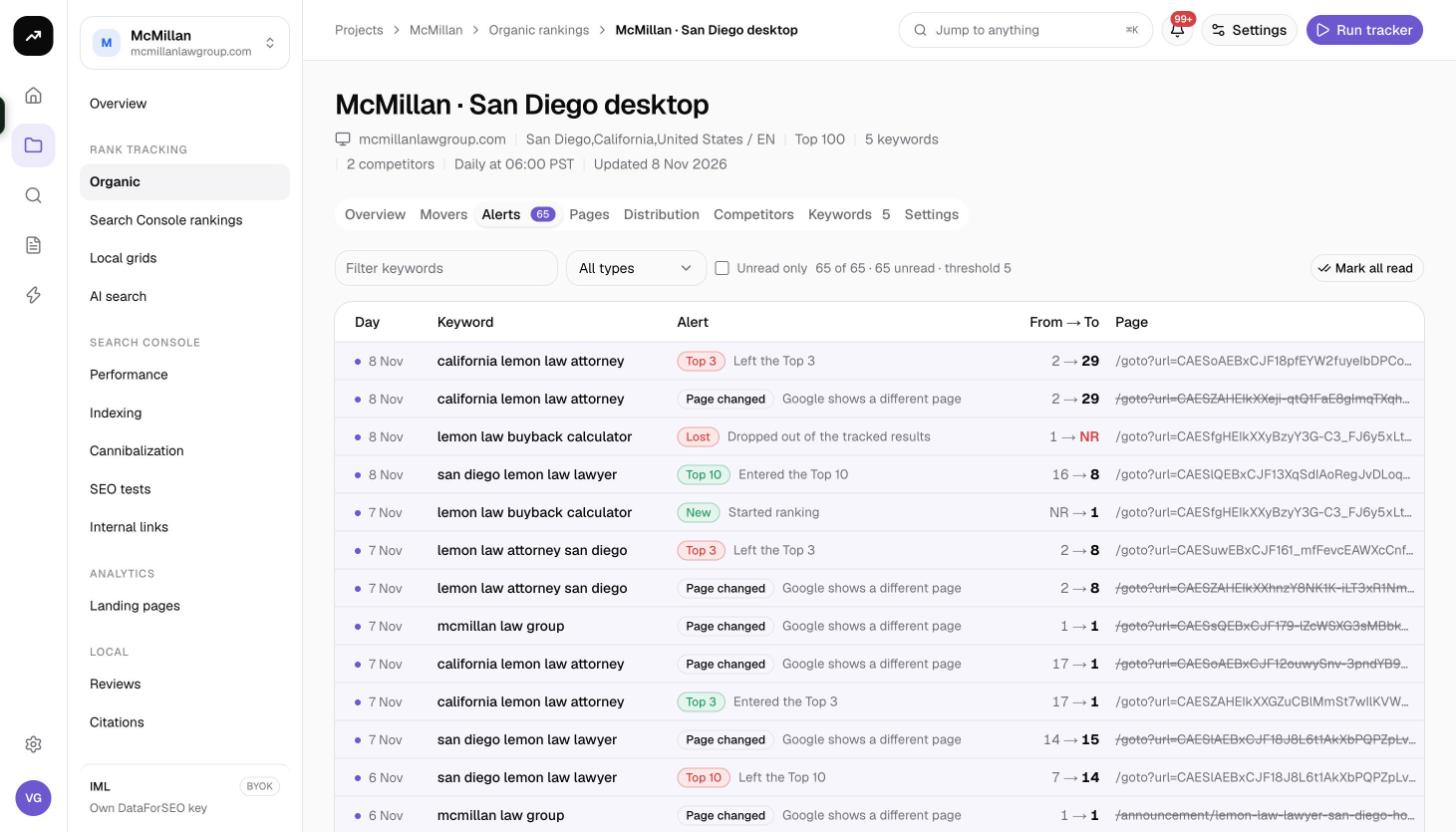
The Alerts tab records what changed between each run and the one before it, for your domain only. The tab label carries a badge with the unread count.
Columns: Day, Keyword, Alert, From → To and Page. Filters above the table narrow by keyword text, by alert type and with Unread only. Mark all read clears the badge.
Alert types
| Type | Fires when | Wording |
|---|---|---|
| Top 3 | The keyword enters or leaves positions 1 to 3 | "Entered the top 3" / "Left the top 3" |
| Top 10 | It enters or leaves positions 1 to 10 | "Entered the top 10" / "Left the top 10" |
| Top 20 | It enters or leaves positions 1 to 20 | "Entered the top 20" / "Left the top 20" |
| Moved | It moves up or down by at least the Move threshold | "Moved up" / "Moved down" |
| New | It ranks in this run after being unranked | "Started ranking" |
| Lost | It drops out of the tracked results | "Dropped out of the tracked results" |
| Page changed | Google shows a different page of your domain | "Google shows a different page" |
How alerts are chosen:
- Each keyword gets at most one ranking alert per run. If a move crosses more than one band, the tightest band wins, so a jump from 15 to 2 is reported as entering the top 3.
- A Page changed alert can fire in addition to the ranking alert.
- Only your target domain is compared; competitors do not generate alerts.
- The Move threshold (positions) is set on the Settings tab (1 to 100, default 5). Top 3, Top 10 and Top 20 crossings, new and lost rankings and page changes always alert regardless of the threshold.
- The Settings tab also has Compare every run with the previous one, on by default. Turn it off to stop recording alerts for a tracker without pausing it.
Notifications and the email digest
When a run finds alerts, three things happen:
- An in-app notification "{tracker}: N ranking alerts" appears, with the up and down counts. See Jobs, reports and notifications.
- Members who have the Ranking alerts email preference turned on receive a digest. The preference is per member under Settings and is described as "A digest after each tracker run that finds keywords crossing the top 3, 10 or 20, big moves, or a changed ranking page." The same preference also controls the low-balance and tracker-paused emails. See Email notifications.
- The rank-tracker.run automation event fires, so you can build an automation that posts the movers to a client or your team. See Automations.
Alerts are not shown on client share pages.
Notes on the chart
The Average position chart on the Overview tab plots your average position (unranked keywords count as depth plus one, so lower is better). Notes appear as markers on the chart, which makes it easy to connect a drop to a Google update or a site change.
To add one, click Add note and fill in:
- Date
- Type: Note or Google update. Google updates are drawn in red so they stand out from your own notes.
- Title
- Details (optional)
- Show on every tracker of this project, useful for a site migration or a core update that affects every market
System notes are added automatically when a tracker is created or when keywords are added, and cannot be deleted. Your own notes can be edited or removed.
Costs
Cost: Movers, alerts, notes and the email digest cost nothing. They are computed from the snapshots your scheduled checks already paid for.
Tips and gotchas
- A high threshold hides noise on long-tail keywords that bounce by a few positions every day; a low threshold is useful on a short list of head terms.
- Alerts are evaluated against the previous run, not the previous day. On a weekly schedule, "Moved up" means moved since last week.
- The digest goes to everyone with Ranking alerts on. Clients who need alerts should receive them through an automation instead of a seat.
- Use the project-wide note option for Google updates once; it saves adding the same marker to every tracker.