Schedules and settings
Change a tracker's name, competitors and alert threshold, set or pause the schedule, run checks on demand, understand per-keyword costs and recover from the low-balance warning and auto-pause.
The Settings tab of an organic rank tracker is where you rename it, manage competitors and alerts, control the schedule and delete the tracker. This article also explains how credits are charged per check and what happens when the balance runs low.
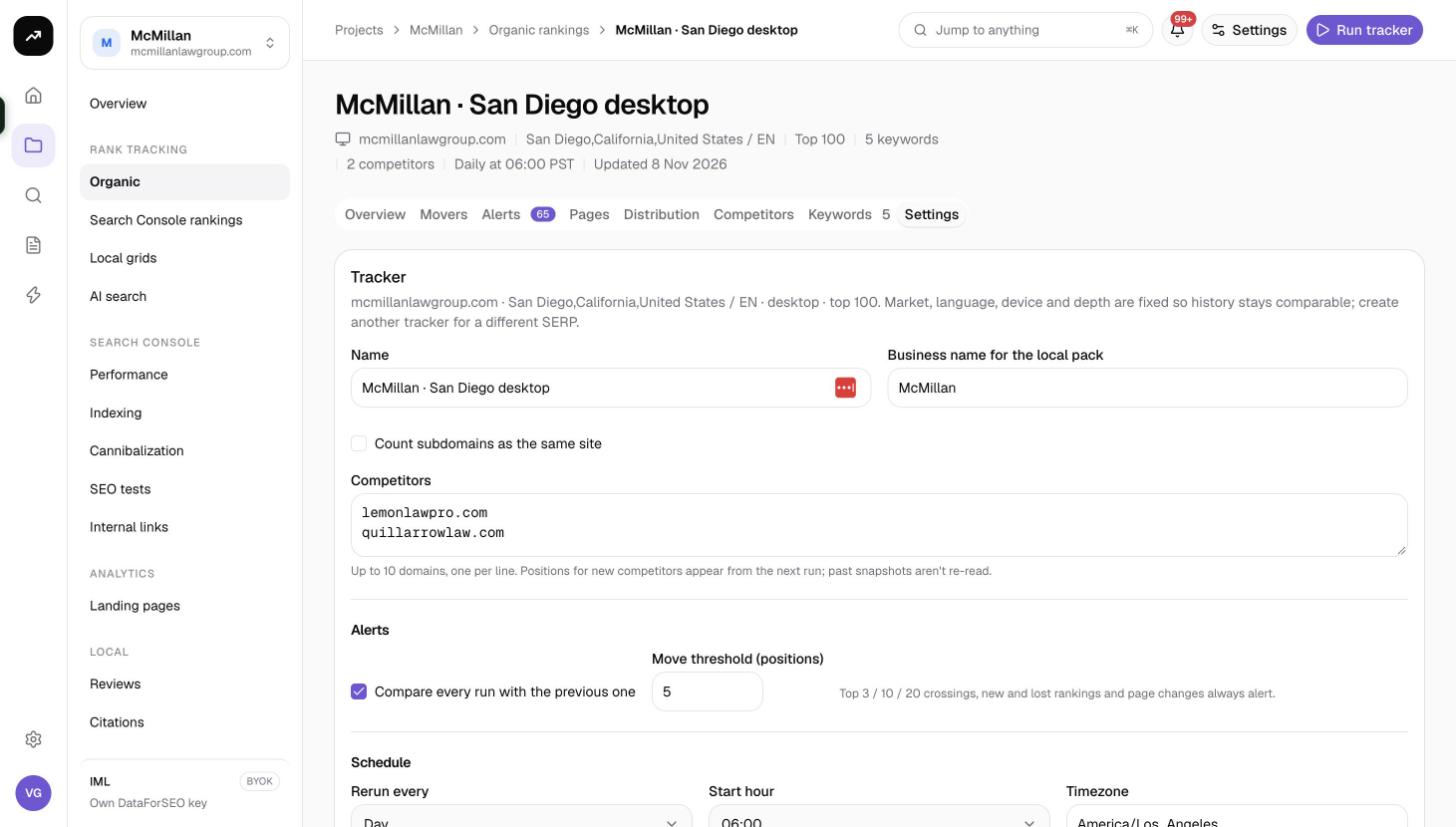
What you can and cannot change
The tab opens with a reminder: market, language, device and depth are fixed so history stays comparable; create another tracker for a different SERP. Everything else is editable.
| Field | Notes |
|---|---|
| Name | Shown in lists, notifications and emails. |
| Business name for the local pack | Matched against map-pack listings. Leave empty to skip pack tracking. |
| Count subdomains as the same site | When on, results on any subdomain count as your domain. |
| Competitors | Up to 10 domains. Positions for new competitors appear from the next run; past snapshots are not re-read. |
| Compare every run with the previous one | On by default. Controls whether alerts are recorded. |
| Move threshold (positions) | 1 to 100, default 5. A keyword that moves at least this many positions triggers a Moved alert. Top 3, 10 and 20 crossings, new and lost rankings and page changes always alert. |
| Schedule fields | See below. |
Save your changes with the button at the bottom of the card.
Schedule
The schedule fields match the create form:
- Rerun every: On demand only, Day, 2 days, 3 days, Week, 2 weeks or 30 days.
- Start hour: 00:00 to 23:00 in the tracker's timezone.
- Timezone: any IANA timezone; UTC, major US, European and Asia-Pacific zones are suggested.
- Run on any day of the week: untick to choose weekdays. A run due on another day waits for the next selected day.
Under the fields, the tab shows the cost per run, an estimate per month at this cadence and the next run time. Scheduled runs are queued at a lower priority than manual runs, so a manual Run tracker jumps the queue.
Snapshots are dated by the calendar day in the tracker's timezone. If you change the timezone, choose a start hour that keeps one snapshot per day.
Run tracker
Run tracker in the top bar starts a full check of every active keyword immediately. The button reads Running… while the job is queued or in progress. A manual run does not move the schedule; the next scheduled run still happens at its usual time. Manual runs work even while the schedule is paused.
Pause and resume
Pause schedule stops scheduled runs and keeps every snapshot: "Pausing keeps the data and stops scheduled runs." A paused tracker shows a Paused badge in lists and the message "The schedule is paused. Manual runs still work." Click Resume schedule to continue; the next run is calculated from the schedule fields.
Delete
Delete tracker removes the tracker, its keywords and every snapshot. You must type "delete" to confirm, and only owners and admins can do it. If you want to keep the history, pause instead, or archive keywords with Stop tracking on the Keywords tab.
Costs per check
Cost: Each check is billed per keyword according to the tracker's depth: 0.6 credits at Top 10, 1.0 at Top 20, 2.4 at Top 50 and 4.0 at Top 100. A partial run after adding keywords charges only the new keywords.
| Depth | Credits per keyword | 50 keywords, daily, per month (30 runs) |
|---|---|---|
| Top 10 | 0.6 | about 900 |
| Top 20 | 1.0 | about 1,500 |
| Top 50 | 2.4 | about 3,600 |
| Top 100 | 4.0 | about 6,000 |
The cost line shows an estimate before the run; the actual debit is the measured data cost, so it can be slightly lower or higher. On a lifetime license the line reads in dollars and is billed to your own data account instead of credits. Compare the figures with your plan's monthly credits under Plans and pricing.
Low balance, skipped runs and auto-pause
Scheduled checks are the one feature that spends credits without you pressing a button, so the app protects the balance in three stages.
1. Low-balance warning
Every few minutes the app estimates the next day of scheduled checks across your organization: tracked keywords multiplied by the price at the deepest tracker's depth. When your balance drops below that figure you receive one notification and one email, "Credits are running low": "{balance} credits left; the next day of scheduled checks needs about {need}. Runs that can't be covered are skipped." The warning is sent once and re-arms after the balance recovers above the need. It goes to every member with the Ranking alerts email preference on.
2. Skipped runs
When a scheduled run comes due and the balance cannot cover it, the run is skipped and you receive the notification "Scheduled run of "{name}" skipped", followed by the reason and "N more skipped run(s) and the tracker pauses." Nothing is charged for a skipped run. A Free workspace receives its monthly top-up first if it has not had it yet.
3. Auto-pause
After 3 skipped runs in a row the schedule pauses itself. The notification and email read ""{name}" paused after 3 skipped runs": "Top up or change plan, then resume the schedule from the tracker's Settings tab." The skip counter resets after a successful run or when you resume.
To recover:
- Add credits with a pack or a plan change under Settings › Billing & credits. See Running out of credits.
- Open the tracker, go to Settings and click Resume schedule.
- Optionally click Run tracker to fill the gap right away.
Note: Auto-pause and the low-balance warning apply only to organic rank trackers. Local grids, AI search trackers and review fetches send a "skipped" notification each time a run cannot be paid for but never pause themselves.
Tips and gotchas
- If your monthly credits are tight, lower the cadence before lowering the keyword count: every 2 days halves the bill with little loss of insight.
- Weekday filters are useful for B2B clients whose weekend movements are noise.
- Pausing a tracker does not free tracked-keyword cap; only archiving keywords or deleting the tracker does.
- Because the warning is organization-wide, one large Top 100 tracker can trigger it for everyone. Consider Top 20 for long-tail lists.