Search Console rank tracking
Track daily positions for up to 2,000 queries from your own Search Console history, for free and without SERP checks, with position bands, movers, flags and alerts.
A Search Console tracker follows daily positions for queries you choose, taken from the linked property's own Search Console history. It is free, makes no SERP checks, and because the history is already synced, new keywords arrive with their past already filled in. Use it alongside organic trackers for broad coverage of what Google is actually showing your site for.
Before you start
- The project needs a linked Search Console property. Without one the page shows "No Search Console property linked". See Connect Google.
- Positions come from Google's data, which is final two days after the fact. Expect the most recent day or two to be missing or thin.
- Search Console tracker keywords do not count toward your plan's tracked-keyword cap.
Create a tracker
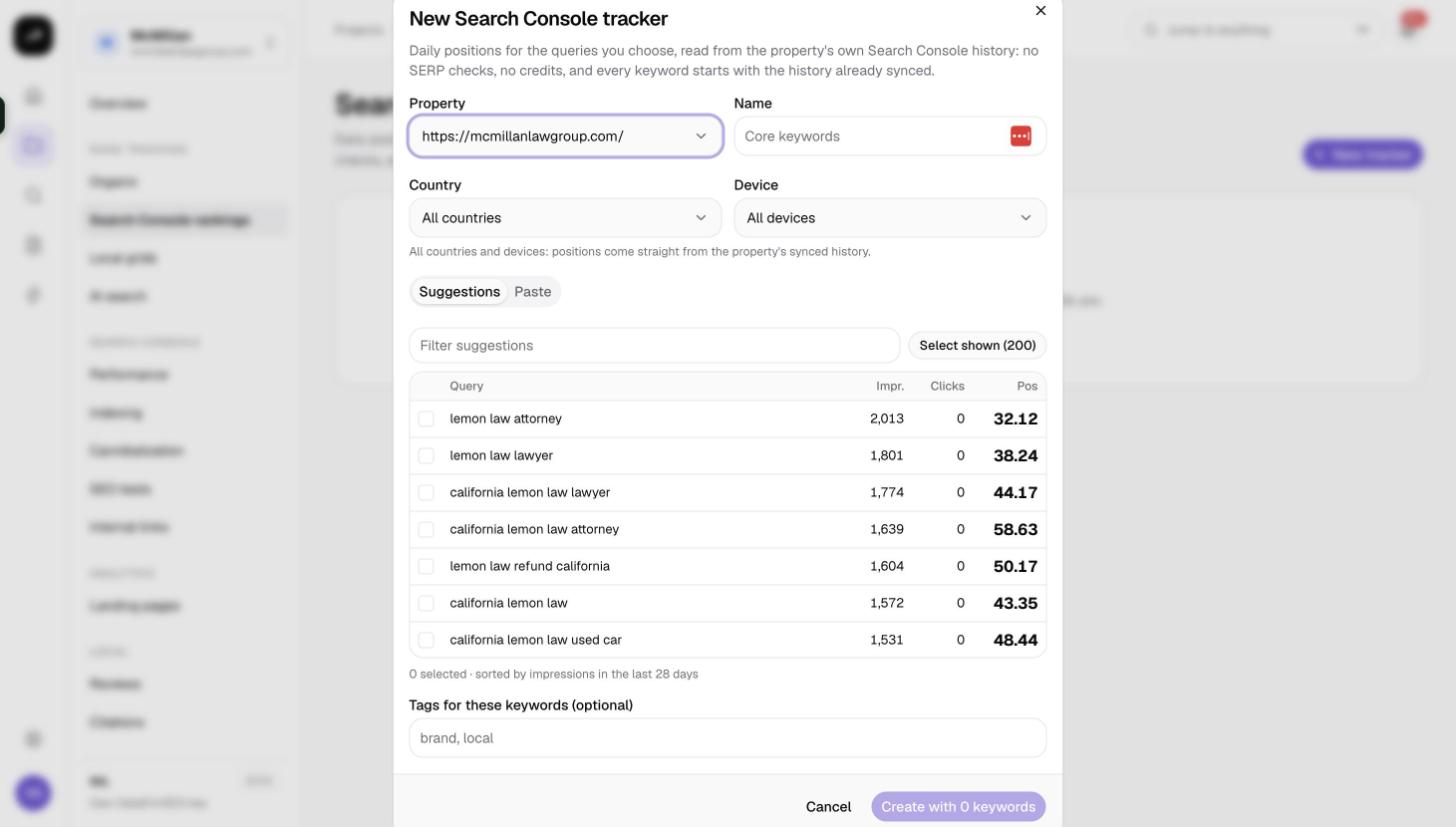
Open Rank tracking › Search Console rankings inside the project and click New Search Console tracker.
- Property: choose the linked property.
- Name: defaults to "{site} · all markets", or "{site} · {scope}" once you narrow the scope.
- Country and Device: the default is All countries · All devices. Countries are listed busiest first with their impressions; devices are Desktop, Mobile and Tablet. A scoped tracker fetches its own filtered history with one Search Console query per keyword, so it takes a few minutes to fill.
- Pick keywords on the Suggestions tab, which lists the property's top queries from the last 28 days that are not tracked yet (up to 200) with a Select shown button, or switch to the Paste tab and paste your own list.
- Tags for these keywords (optional).
- Click Create with N keywords.
Up to 2,000 keywords fit in one tracker.
When data arrives
An unscoped tracker reads the property's synced history and shows positions immediately. A scoped tracker shows "Fetching the {scope} history" and refreshes every 15 seconds until its filtered copy lands. From then on, positions update with the nightly Search Console sync.
Reading the tracker
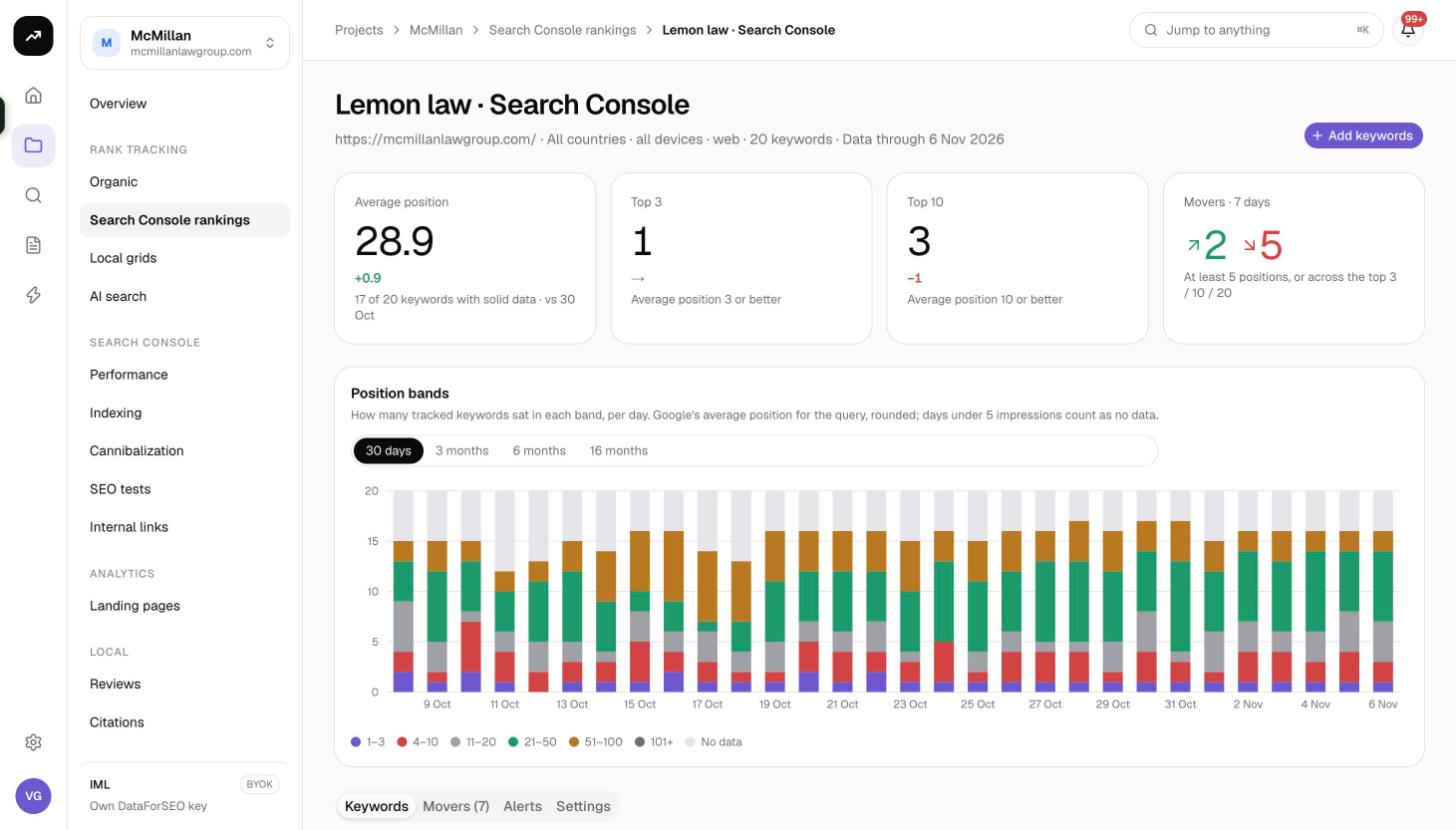
Tiles
- Average position, compared with 7 days ago.
- Top 3 and Top 10: keyword counts in those bands.
- Movers · 7 days: keywords that moved at least the move threshold or crossed the top 3, 10 or 20.
Position bands chart
Stacked daily bars show how many keywords sat in each band: 1–3, 4–10, 11–20, 21–50, 51–100, 101+ and No data. The range switches between 30 days, 3 months, 6 months and 16 months. Days where a keyword's impressions fell below the thin threshold count as No data, which keeps a handful of random impressions from swinging the picture.
Keywords tab
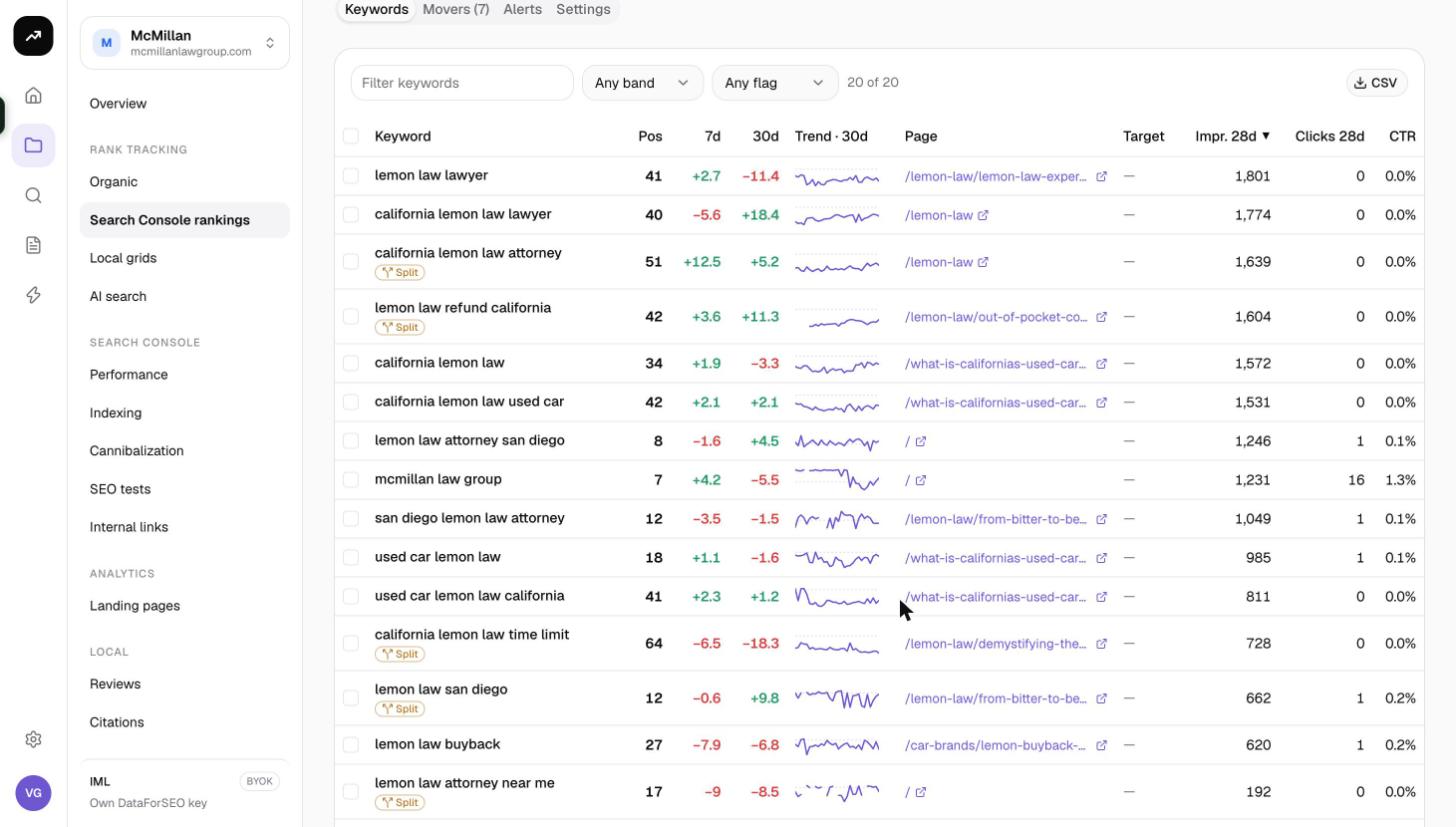
Columns:
- Keyword
- Pos: the latest solid position
- 7d and 30d: change over 7 and 30 days
- Trend · 30d: a sparkline
- Page: the page Google showed most
- Target: the page you want to rank, set by you
- Impr. 28d, Clicks 28d, CTR
Filters: tag, band (Any band, 1–3 through 101+, No position) and flag. Flags call out keywords that need attention:
- Low data: no day in the last week reached the thin threshold.
- Wrong page: Google shows a page other than your target.
- Split: no single page led on 60% or more of the last 28 solid days, a sign of cannibalization.
- Not seen: the query has not appeared recently.
Bulk actions: Tag, Set target and Archive. The table exports to CSV.
Keyword panel
Click a keyword to open its panel, with Position, the 7-day change and the Target page (with Set target). Choose a period of 30 days, 90 days, 6 months or 16 months, or follow Open in Performance to the full report. Tabs:
- Chart: Query average, Best page and Target page over time.
- Pages: every page that ranked, with Pos, Share, Impr., Clicks, First and Last seen and a Make target button.
- Days: Date (with a Thin badge), Position, Best page, Target, Page shown, Impr., Clicks, CTR.
- Countries & devices: live from Search Console for the last 28 days. Not shown on share pages.
Movers tab
Last 7 days or Last 28 days, counting solid days only. Improved and Declined tables carry "Entered top N" and "Left top N" badges.
Alerts tab
Columns: Day, Keyword, Alert, From → To, Page, with filters, Unread only, Check now and Mark all read.
Alert types: Top 3, Top 10, Top 20, Moved, Wrong page, Split, New, Lost and Clicks. To keep them trustworthy on noisy Search Console data, band crossings and moves must hold on two solid days, a move must also be at least 20% of the starting position, and the same alert is not repeated within its window (28 days for Split, 7 days for Clicks).
Alerts are evaluated after each nightly sync, or when you press Check now. When alerts are stored you receive the notification "{tracker}: N Search Console alerts", an email digest if enabled, and the gsc-tracker.alerts automation event. See Automations.
Settings tab
General:
- Name
- Scope (country and device). Changing it fetches the history again and alerts pause until it lands.
- Thin threshold: 0 to 1,000 impressions, default 5. Days with fewer impressions are faded and left out of averages and movers.
- Move threshold: 1 to 100 positions, default 5.
Alerts:
- Record alerts (on) and Email new alerts to members who opted in (on).
- Compare the latest day with: the day before, 3, 7 (default), 14 or 28 days earlier.
- Only keywords that were or are in: Any position, Top 3, Top 10 or Top 20.
- Checkboxes for each alert type.
- Clicks change (%): default 50, range 5 to 500, with Min clicks in a week (default 10).
- Only keywords tagged: restrict alerts to one tag.
Delete asks you to type the tracker name. The property's synced Search Console history stays.
Costs
Cost: Search Console trackers are free. Creating, syncing, alerts and exports cost no credits. Only organic rank trackers, which fetch live result pages, are charged.
Tips and gotchas
- Treat a Search Console tracker as the wide net and an organic tracker as the precise instrument: Search Console positions are impression-weighted averages across all the searches Google counted, while an organic check is one specific result page.
- Raise the thin threshold on high-traffic sites so that a few stray impressions do not count as a ranking day.
- The Split flag is the fastest route to cannibalization problems; follow up in Cannibalization.
- Client share pages show the Keywords and Movers tabs only.