Keywords, tags and competitors
Read the keyword table, add or stop tracking keywords, organise them with tags, manage up to 10 competitors and track the local pack by business name.
Every organic rank tracker is built around its keyword list. This article covers the keyword table on the Overview tab, the management tools on the Keywords tab, tags, competitors and the business name that drives local-pack tracking.
The keyword table
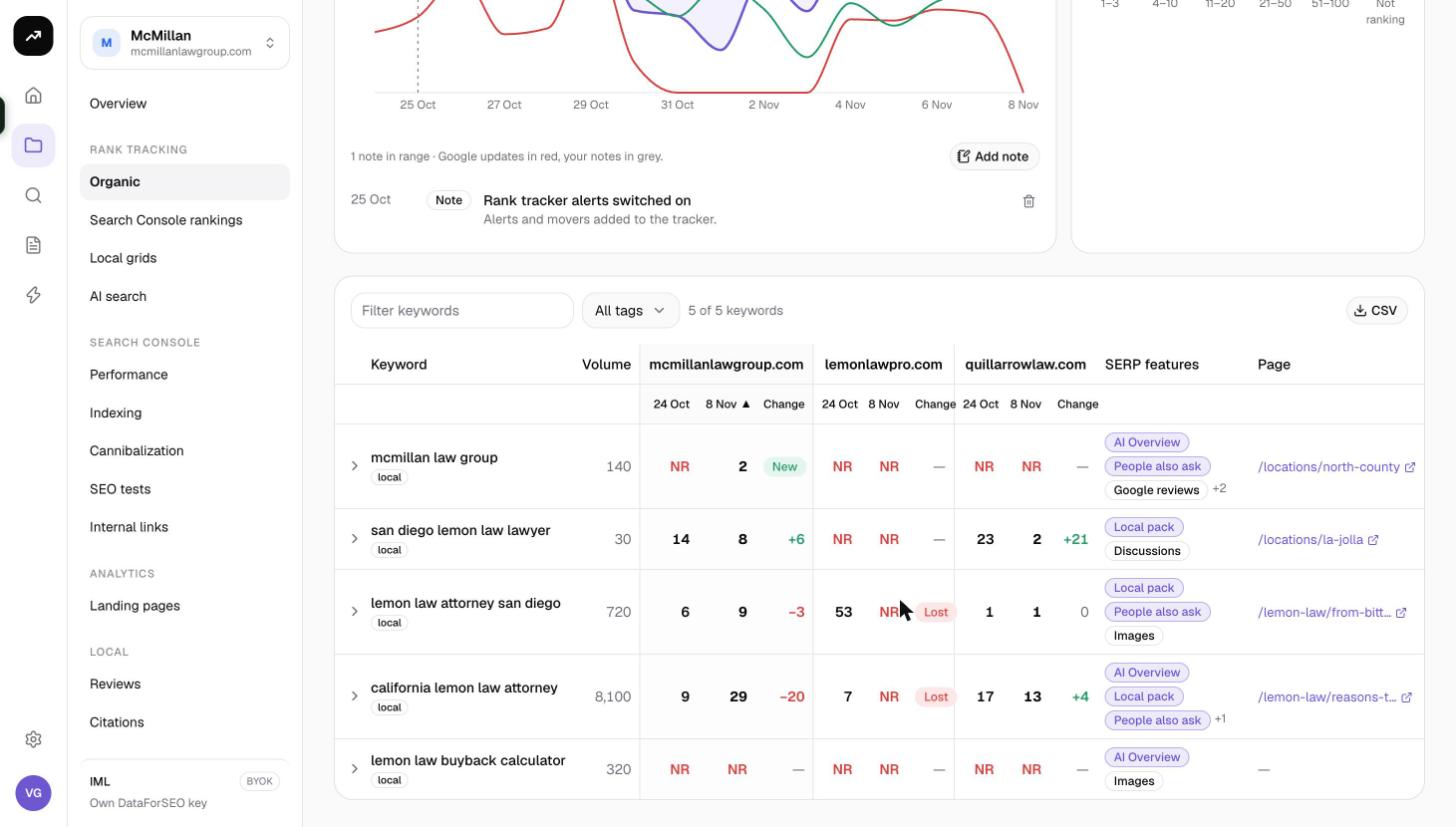
The keyword table sits at the bottom of the Overview tab and compares the first and last snapshot in the selected period (7 days, 30 days by default, 90 days, 6 months or All time). A line above the table explains the comparison: "Comparing {from} with {to} (N snapshots). A positive change is an improvement."
Columns, left to right:
- Keyword: the tracked term, with its tags underneath.
- Volume: monthly Google Ads search volume, filled by Refresh metrics (see below).
- One group per domain, your domain first and then each competitor: the position on the from date, the position on the to date, and Change. A pin badge next to a position means the domain also appeared in the local pack, and shows the pack position. When one side is unranked, Change reads New or Lost instead of a number.
- SERP features: the result types present on that keyword's page, such as featured snippets, People Also Ask, videos or the local pack.
- Page: the URL Google showed for your domain on the latest date.
Above the table:
- A filter box narrows the list by keyword text.
- The tag filter shows only keywords carrying a tag.
- CSV exports the current rows with the columns keyword, tags, volume, per-domain from, to and change, url, local_pack and serp_features.
Expanding a keyword
Click a row to open two tabs under it:
- History: a position chart per domain over the selected period, plus a strip showing your local-pack position day by day.
- SERP on {date}: the archived result page for that day, with feature badges, the result count, an Open on Google link, the local pack with ratings, the organic list (#, Result, Domain) and the People also ask questions. See Pages, distribution and the SERP archive.
Keywords added since the last check show Pending until their partial run completes; the tooltip reads "Added since the last check; positions will update shortly."
The Keywords tab
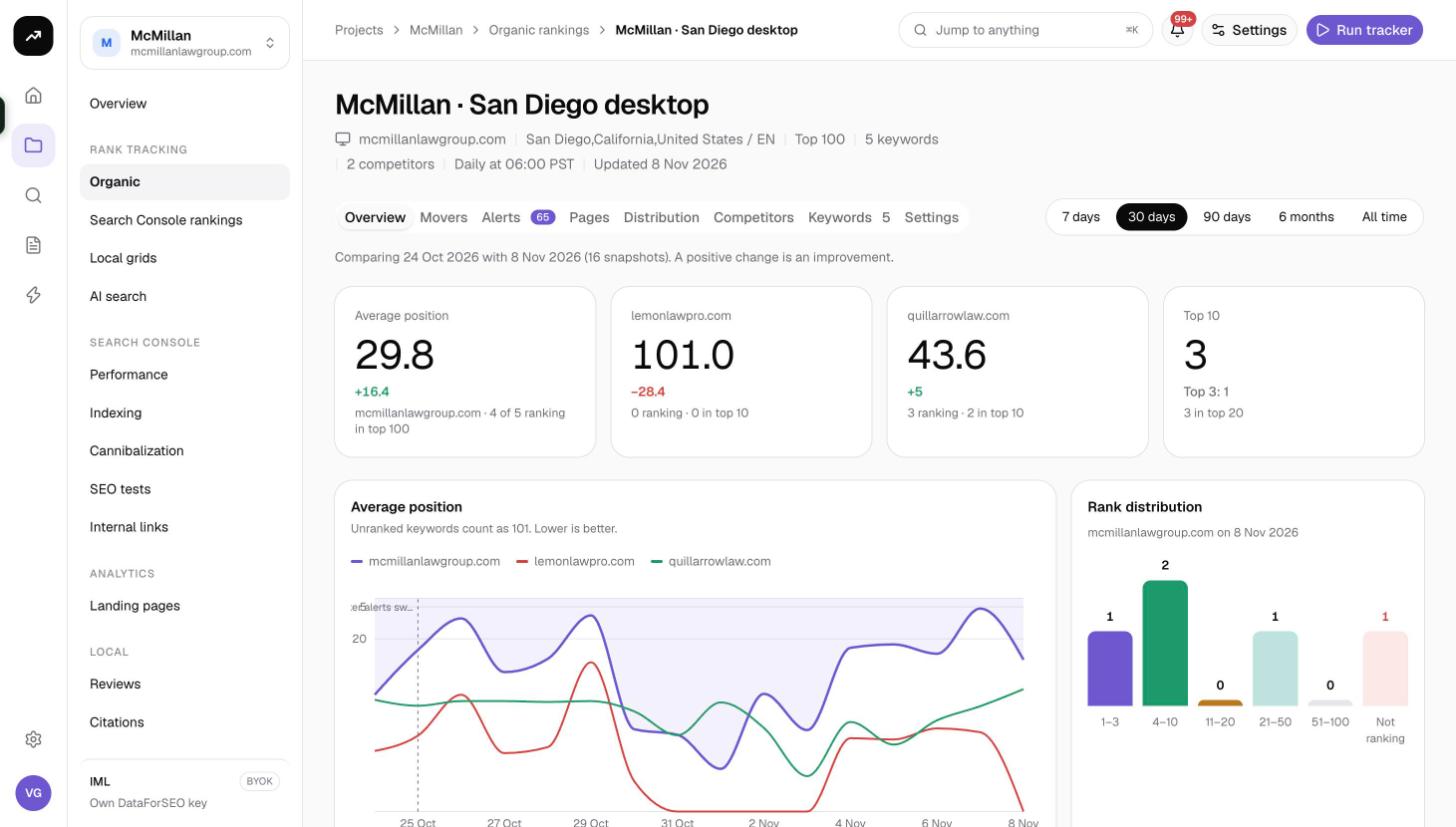
The Keywords tab (its label shows the keyword count) is where you manage the list rather than read positions.
Columns: Keyword, Tags, Position (or Pending), Volume, CPC and Added. A filter box and tag filter sit above the table.
Adding keywords
- Click Add keywords.
- Paste one keyword per line or a comma-separated list. The dialog notes that duplicates are skipped and that archived keywords come back with their history.
- Optionally add tags for the new keywords.
- Confirm. If the tracker has already run, only the new or restored keywords are checked right away; every other keyword keeps its last position, and a banner tells you the table will update shortly. If the tracker has never run, positions arrive with the first run.
Up to 5,000 keywords fit in one tracker, and the organization-wide tracked-keyword cap applies. The error "This would track N keywords; your plan allows N. Remove N keywords or archive another tracker." means you are over your plan's limit. Archived keywords and Search Console tracker keywords do not count.
Stopping and restoring keywords
Select rows and choose Stop tracking. The keyword is archived: it leaves the table and the cap, but its history is kept. Add the same keyword again later and it returns with that history intact.
Refresh metrics
Refresh metrics fetches Google Ads volume and CPC for the tracker's keywords in batches of up to 1,000, so the Volume and CPC columns fill in. You only need to run it when the list changes or when you want fresh volumes.
Cost: Each rank check is billed per keyword by depth. Refreshing metrics is a separate, small charge per batch of up to 1,000 keywords, shown before you confirm. See Credit costs by tool.
Tags
Tags are labels you attach to keywords to slice every tab by topic, landing page, product line or client priority.
- Up to 20 tags can be applied at once when creating a tracker or adding keywords.
- On the Keywords tab, select rows and use Add tags to append tags or Replace tags to overwrite them.
- The tag filter appears on the Overview and Keywords tabs, so you can read the average position, movers and pages for one tag at a time.
Tip: Tag by the page you expect to rank. The Pages tab then confirms whether Google agrees, and the Page changed alert tells you when it stops agreeing.
Competitors
A tracker compares your domain with up to 10 competitor domains on the very same result pages, so there is no extra fetch for competitors; their positions come out of the same check.
- Add competitors when creating the tracker, in Settings › Competitors, or from the Competitors tab by clicking Track next to a domain that already ranks in the top 20 of your keywords.
- Positions for new competitors appear from the next run. Past snapshots are not re-read, so a competitor added today has no history for yesterday.
- The Overview shows one tile per competitor (up to four tiles in total, including yours), and the keyword table adds a from/to/change group per competitor.
- Competitor local-pack positions are matched by domain; yours are matched by business name.
Removing a competitor in Settings stops recording it from the next run.
Business name for the local pack
The Business name for the local pack field (set at creation or under Settings) is matched against map-pack listings on every tracked SERP. When it matches, your pack position appears as a pin badge next to the organic position, in the Local pack tile on the Overview and in the local-pack strip of the keyword history.
- It defaults to the project's first brand name.
- Leave it empty to skip pack tracking entirely.
- Use the exact listing name as it appears on Google Maps; a shorter brand name may miss listings that carry a location suffix.
Tips and gotchas
- Add keywords in batches by tag so that partial runs stay cheap and the system notes on the chart stay meaningful.
- The Volume column is empty until you run Refresh metrics; it does not fill automatically.
- Deleting a tracker removes its keywords and every snapshot. Archiving keywords with Stop tracking is the reversible option.