Connect Google Search Console and GA4
Link one Google account to your organization, then attach a Search Console property and a GA4 property to each project for free daily syncs kept beyond 16 months.
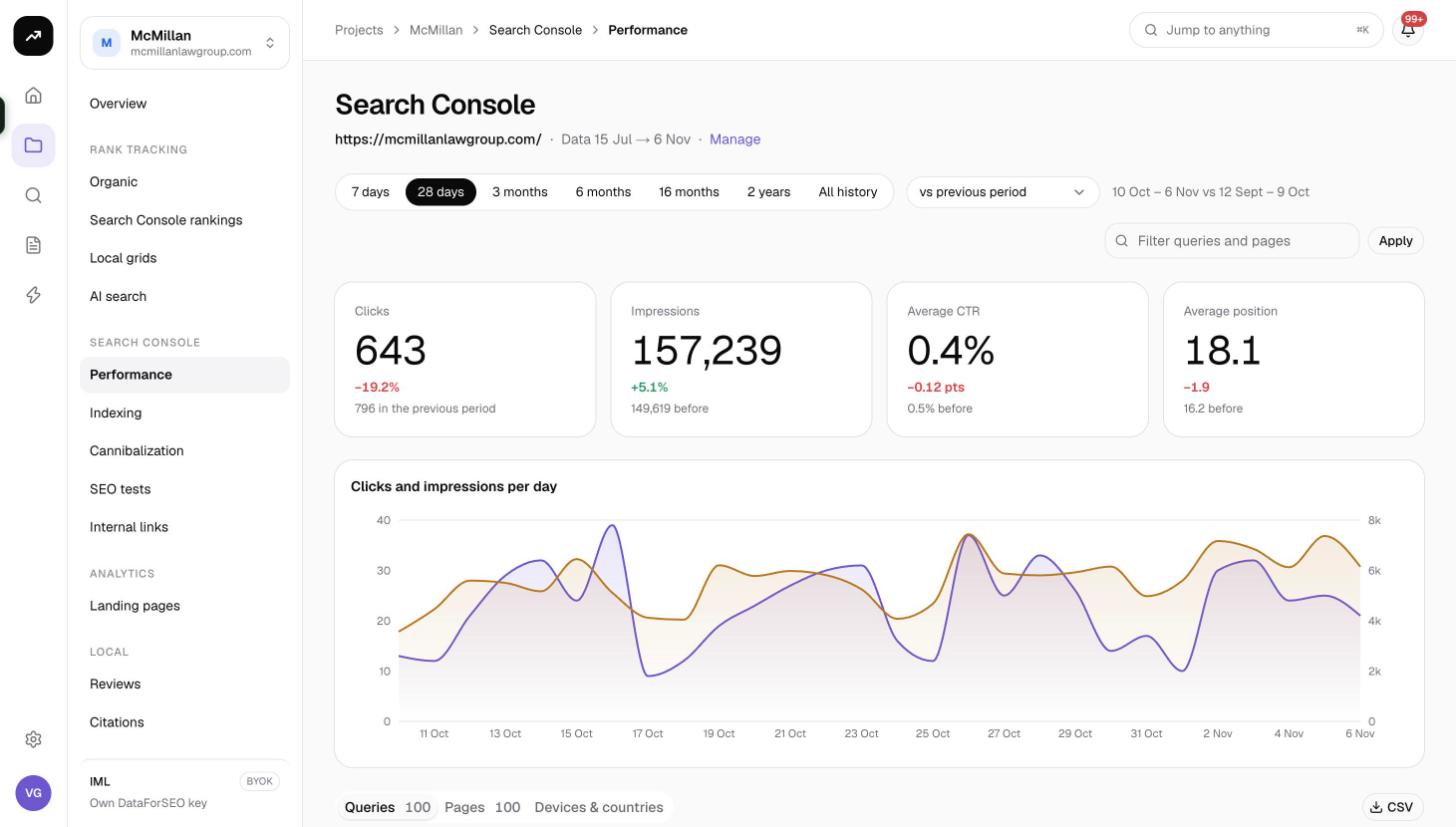
SmarterSEO reads your Search Console and Google Analytics 4 data every day and keeps it for as long as you like, so the Performance, Indexing, Cannibalization, Internal links, SEO tests and Landing pages views all work from your own numbers. Connecting takes two steps: one Google account for the whole organization, then a property per project.
What the connection does
- One Google account per organization. You connect it once under Settings › Connections › Google. Every project in the organization can then pick from the properties that account can see.
- Read-only access. The connection page says it plainly: "Read-only access: Search Console and Analytics data. SmarterSEO never changes anything in your Google account." The requested scopes are Search Console (read), Analytics (read), your email address and OpenID sign-in.
- Properties are linked per project. A project links one Search Console property and, optionally, one GA4 property from its own Connections page.
- Daily syncs, kept beyond Google's window. Search Console syncs every day at 03:00 UTC, GA4 at 04:00 UTC. Google keeps 16 months of Search Console history; SmarterSEO keeps the daily detail for 16 months by default and can keep it for 2, 3 or 5 years.
Cost: Free. Nothing about Search Console or GA4 uses credits, and on a lifetime license nothing is billed to your own data account either.
Before you start
- You need the Owner or Admin role in the organization to connect Google and to link or remove properties.
- The Google account you connect must have access to the Search Console properties and GA4 properties you want to use. The dialog labels each Search Console property with your permission level (Owner, Full or Restricted).
- Decide whether to use a domain property or a URL-prefix property. The hint in the dialog explains the difference: "Domain properties (sc-domain:) cover every subdomain and protocol; URL-prefix properties cover one."
Step 1: connect the Google account
- Open Settings › Connections › Google.
- Click Connect Google account and choose the account in Google's consent screen. Allow all the requested permissions.
- Back in SmarterSEO the page lists the Search Console properties and Google Analytics properties that account can see.
If Google returns you to the page with an error, the two messages you may see are:
- "Google didn't return a long-lived token. Remove SmarterSEO from your Google account's third-party access and connect again." Open your Google account's third-party access settings, remove SmarterSEO, then click Connect Google account again.
- "Some permissions were declined (…); reconnect and allow them." Click Reconnect and tick every permission.
The same page also offers Reconnect (swap or refresh the account) and Disconnect.
Step 2: link a Search Console property to a project
- Open the project and go to its Connections page. The header reminds you how the two levels fit together: "Data providers are shared by every project in the organization. Google properties are linked per project."
- In the Google Search Console card, click Add property. If you have not connected Google yet, the card shows Connect Google in organization settings instead.
- In Link a Search Console property, pick the property. Each one is labelled Owner, Full or Restricted.
- Choose the Initial backfill: Last 3 months, Last 6 months, Last 12 months or Everything Google keeps (16 months). The default is the full 16 months.
- Click Link and sync.
The first sync is a full backfill of daily queries, pages, countries and devices. Large backfills continue in follow-up jobs, so a big property can take a while to fill in; you receive an email when it finishes if Reports and inspections is turned on in your notification preferences (see Email notifications).
What each linked property shows
Once linked, the property row reads "Data {first} → {last} · last sync … · next …" so you can see the range you hold and when the next pull is due. The controls are:
| Control | What it does |
|---|---|
| Daily detail for | How long to keep day-by-day rows per query and page: 16 months (default), 2 years, 3 years or 5 years. Days older than this are rolled up into weekly totals per query and page. Daily totals by country and device are kept forever. |
| Sync now | Queues an immediate sync instead of waiting for 03:00 UTC. |
| Re-pull all history | Starts the full backfill again. Useful after Google has corrected data or if you changed the backfill window. |
| Pause / Resume | Stops or restarts the nightly sync. The row shows a Paused badge. |
| Remove | Owners and admins only. Unlinks the property and deletes every row synced from it. The row shows Removing… while that happens. |
A Needs attention badge means the last sync failed; the most common reason is a revoked Google connection (see below).
Step 3: link a GA4 property
- In the project's Connections page, find the Google Analytics 4 card: "Daily landing-page sessions, engagement and key events by channel, next to Search Console clicks."
- Click Add property and choose the GA4 property.
- Pick the Initial backfill: 3, 6, 12 (default) or 24 months.
- Click Link and sync.
The GA4 row has the same Sync now, Re-pull all history, Pause/Resume and Remove controls as Search Console, without the retention setting. GA4 data powers Landing pages.
How the nightly sync works
- Search Console data is final about two days after the fact, so each nightly sync re-pulls the last 7 days ending 2 days ago and overwrites what it fetched before.
- After each Search Console sync, the alerts of any Search Console rank trackers in the project are evaluated.
- Syncs run as background jobs. You can watch them on the Jobs page; see Jobs, reports and notifications.
When Google revokes access
If the connected Google account's permission is withdrawn (someone removed SmarterSEO from the account, the password changed with a forced sign-out, or the account was deleted), the Search Console and Analytics pages show a banner: "Google has stopped accepting SmarterSEO's access to … Syncs, inspections and reports … are paused until the account is reconnected." Click Reconnect Google and sign in again. Linked properties and synced history are kept.
Tips and gotchas
Tip: Prefer a domain property (sc-domain:) when you have one. It covers http and https, www and non-www and every subdomain, so one link is enough for the whole site.
Note: There is no Google Business Profile connection. Reviews and local grids find your business through a Maps lookup, not through this Google account.
- The property picker in the Performance, Indexing and other Search Console pages switches between the properties linked to that project. Link only what belongs to the project; another project can link the same property separately.
- The project dashboard's Search Console tile does not yet reflect the linked property; use the Connections page to check the sync state.
- Only one Google account can be connected per organization. If your clients' properties sit under different Google accounts, add the SmarterSEO account as a user on each property in Search Console and GA4.